Overview
The Create Item step in the Flow Builder creates a new Email or SMS conversation with designated external recipients.
For example, when a customer is communicating with a Chatbot or AI Chatbot through Chat or WhatsApp and the process needs to continue by email or SMS, the Create Item step can open a new conversation in the selected channel. The communication can be sent from the customer to an agent or from the organization to the customer.
This enables a flow to continue the customer interaction through another communication channel when needed.
Note:
- To create an Email conversation, the customer's pane must include an email address. To create an SMS conversation, the customer's pane must include a phone number.
- The newly created conversation does not require an associated automation flow. It can be routed to an available human agent according to the channel's configuration.
Creating a New Create Item Step
-
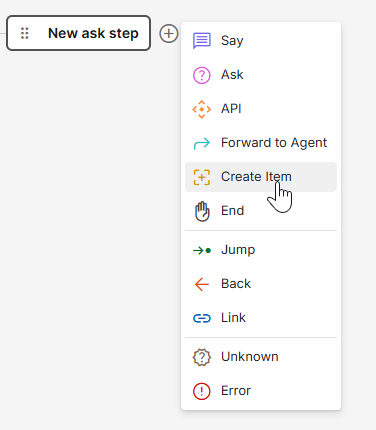
In the Flow Builder of the relevant Chatbot or AI Chatbot, click the + icon next to or below the desired step, and select Create Item.
-
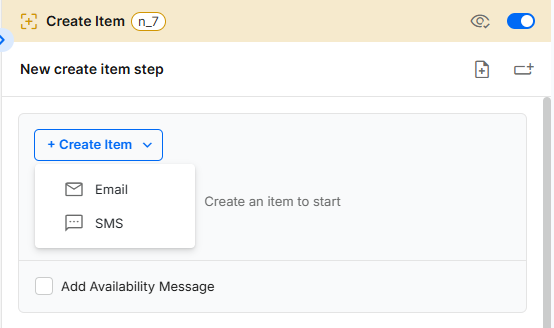
Click + Create Item and select the communication type: Email or SMS.
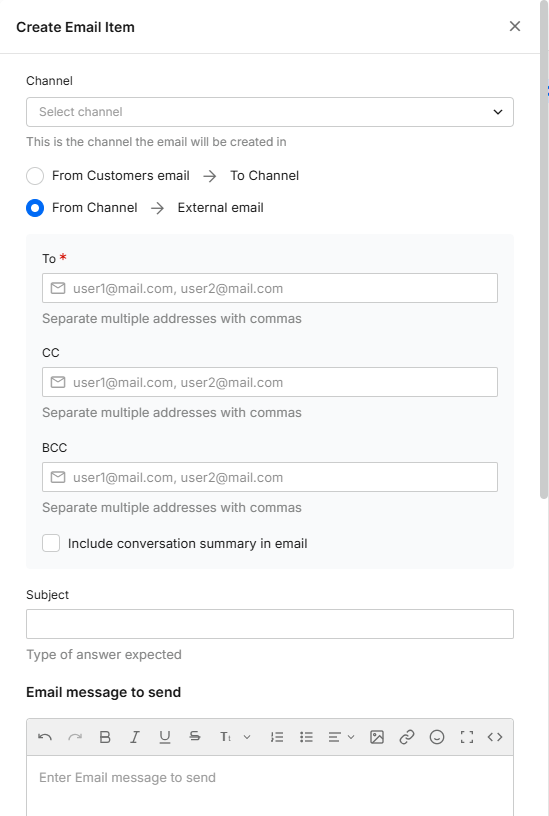
For Email:
-
Select the channel for the created Email
-
Select the direction of the communication:
- A new conversation originating from the customer’s email, as it appears in the Customer Pane, to the selected channel.
- A new conversation originating from the selected channel to the customer’s email.
-
For outgoing email, configure the email details:
- Recipient, CC, and Bcc – Enter the relevant email addresses. You can add multiple addresses in each field, separated by commas.
- Email Subject / Type of Answer Expected – Enter a subject that describes the content expected in the email, for example, Accident Report when the recipient is expected to attach an accident report.
- Email Conversation Summary (optional) – Check the box to add a summary of the conversation to provide context in the email. Note: This is an Email-specific feature and is separate from the AI Conversation Summary feature.
-
Enter the message that will be sent out to the customer or agent (depending on the selected direction)
-
Enter the message to display to the customer in the current conversation. For example: An email was just sent to you. Please attach the document we discussed.
-
Add media (optional)
-
Click Save.
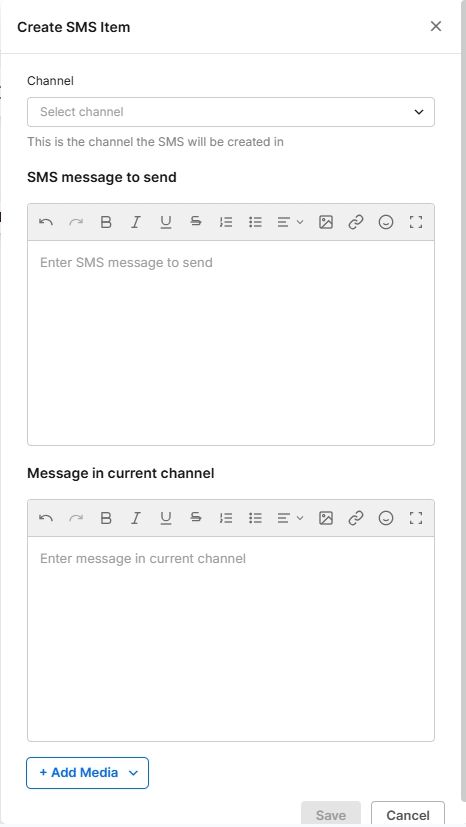
For SMS:
- Select the channel for the created SMS
- Enter the message sent out to the customer.
- Enter the message displayed to the customer in the current conversation. For example: An SMS was just sent to you. Please confirm the security code you just received.
- Add media (optional)
- Click Save.