Overview
The Emarsys integration enables organizations to send WhatsApp template campaigns through CommBox directly from Emarsys. Once connected, you can create and schedule WhatsApp campaigns, target specific contact lists or segments, and trigger messages automatically through Emarsys Automation Programs.
The integration uses an existing CommBox WhatsApp channel and its approved message templates. Delivery and read statuses can also be reported back to Emarsys for campaign tracking and analytics.
Key Considerations
- Administrator access to both the CommBox console and the Emarsys console is required to complete the integration setup.
- The Chat Messengers Integration add-on must be enabled in your Emarsys account.
- An active CommBox WhatsApp channel with approved message templates is required.
- You need a CommBox API token and the encrypted Stream ID of the WhatsApp channel to establish the connection.
- Each Emarsys connection is linked to one CommBox WhatsApp channel and can be reused across multiple campaigns.
- To receive delivery, read, and failure statuses in Emarsys, configure a webhook in the CommBox console using the Callback URL provided by Emarsys. This step is optional but recommended.
Integration Setup
Complete the following setup once to connect your CommBox WhatsApp channel to Emarsys. After the connection is established, you can reuse it across multiple WhatsApp campaigns without repeating these steps.
Connecting CommBox to Emarsys
Step 1: Create a Connection
- In the Emarsys console, navigate to Add-ons > Chat Messengers Integration.
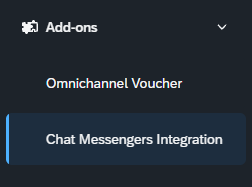
- Open the Connections tab and click Create Connection.
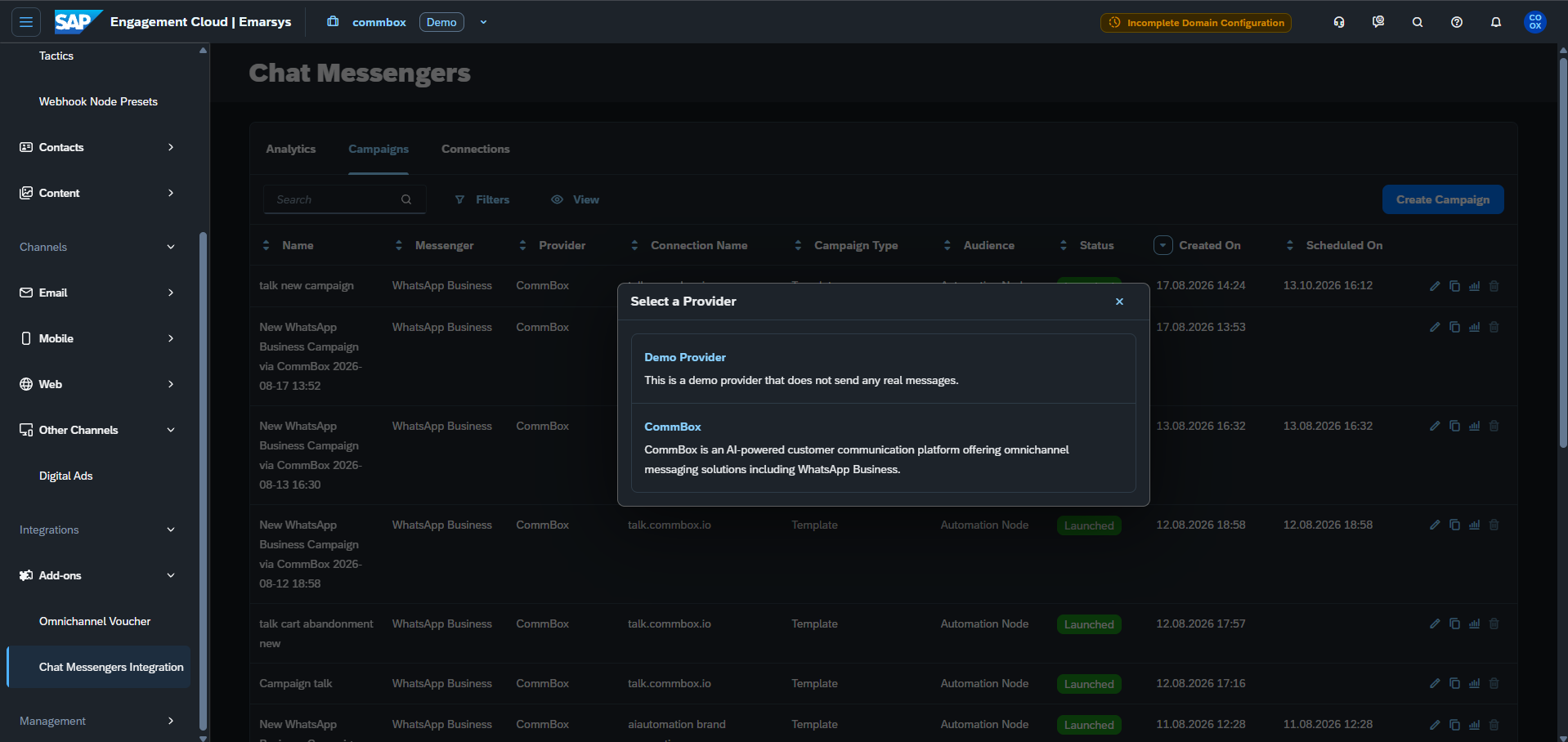
- In the Select a Provider window, select CommBox.
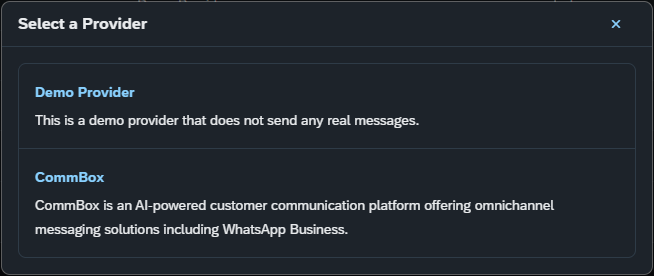
Note: The Demo Provider is intended for testing and does not send actual messages.
Step 2: Retrieve the CommBox Credentials
To establish the connection, retrieve the following information from the CommBox console:
-
API Token: Open the API module and copy the relevant API token. Click here for assistance with this step.
-
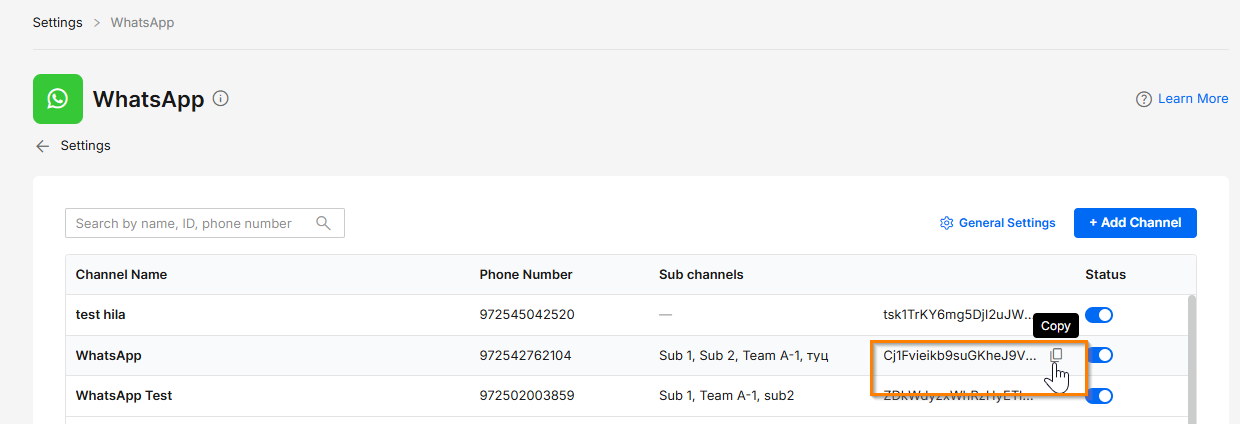
Stream ID (Encrypted): Navigate to Settings > WhatsApp in the Channels section and select the relevant WhatsApp channel. Hover over the channel's encrypted ID and click Copy.
-
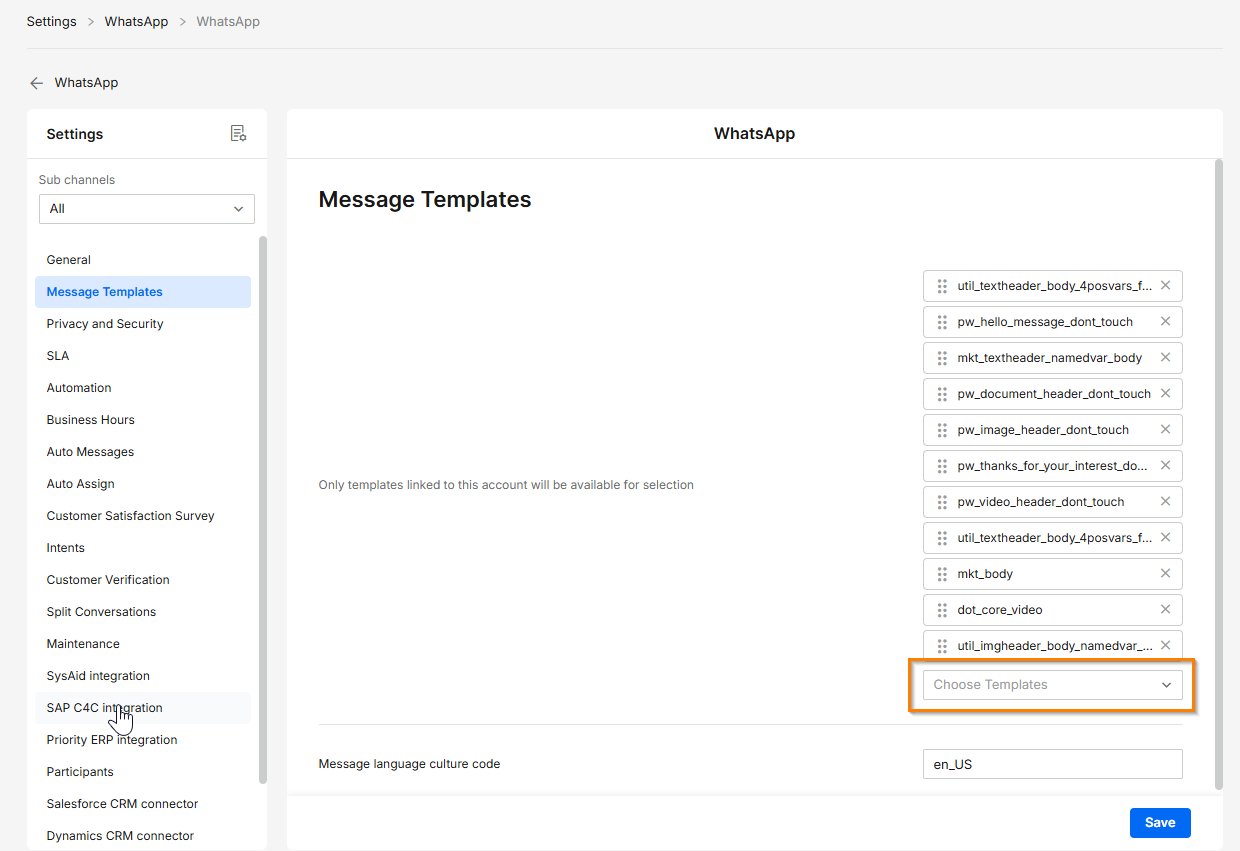
Open the channel's settings in the Message Templates section. Verify that the desired templates for the Emarsys campaigns are listed. If not, add them from the Choose Templates selection menu and click Save.
Step 3: Configure and Test the Connection
-
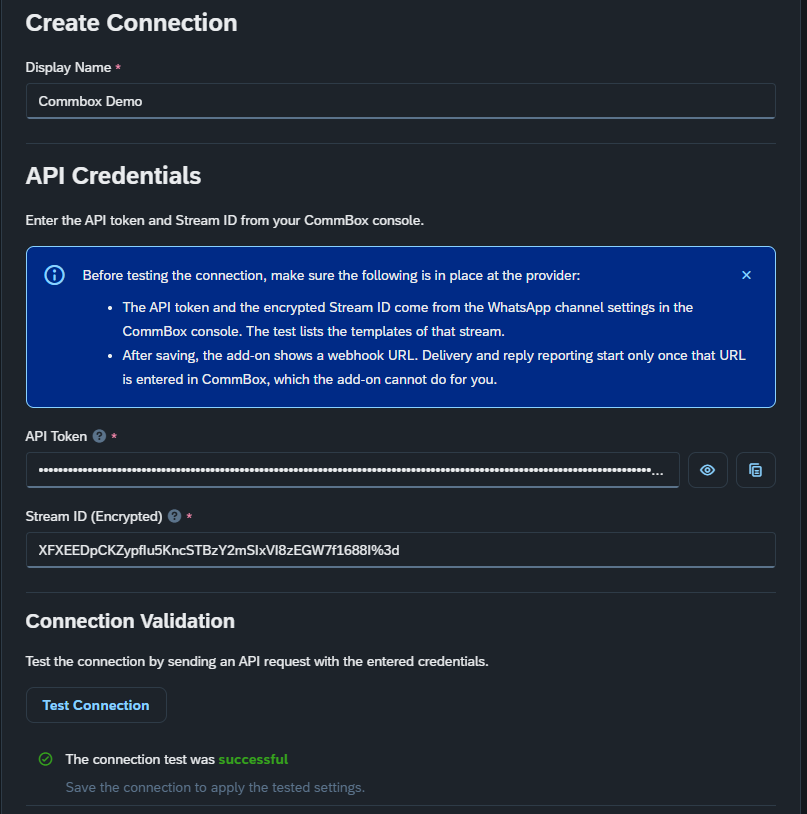
In the Emarsys console, return to the Create Connection screen and complete the following fields:
- Display Name: Enter a descriptive name to identify the connection.
- API Token: Paste the CommBox API token.
- Stream ID (Encrypted): Paste the WhatsApp channel ID copied from CommBox.
-
Click Test Connection to verify the credentials.
A successful test displays the message "The connection test was successful" and retrieves the available message templates from the selected WhatsApp channel.
If the test fails, verify that the API token and Stream ID are correct.
Step 4: Configure and Save the Connection
-
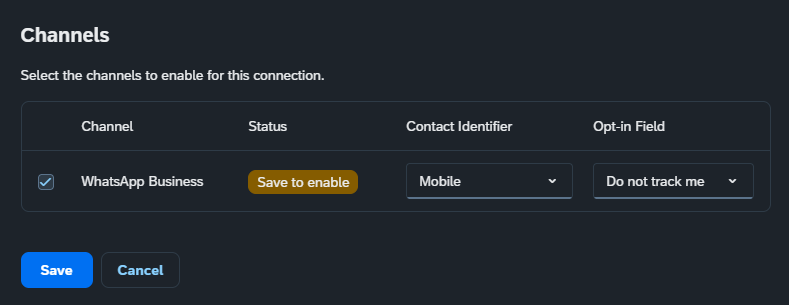
In the Emarsys console, select WhatsApp Business as the messenger channel.
-
Configure the following settings:
- Contact Identifier: Select the Emarsys contact field containing the recipient's WhatsApp phone number, typically Mobile.
- Opt-in Field: Select the contact field used to track WhatsApp messaging consent. You can create a dedicated custom field to manage WhatsApp opt-in separately from other communication channels. Select Do not track me if you do not want Emarsys to check the opt-in status for this channel.
-
Click Save to complete the connection.
-
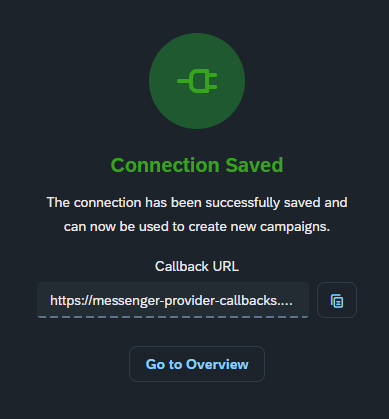
In the Connection Saved confirmation, click the copy icon to copy the Callback URL. You will need this URL to configure campaign status updates in CommBox.
-
Click Go to Overview.
The connection is now ready for use in WhatsApp campaigns.
Configuring Campaign Status Updates (Optional)
To receive message delivery and read statuses in Emarsys, configure a webhook subscription in the CommBox console.
The webhook sends message status updates from CommBox to the Callback URL associated with the Emarsys connection.
Note: This configuration is optional but recommended. Without the webhook, Emarsys cannot receive delivery, read, or failure updates from CommBox, leaving the corresponding campaign analytics unavailable.
Step 1: Create a Webhook Subscription
-
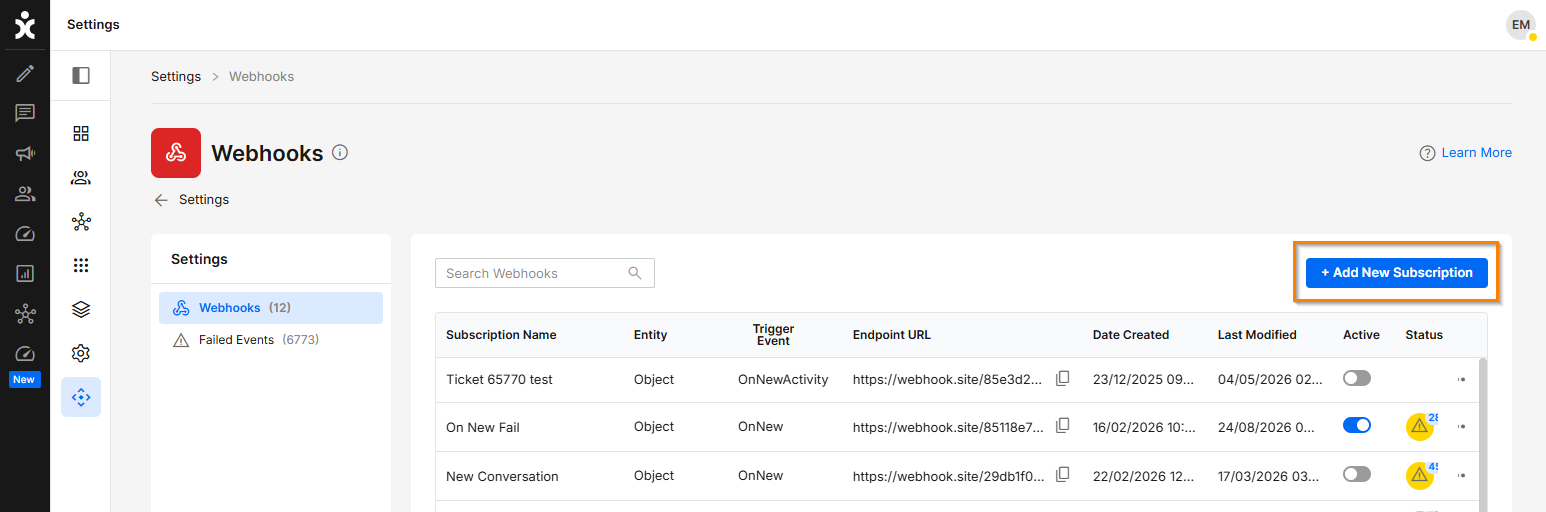
In the CommBox console, navigate to Settings > Webhooks and click + Add New Subscription at the top of the page.
-
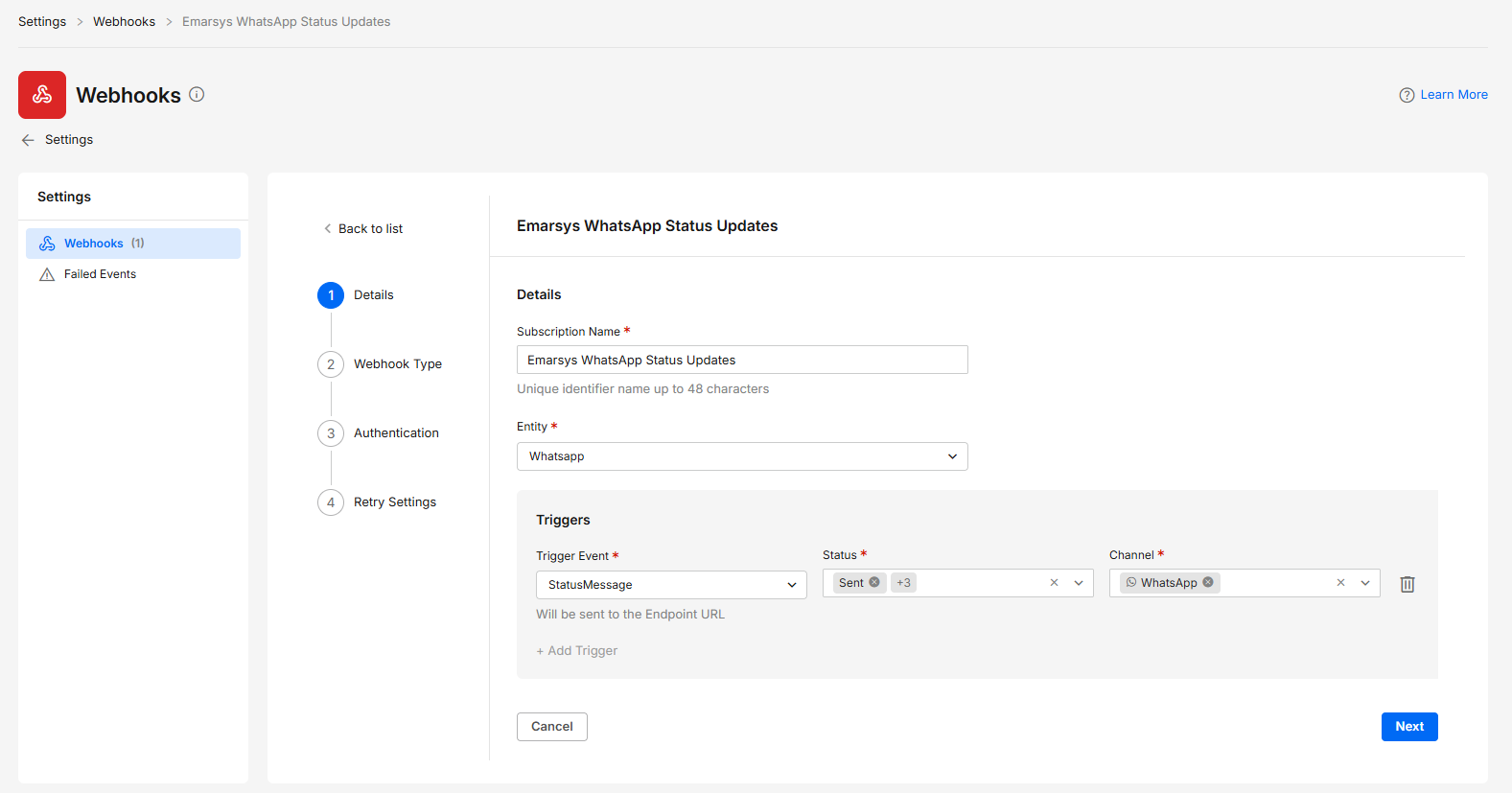
In the Details step, configure the following:
- Subscription Name: Enter a descriptive name, such as Emarsys WhatsApp Status Updates.
- Entity: WhatsApp.
- Trigger Event: StatusMessage.
- Status: Select Sent, Delivered, Read, and Failed.
- Channel: WhatsApp.
-
Click Next.
Step 2: Configure the Webhook Endpoint
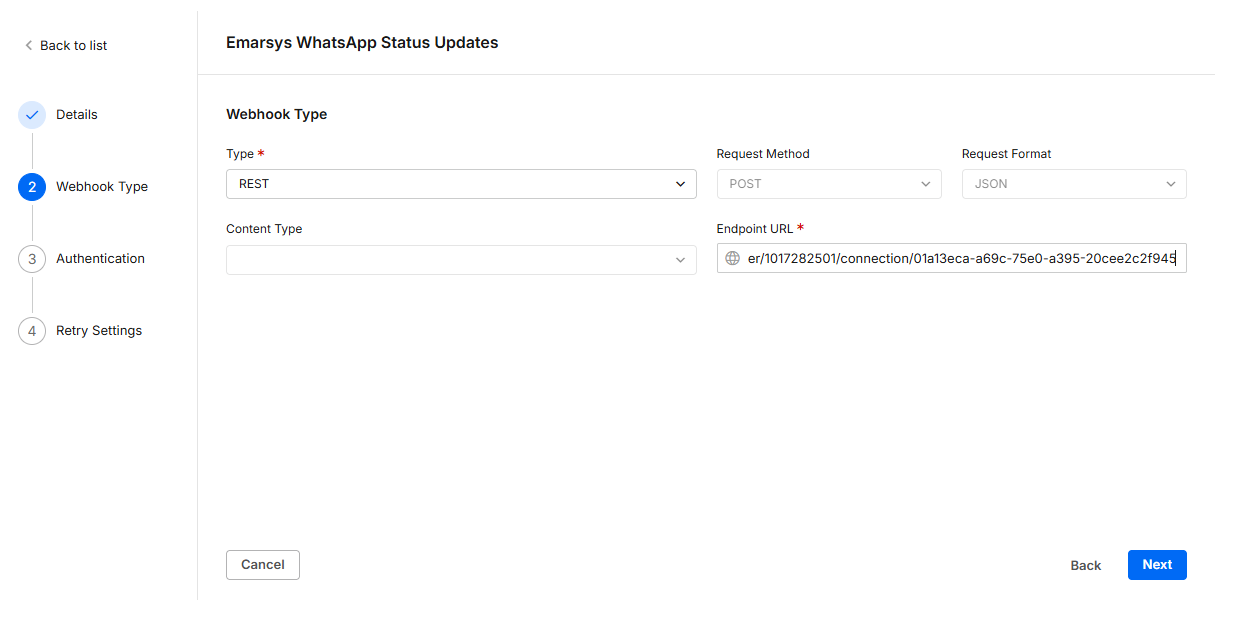
In the Webhook Type step:
- Set Type to REST.
- Verify that the request method is POST and the format is JSON.
- Paste the Callback URL copied from Emarsys into Endpoint URL.
- Click Next.
The Callback URL follows this general format:
https://messenger-provider-callbacks.ems-ci.com/webhook/commbox/customer/...
Step 3: Save the Webhook
- Complete the Authentication and Retry Settings steps according to your integration requirements.
- Save the webhook subscription.
CommBox will now send the selected message status updates to Emarsys.
Note: Each Emarsys connection has a unique Callback URL. Multiple campaigns using the same connection can share one webhook subscription. Emarsys identifies the relevant campaign messages using their message IDs.
WhatsApp Campaign Management
Once the integration is configured, you can create and launch WhatsApp campaigns directly from the Emarsys console. Campaigns can be sent to selected audiences or triggered automatically through Emarsys Automation Programs.
Creating a WhatsApp Campaign
Step 1: Create a Campaign
-
In the Emarsys console, navigate to Chat Messengers > Campaigns and click Create Campaign.
-
In Select a Provider, choose CommBox.
-
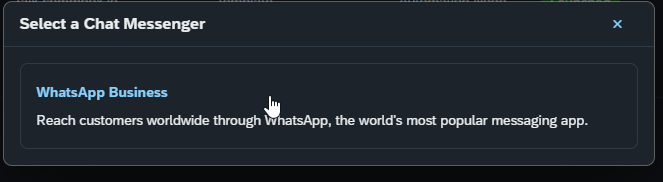
In Select a Chat Messenger, select WhatsApp Business.
Step 2: Configure the Campaign
-
In the Emarsys console, complete the following fields under Campaign Settings:
- Campaign Name: Enter a descriptive name for the campaign.
- Connection: Select the CommBox connection created earlier.
- Channel: Select WhatsApp.
- Template: Select a WhatsApp message template associated with the connected CommBox channel.
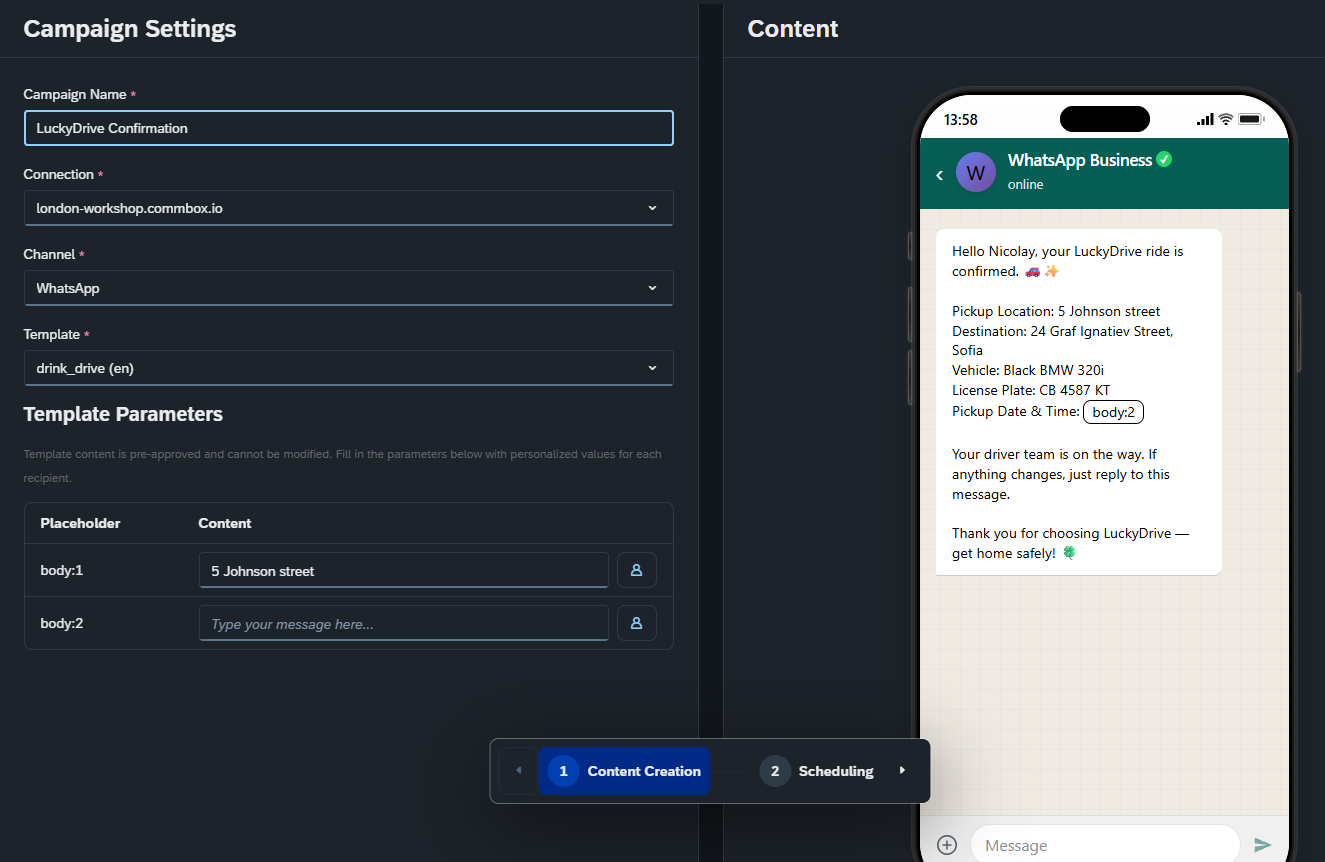
If the selected template contains dynamic parameters (such asbody:1orbody:2), enter a fixed value or click the person icon next to the field to insert an Emarsys contact field for personalized messages.
The phone preview on the right displays how the message will appear to recipients.
-
Click Scheduling to continue.
Launching a WhatsApp Campaign
Emarsys supports two campaign launch methods: sending messages to a selected audience or triggering them automatically through an Automation Program.
Sending to a Segment or Contact List
Use this option to send a WhatsApp campaign to a predefined audience.
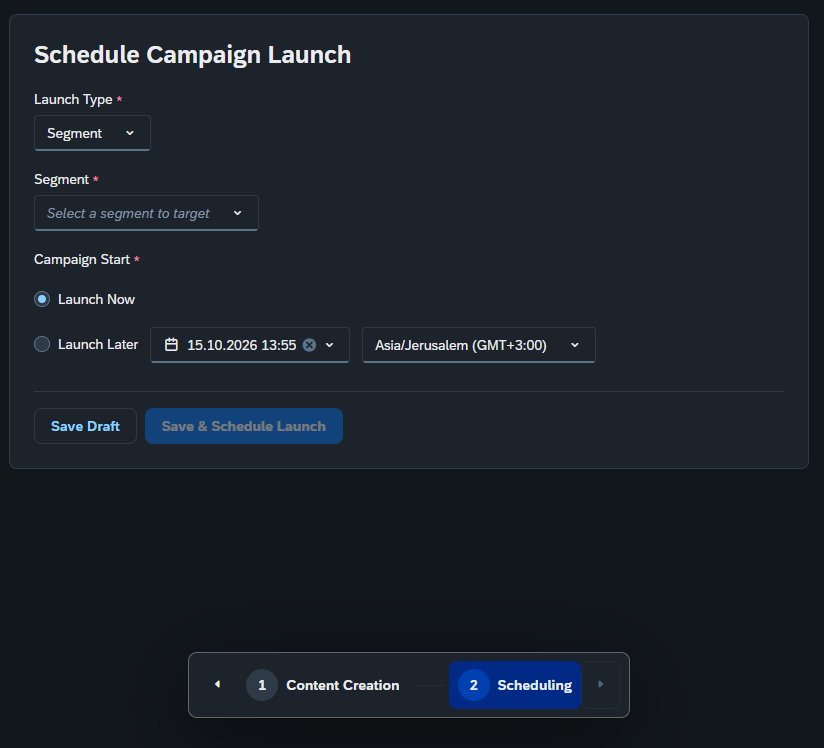
- In the Emarsys console, on the Schedule Campaign Launch screen, set Launch Type to Segment or Contact List.
- Select the relevant audience.
- Choose when to launch the campaign:
- Launch Now: Send the campaign immediately.
- Launch Later: Schedule the campaign by specifying the date, time, and time zone.
- Click Save & Schedule Launch.
To save the campaign without scheduling it, click Save Draft.
Triggering from an Automation Program
Use this option to send WhatsApp messages automatically in response to events defined in an Emarsys Automation Program, such as cart abandonment or a customer action.
Step 1: Finalize the Campaign
-
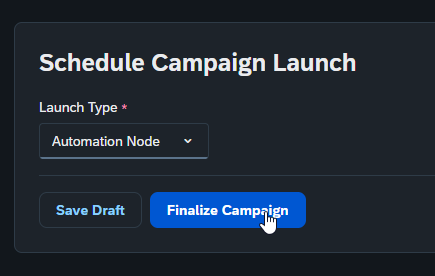
In the Emarsys console, on the Schedule Campaign Launch screen, set Launch Type to Automation Node.
-
Click Finalize Campaign.
-
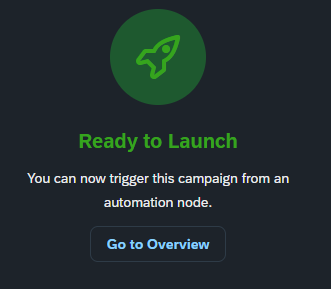
A Ready to Launch confirmation appears, indicating that the campaign can be triggered by an automation.
-
Click Go to Overview.
Step 2: Add the Campaign to an Automation Program
-
In the Emarsys console, navigate to Automation > Automation Programs.
-
Open an existing program or create a new one.
-
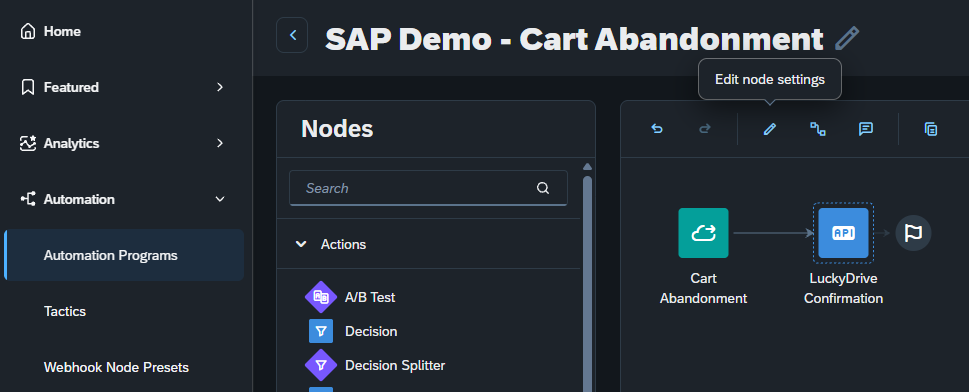
Add the WhatsApp campaign as an action node after the relevant entry trigger.
-
Save and activate the Automation Program.
For example, in a cart abandonment program, the Cart Abandonment entry trigger can lead to a WhatsApp campaign node that sends a personalized message to the customer.
When the configured trigger occurs, Emarsys initiates the WhatsApp message through the connected CommBox channel.
Monitoring Campaign Performance
In the Emarsys console, navigate to Chat Messengers > Analytics or open the Campaigns tab to monitor WhatsApp campaign activity.
When the CommBox status webhook is configured, Emarsys can display message statuses, including:
- Sent: Messages submitted for sending.
- Delivered: Messages successfully delivered to recipients.
- Read: Messages reported as read by recipients.
- Failed: Messages that could not be delivered.
These status updates help track campaign delivery and engagement.
Note: Delivery and read reporting requires the webhook configuration described in the Configuring Campaign Status Updates section. Read status availability also depends on WhatsApp read receipt behavior.
Troubleshooting
Connection Test Fails
Possible cause: An incorrect API token or encrypted Stream ID.
Solution: In the CommBox console, verify the API token in the API module and copy the channel ID again from Settings > WhatsApp. Ensure both values belong to the intended CommBox environment and channel.
WhatsApp Template Is Missing
Possible cause: The template is not associated with the WhatsApp channel used by the Emarsys connection.
Solution: In the CommBox console, open the relevant WhatsApp channel and verify that the template appears in its Message Templates list. Add the template to the channel if necessary, then reopen the campaign in the Emarsys console.
Delivery or Read Data Is Missing
Possible cause: The CommBox status webhook is missing, incorrectly configured, or pointing to the wrong Callback URL.
Solution: In the CommBox console, open the webhook subscription and verify that the Endpoint URL matches the Callback URL of the relevant Emarsys connection. Ensure the required message statuses are selected.
Messages Are Not Sent from an Automation Program
Possible cause: The campaign was not finalized for use as an Automation Node.
Solution: In the Emarsys console, open the campaign, set Launch Type to Automation Node, and click Finalize Campaign. Verify that the campaign is included in an active Automation Program.