Overview
The Issues capability helps Admins report, track, and manage quality issues identified in AI Agent and AI Chatbot conversations.
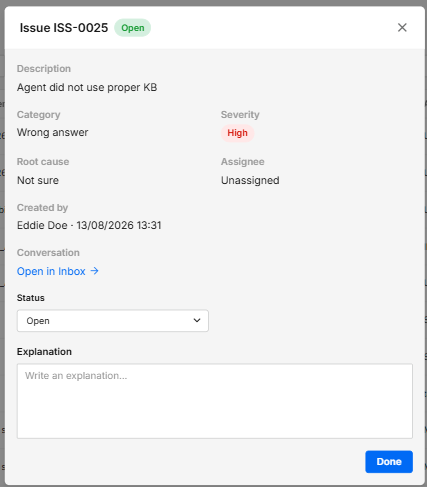
Issues can be reported directly from a conversation and are centralized in the Issues tab of the Automation Hub. From there, Admins can review reported issues, update their status, access the related conversation, and remove issues that are no longer relevant.
This provides AI designers with a centralized workflow to identify quality issues and continuously improve AI Agent performance.
.png)
Key considerations
- Issue reporting must be enabled separately for each AI Agent or AI Chatbot.
- Only AI Agent messages (child messages) can be reported as issues.
- Reported issues are available in the Issues tab of the Automation Hub.
- Each issue is linked to its related conversation, allowing you to review the original interaction in context.
- Issues can be updated or deleted from the Issues board.
How to enable issue reporting
Before Admins can report issues for an AI Agent or AI Chatbot, enable the capability for the relevant Agent or Chatbot.
- Navigate to Automation Hub > AI Agent.
- Select the AI Agent or AI Chatbot for which you want to enable issue reporting.
- In the sidebar menu, select Settings and enable Allow Issue Reporting.

Once enabled, issues can be reported directly from conversations handled by that AI Agent or AI Chatbot.
How to report an issue
To report a quality issue from an AI Agent conversation:
- Open the relevant conversation and locate the AI Agent message or AI Chatbot message you want to report.
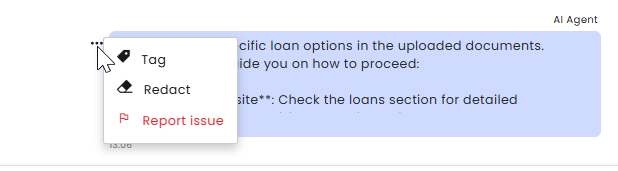
- Hover to click the 3-dot menu next to the AI Agent message (child).
- Select Report issue.
-
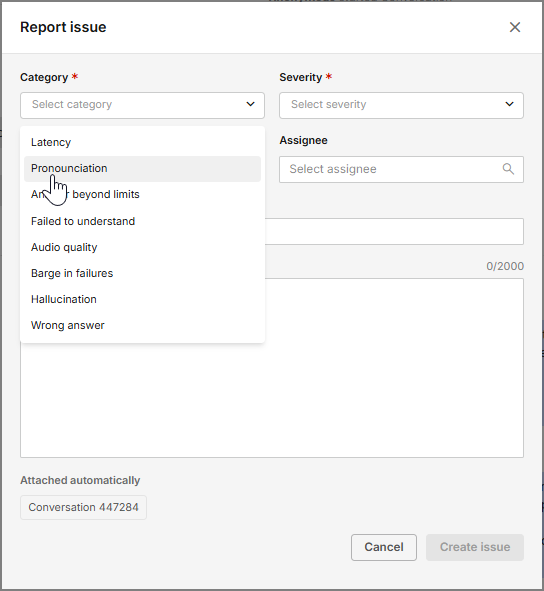
Complete the issue details.
-
Click Create issue to submit the report.
Note:
- When creating an issue, most fields are optional. Field selections, including Severity, are subjective and should be based on the Admin’s assessment of the issue’s impact and importance.
- We recommend establishing internal guidelines for assigning Severity levels and determining the appropriate personnel responsible for handling different types of issues. This helps ensure consistent issue reporting and management across your organization.
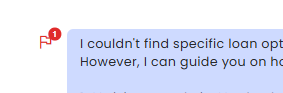
- Upon submitting an issue, a red flag will appear next to the message. You can repeat the process to issue another concern by clicking the 3-dot menu.
The issue is added to the Issues tab in the Automation Hub.
How to manage reported issues
To review and manage reported issues:
- Open the Automation Hub.
- Select the Issues tab.
- Locate and open the relevant issue. Use the filters to find related issues.
From a selected issue, you can:
- Update its status to reflect its current state.
- Add an explanation.
- Open the related conversation using the direct link to review the original interaction.
- Delete the issue if it is no longer relevant.
Using the Issues board gives your team a centralized view of reported AI Agent quality issues and helps you track them through resolution.