Overview
The Real-Time Dashboard provides managers with an intuitive and customizable view of key organizational metrics. Through flexible widgets, users can easily monitor relevant data on conversations and agent performance. This dashboard is designed to provide continuous access to actionable insights, enabling data-driven decision-making and effective management at a glance.
This guide will walk you through the different sections, customization options, and best practices to maximize the dashboard’s impact on your day-to-day management.
Key Features
-
Customizable Widgets: Tailor your dashboard to focus on the data most relevant to your team’s goals.
-
Real-Time Data: Access up-to-the-minute information on conversations and agent activities.
-
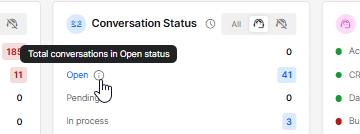
Tooltip-rich Interface: Hover over the widget’s components for additional details about each item.
-
Flexible Display: Filter displayed content by relevant teams and/or channels, rearrange dashboard sections to suit your preferences, and reorder report columns based on your priorities.
-
Business Hours: Click the clock icon to switch between business-hour activity and full-time access, depending on your needs.
 Conversation during Business Hours
 Conversation during All Hours
-
View only relevant conversations:
.png) All conversations are included
All conversations are included Assigned conversations only
 Unassigned conversations only
Key Considerations
- Every conversation is counted only once, including those that were closed and then reopened.
- Business Hours for the day are set in the Organization settings and the Business Hours module. The Dashboard reflects the current business hours selection.
- Statuses can have a time limit (in minutes) set for the agents at the Agents Status section of the Settings sidebar menu.
When all agents are within the time limit of that status, the number and background will be blue. When one or more of the agents exceed the set time limit, the indication will be colored red. - Voice channels are included in KPI averages alongside other synchronous communication types, such as Chat (for example, in the Agent Load).
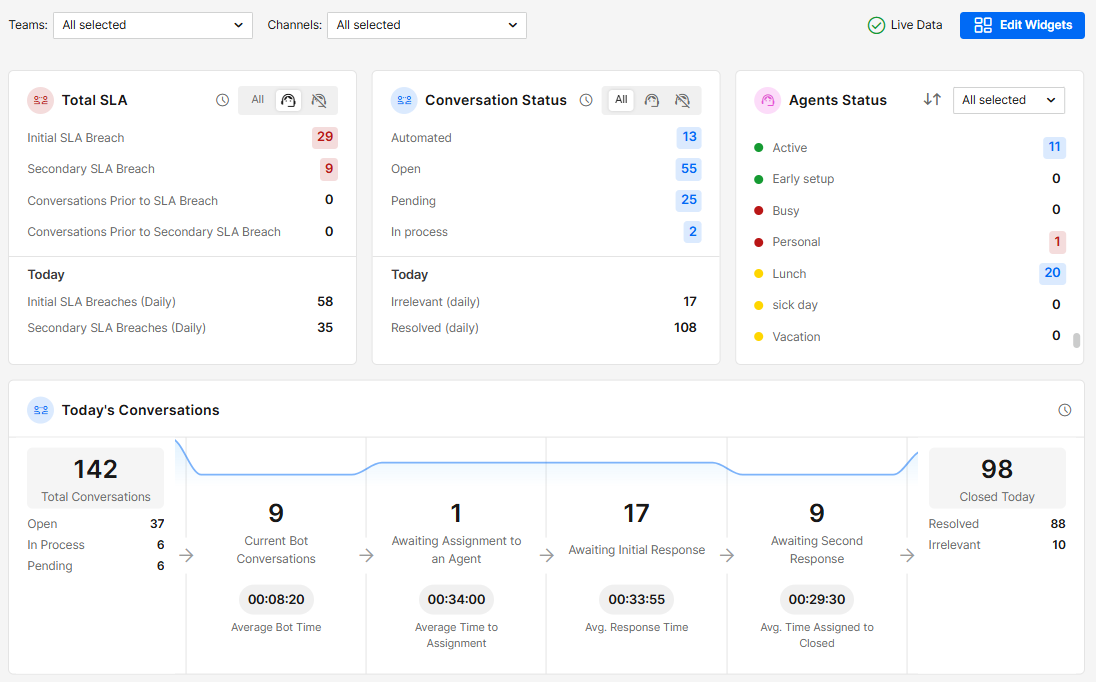
The Board’s Components
SLA
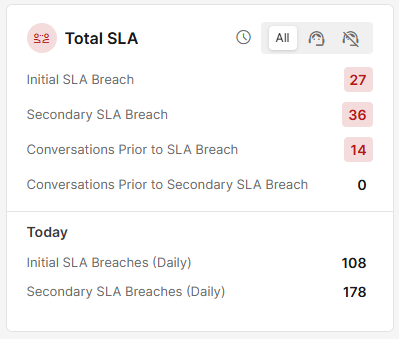
The Service Level Agreement section displays current SLA breaches and the accumulated number of breached conversations for the current day.
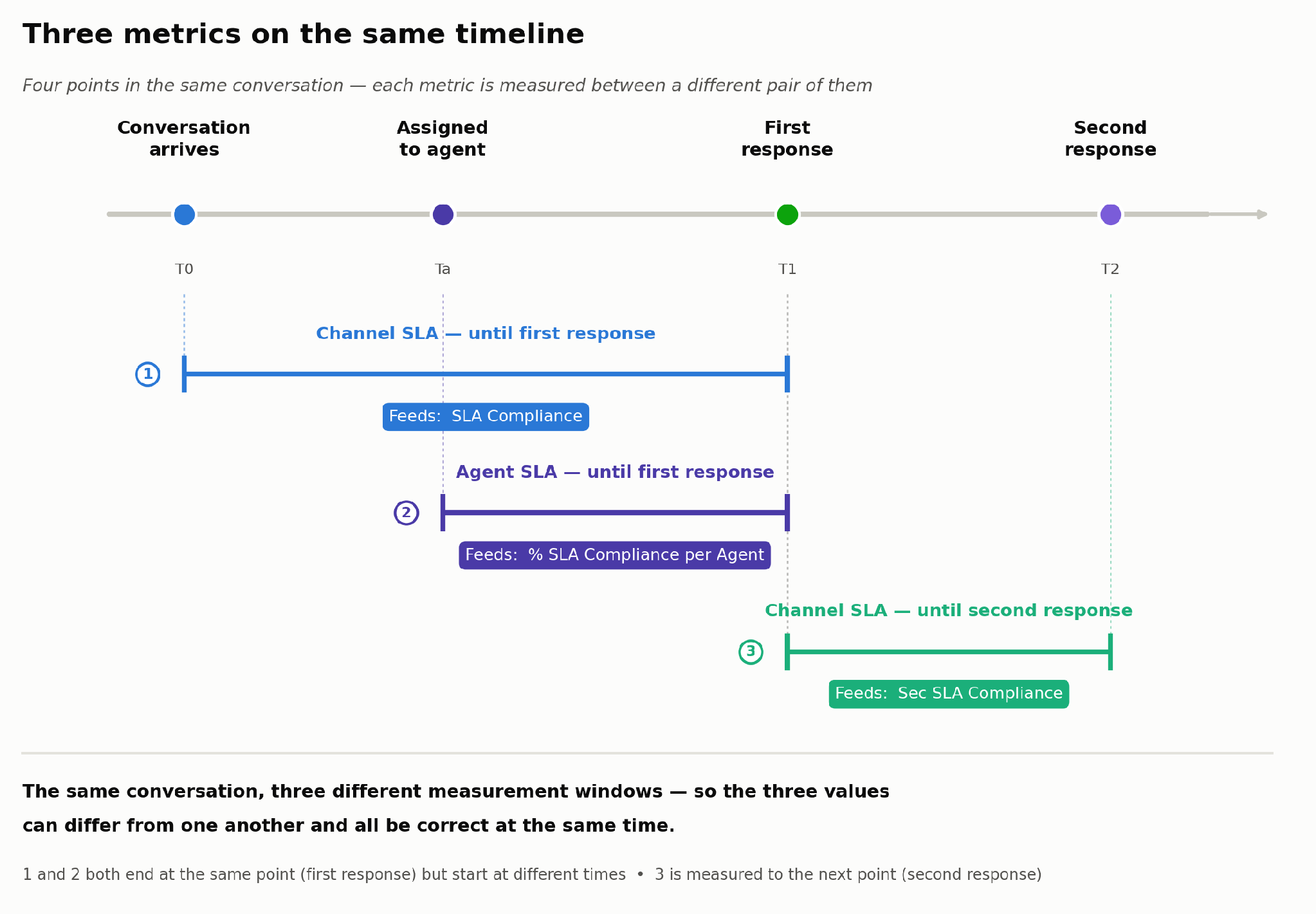
A) The initial SLA time starts counting from the moment a conversation is in an open status until a human agent responds.
KPI Functionality:
- When a conversation is in an Open status — either started by a customer or after exiting an AI Agent — it appears in the Conversation Prior to SLA Breach KPI.
- If an agent doesn’t respond within the set SLA, the conversation is considered breached. A breached conversation moves to the Initial SLA Breach KPI (and the Conversation Prior to SLA Breach KPI goes back down).
- Once an agent responds, the conversation is removed from the Initial SLA Breach KPI, and the breach is recorded in the Daily Initial SLA Breaches KPI.
B) Secondary SLA is defined as the time from the last message received from the customer until the agent's response.
KPI Functionality:
- After the customer’s message is received, the conversation will be counted in the Conversation Prior to Secondary SLA Breach KPI.
- If an agent doesn’t respond within the set SLA, the conversation is considered breached. It then moves to the Secondary SLA Breach KPI.
- Once an agent responds, the conversation is removed from the Secondary SLA Breach KPI, and the breach is recorded in the Daily Secondary SLA Breaches KPI.
C) SLA per Agent
CommBox supports tracking SLA compliance for individual agents. The SLA is configured in the SLA settings of each communication channel.
.png)
The KPI measures the time between when a conversation is assigned to an agent and when that agent provides their first response. This ensures that an agent who responds promptly to a conversation that had already breached its SLA before being assigned is not negatively affected. It also helps identify potential weak points in the customer journey.
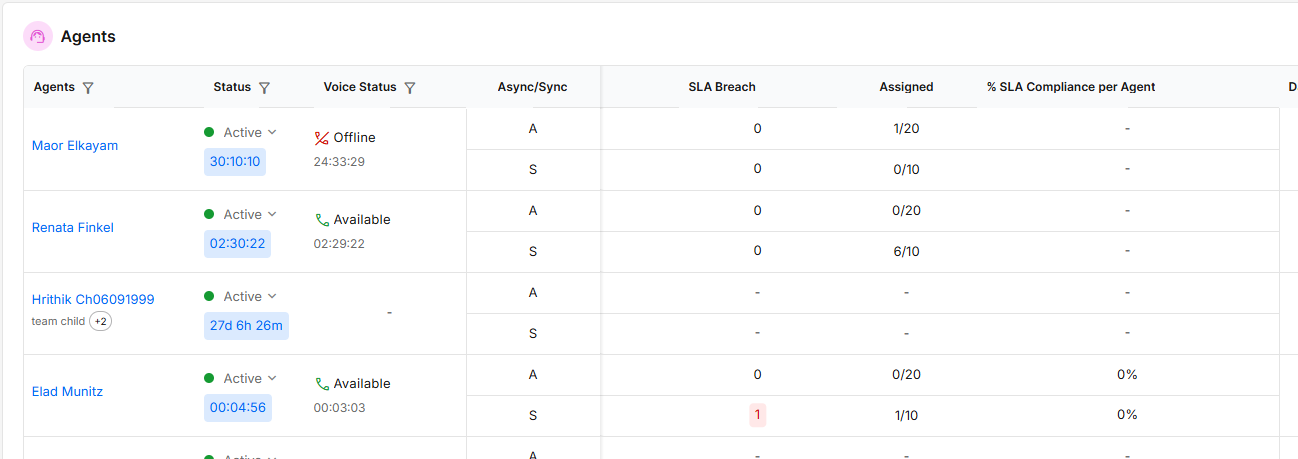
The % SLA Compliance per Agent column in the Agents Table shows the percentage of conversations in which the agent provided their first response within the defined SLA time.
Note:
- Only conversations in which the agent provided the first response are included in the calculation.
- A dash (–) indicates that the agent did not handle any conversations in that communication channel today.
- 0% indicates that the agent did not respond within the SLA in any of the relevant assigned conversations.
- 100% indicates that the agent responded within the SLA in all relevant conversations. Any other value represents the agent’s compliance percentage.
- If no per-agent SLA is configured for a communication channel, the channel-level SLA is used as the default.
D) Drill down:
Click on the colored number to see a detailed list of SLA breaches. You can click on the linked customer name to open the actual conversation.

Note: The Initial SLA Breach KPI records the SLA breaches that happened today (the agent responded too late), which includes conversations that started yesterday or earlier.
E) Viewing options (click on the desired icon):
- Conversation during Business Hours
- Conversation during All Hours
- View only relevant conversations:
- All conversations are included
- Assigned conversations only
- Unassigned conversations only
Conversation Status
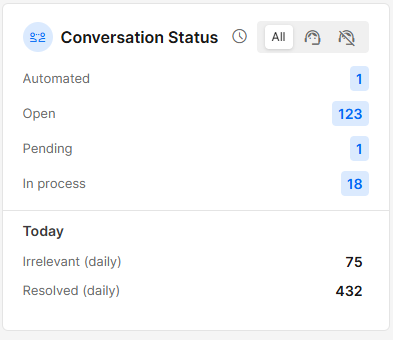
Conversation Status displays the current status of all conversations.
Only relevant statuses will be shown (to save the need to scroll down). The bottom section displays the closing statuses for today’s closed conversations.
Drill down:
Clicking on a colored status will display a list of conversations currently with that status, divided into daily categories.
.png)
Clicking on a customer’s name will open that conversation in the inbox.
Viewing options (click on the desired icon):
- Conversation during Business Hours
- Conversation during All Hours
- View only relevant conversations:
- All conversations are included
- Assigned conversations only
- Unassigned conversations only
Agent Status
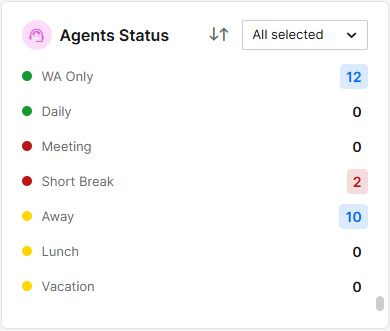
The Agent Status section displays the current status of all agents.
-
Agent statuses are created at Settings > Agent Status
-
Statuses can have a time limit (in minutes) set for the agents. When all agents are within the time limit of that status, the number and background are blue. When one or more of the agents exceed the time limit, the number and background are red.
-
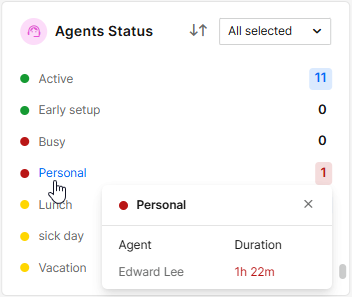
Clicking on a status will open a list of relevant agents, including the duration each agent spent in that status.
-
Use the up and down arrows to reverse the order of displayed statuses.
-
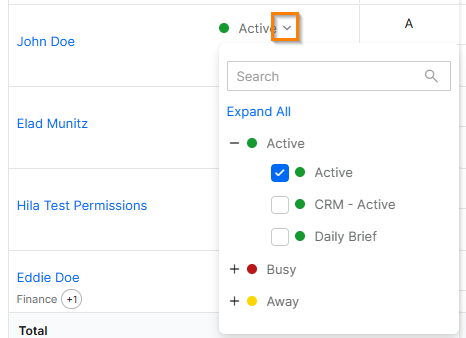
Use the drop-down menu to select only the Statuses you want to see.
.png)
Today’s Conversations
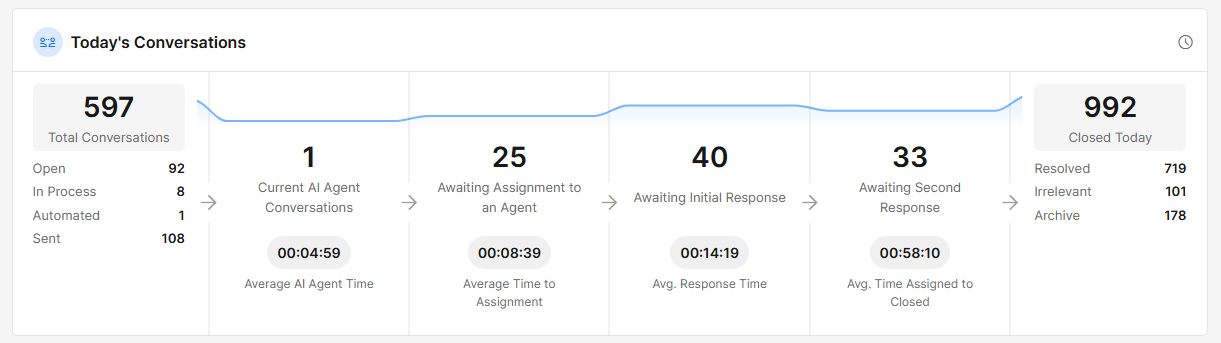
This section records all the conversations created today.
At any time, you can click on a number in each category to see the details of the relevant conversations. Note that average values may appear higher than expected when a small number of conversations have unusually high values.
Total Conversations – Records all conversations that started today, including those that closed today. Displayed data is based on the display icon at the top corner (All Hours - from midnight to 23:59; or within the Business Hours set for today).
The statuses listed include all relevant non-closing statuses.
- Open
- Forwarded
- Returned
- In Process
- Scheduled
- Followup
- Automated
- Sent
- Pending
Current AI Agent Conversations – Listing conversations currently in automation and the average time served by the AI Agent.
Awaiting Assignment to an Agent – Listing total conversations not yet assigned to an agent and the average time waiting for assignment.
Awaiting Initial Response – Listing conversations waiting for the First Response from the assigned agent, along with the average waiting time.
Awaiting Second Response – Listing conversations waiting for the agent to respond to the customer’s message, and the average time from assignment to closing the conversation.
Closed Today – Records conversations that closed today, in the Resolved, Irrelevant, Delete, and Archive statuses, regardless of when they started. Note that only relevant closing statuses are listed.
All Conversations
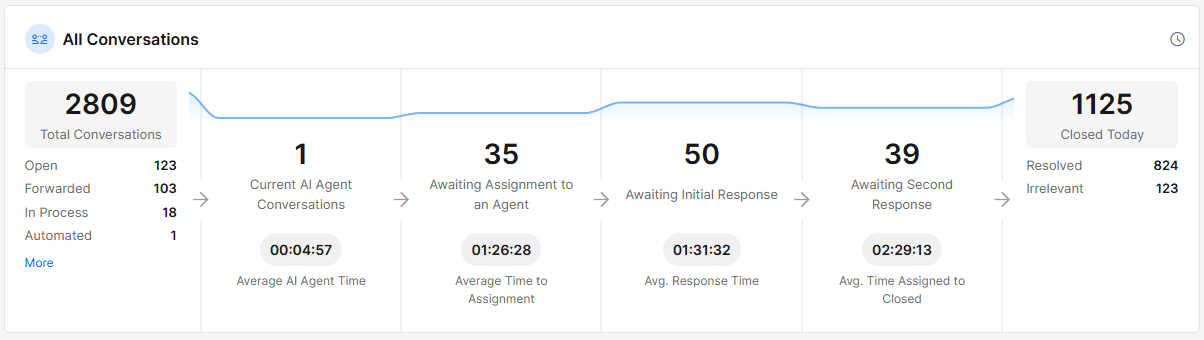
This section displays information about all currently active conversations, regardless of their start time. Note that average values may appear higher than expected when a small number of conversations have unusually high values.
Total Conversations – Records conversations based on the display icon at the top corner (All Hours - from midnight to 23:59; or within the Business Hours set for today).
The statuses listed encompass all conversations relevant to the organization. Excluded statuses include the Irrelevant, Archive, and Delete statuses. When applicable, click More to view the complete list.
- Open
- Resolved
- Forwarded
- Returned
- In Process
- Scheduled
- Followup
- Automated
- Sent
- Pending
Current AI Agent Conversations – Listing conversations currently in automation and the average time served by the AI Agent.
Awaiting Assignment to an Agent – Listing total conversations not yet assigned to an agent and the average time waiting for assignment.
Awaiting Initial Response – Listing conversations waiting for First Response from the assigned agent and the average waiting time.
Awaiting Second Response – Listing conversations waiting for the agent to respond to the customer’s message, and the average time from assignment to closing the conversation.
Closed Today – Records conversations closed today (regardless of when they started) in the Resolved, Irrelevant, Deleted, and Archived statuses. Note that only relevant statuses are listed.
Channels
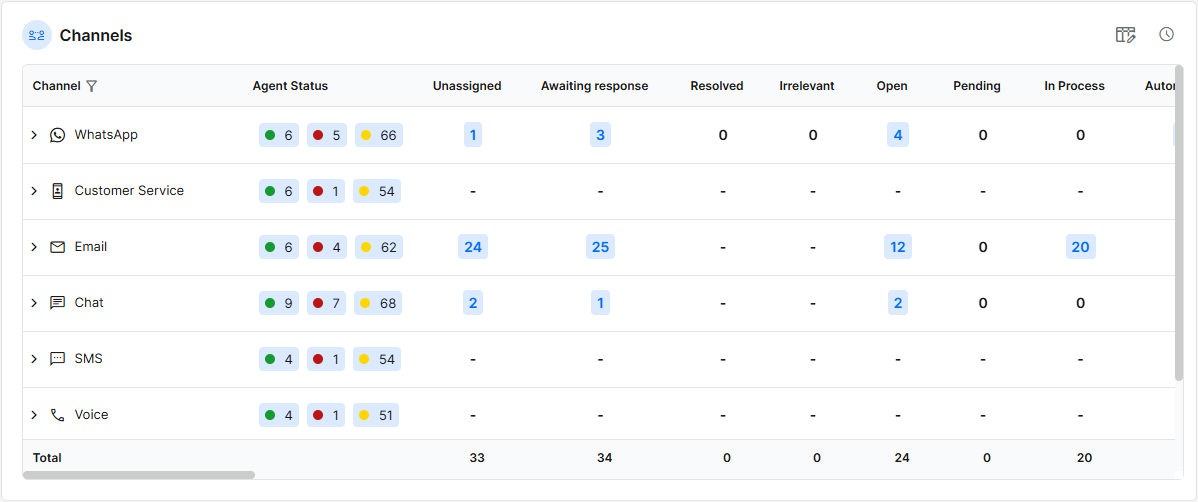
This section displays the data based on the communication channels.
-
View channels and subchannels for each communication type by clicking the arrow next to the category.
-
Agents are grouped by their statuses and are counted when they have permission to the channel/subchannel (or team).
-
Use the channel filter at the top of the board to limit the view to specific channels.
-
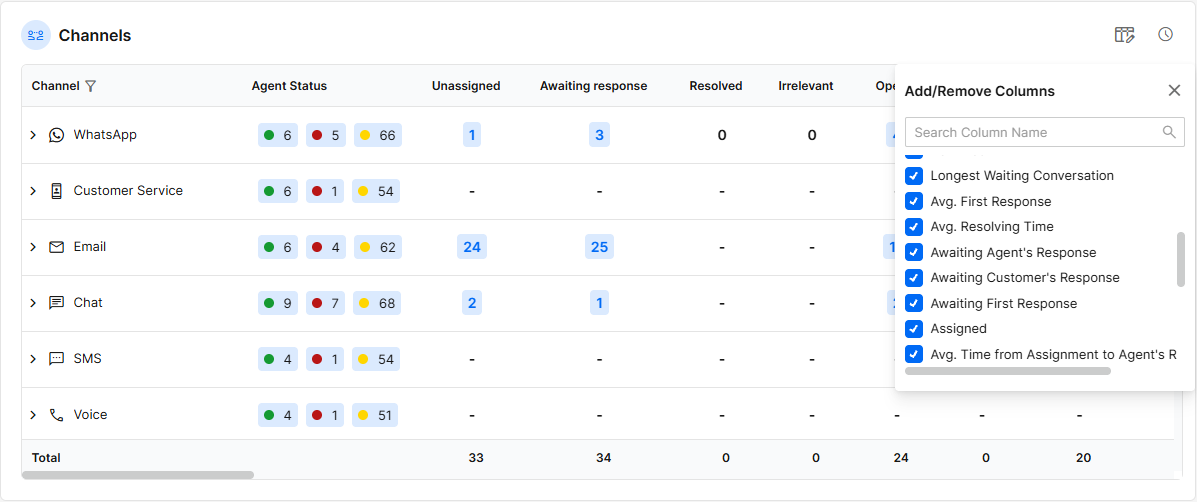
Use the columns icon in the top corner to show only the information you want to display.
-
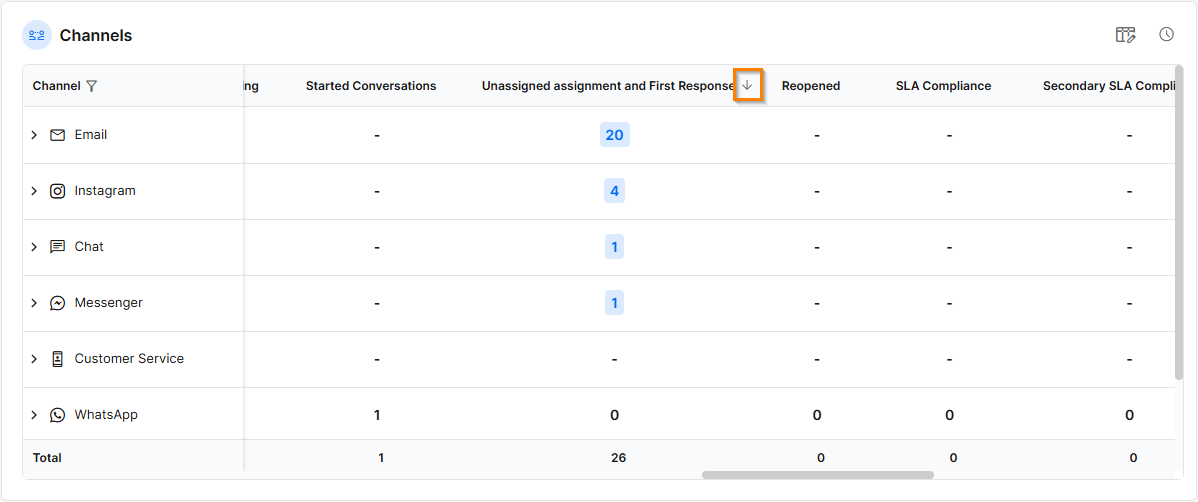
Hover over a column header to sort the data in descending or ascending order. Click a third time to clear the sorting.
Agents
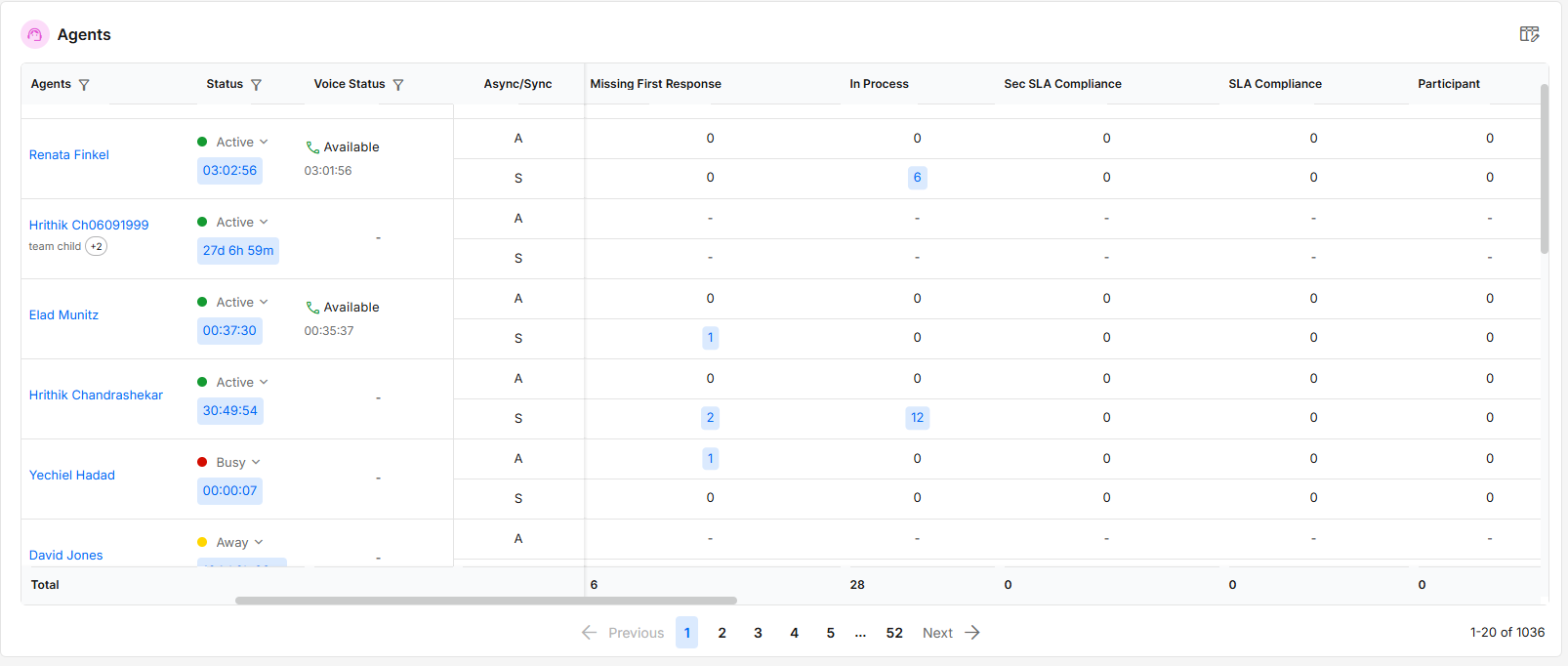
This section displays data related to each agent.
-
Change the agent's status by selecting a new one.
-
Click on the agent’s name to view all conversations assigned to them.
-
Under the agent’s name are the different teams to which this agent belongs. When the agent is associated with more than one team, you can hover over the encircled number to see the rest of the list.

-
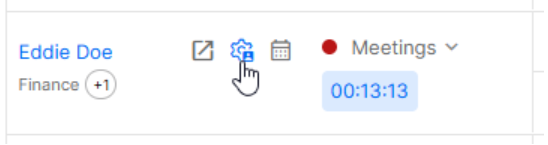
When hovering over the agent’s listings, icons appear that are linked to the agent’s assigned conversations, the Permissions dialog box (for agents who are not admins), and the agent’s Attendance Report.
-
Use the columns icon at the top corner to add/remove the displayed information.
.png)
-
Hover over a column header to sort the data in descending or ascending order. Click a third time to clear the sorting.
.png)
Additional KPIs
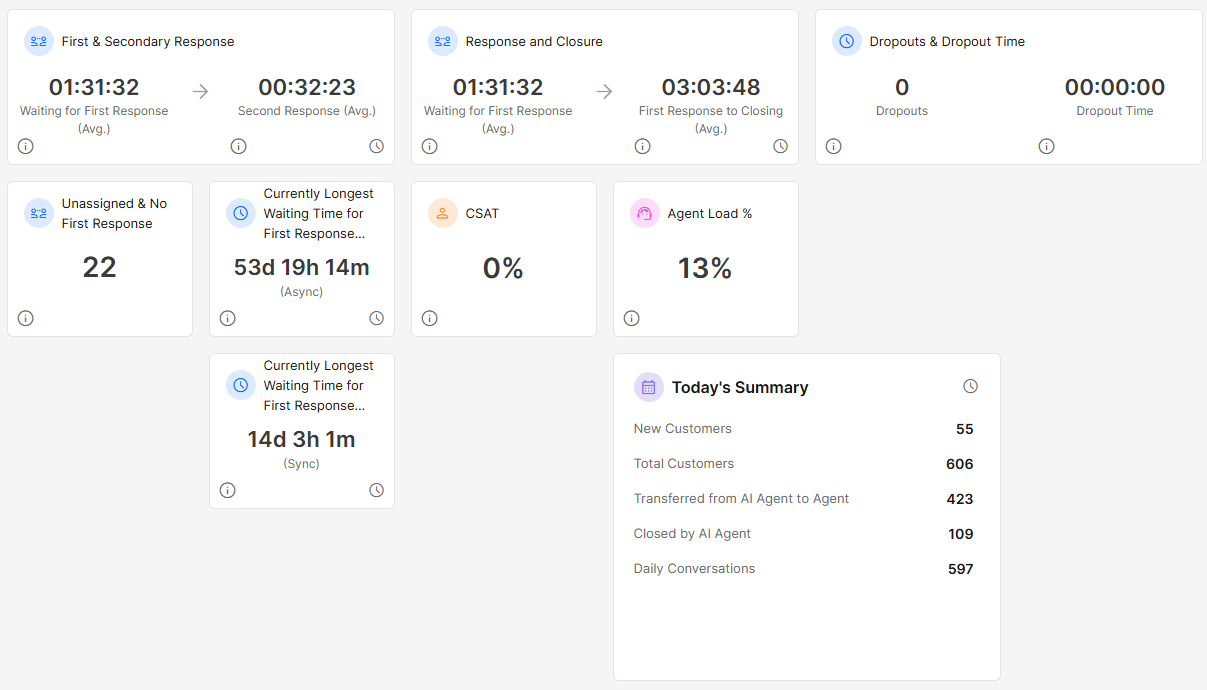
A. First & Secondary Response
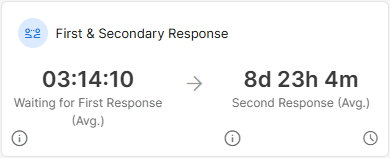
This KPI measures the Average First and Secondary responses.
Average First Response for today: Average time from Open status till first response by a human agent.
Average Secondary Response for today: Average time from the last message of the customer until the agent responded.
Best practice: Calculating averages based solely on business hours provides a more accurate reflection of agents’ performance, excluding customer activity that occurs after hours.
B. Response and Closure
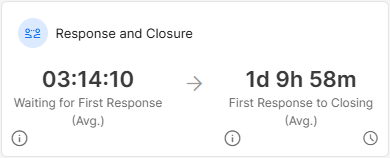
This KPI represents the customer journey by averaging two key intervals: the time the customer waits for the first response and the time it takes the agent to resolve the issue and close the conversation.
Average First Response for today: Average time from Open status till first response by a human agent.
Average Closing Time for today: Average time from First Response to closing in Resolved / Irrelevant status.
Best practice: Calculating averages based on all hours provides a more accurate representation of agent performance, showing how long it actually took customers to have their issues resolved.
C. Dropouts & Dropout Time
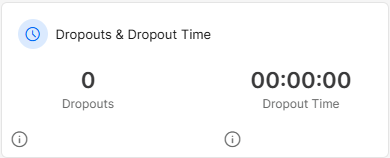
This KPI counts customers dropping out of chat conversations.
Average time is measured from Open status (not including time with AI Agent) to dropping out before reaching the First Respond status.
D. Unassigned & No First Response
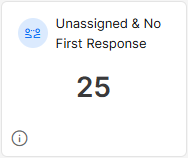
This KPI displays current conversations with Open or In process statuses, which have not been assigned to an agent, and/or for which no first response occurred.
Drill down:
Clicking on the number will display a list of conversations currently in that state, divided into daily categories.
Select the relevant day and click on the customer’s name to open the conversation.

E. Longest Waiting Time for First Response
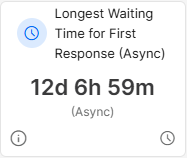
These KPIs display the current asynchronous and synchronous conversations with the longest wait time for first response.
Clicking on the time displays a dialog box with information on that conversation. Click on the customer’s name to open the conversation.
The business hours display option shows the longest conversation that started within the business hours.
Note: Conversations with extreme KPI values are included in the averages, which can distort the overall picture and the insights you’re trying to derive. These conversations should be closed.
F. CSAT
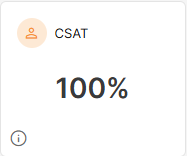
This KPI represents the daily average Customer Satisfaction score, independent of when the survey was sent.
G. Agent Load
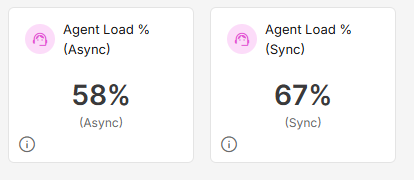
These KPIs show the average agent load for synchronous channels (such as Voice and Chat) and asynchronous channels (such as WhatsApp and Email).
A higher percentage indicates that agents are handling more conversations relative to their defined assignment limits. A lower percentage indicates that agents have more available capacity.
Note: Each agent has individual assignment limits defined by the organization in the Permissions section. For Voice conversations, the assignment limit is configured separately in the Voice channel’s General Settings (default: 1 conversation per agent).
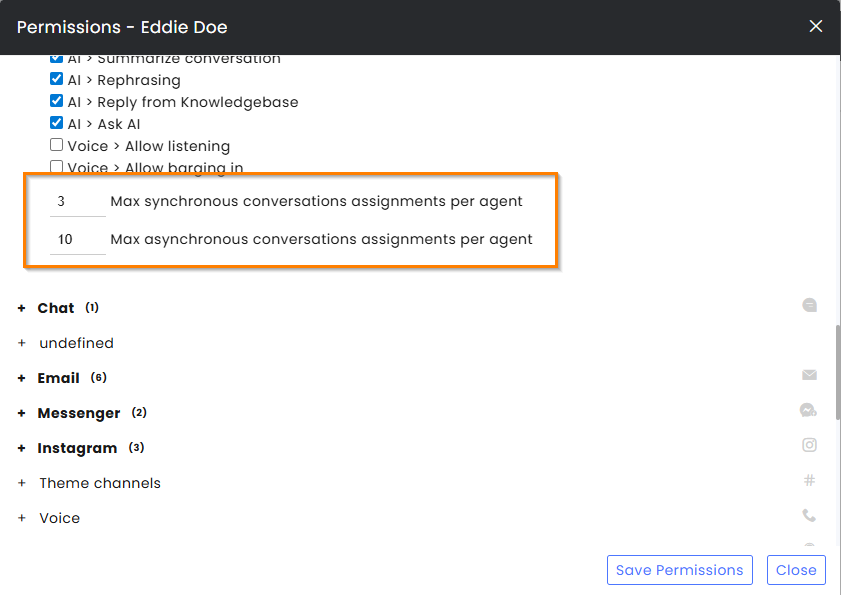
How Average Agent Load Is Calculated
Each widget—synchronous or asynchronous—shows the average load across the agents included in it:
- Calculate each agent’s load:
Assigned conversations ÷ the agent’s assignment limit for that channel type. - Calculate the widget average:
Average the load of all included agents and multiply by 100 to display the result as a percentage.
How to interpret the result:
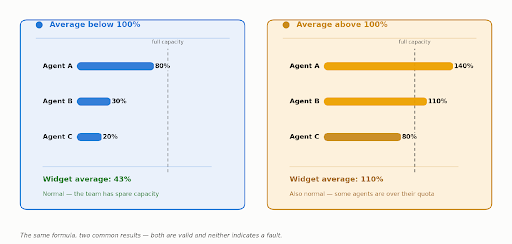
- Below 100% — On average, agents have available capacity and are handling fewer conversations than their defined assignment limits.
- 100% — On average, agents are at their defined assignment limits.
- Above 100% — Agents can exceed their defined limits, so values above 100% are valid. This can happen, for example, when conversations are assigned directly rather than through automatic assignment, or when an agent’s assignment limit is reduced while they still have open conversations.
H. Today’s Summary
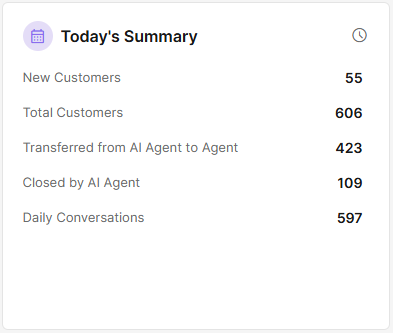
New Customers – Recorded today
Total Customers – Serviced today, including those served by AI Agent
Transferred from AI Agent to Agent - both directions will be counted
Closed by AI Agent – Total conversations that were closed today by the AI agent
Daily Conversation – Total conversation started today, not including those by the AI Agent
Note: The Business Hours view limits all KPIs to conversations and customers that started from the beginning of today’s business day.
Rearranging the Display
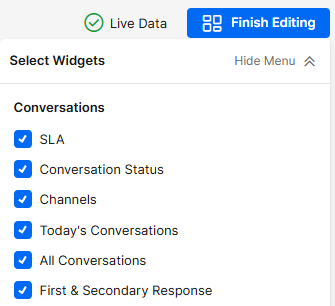
You can personalize the board based on your needs by clicking the Edit Widgets button at the top, selecting only the information you want to display.
Drag & drop the widgets to different locations to rearrange the board to your liking.
Click the Finish Editing button at the top to lock in your changes.
.png)
Rearranging Columns
Table columns can be easily rearranged to match your priorities and preferences.
Hover over the heading of the column you want to move until the hand icon appears. Click and drag the column to the desired position. A blue vertical line indicates where the column will be placed when you release it.



Views
You can have more than one view of the Real Time Dashboard, enabling the display of different sections on different screens at the same time.
To Add a View
-
Click on the plus sign at the top of the screen.
-
Select the desired view:
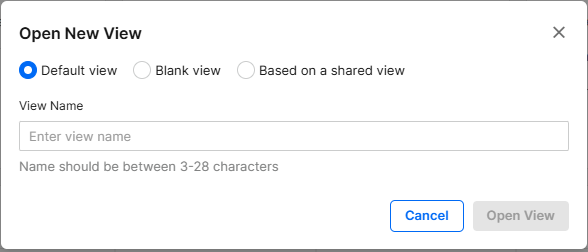
Default view – Will display all KPIs in their original format to enable minor changes easily
Blank view – Will display only the KPIs you select using the Edit Widgets menu.
Based on a shared view – Will enable you to select Views created by others that were shared.
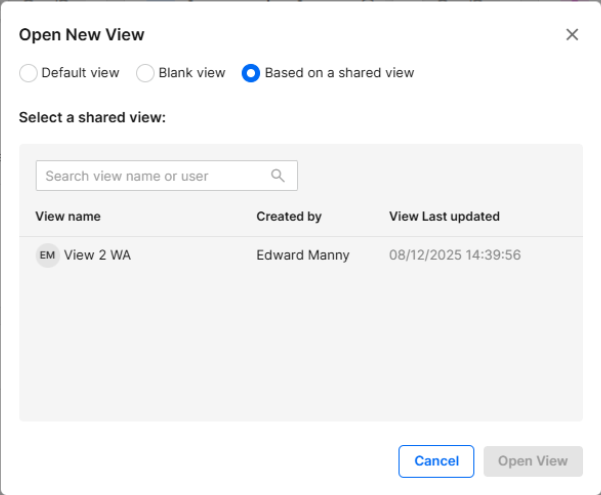
3. Click on the desired option followed by Open View.
Note: The agents using the shared view cannot edit the widgets or the participating teams/channels. They can only view data related to channels they have permission to access.
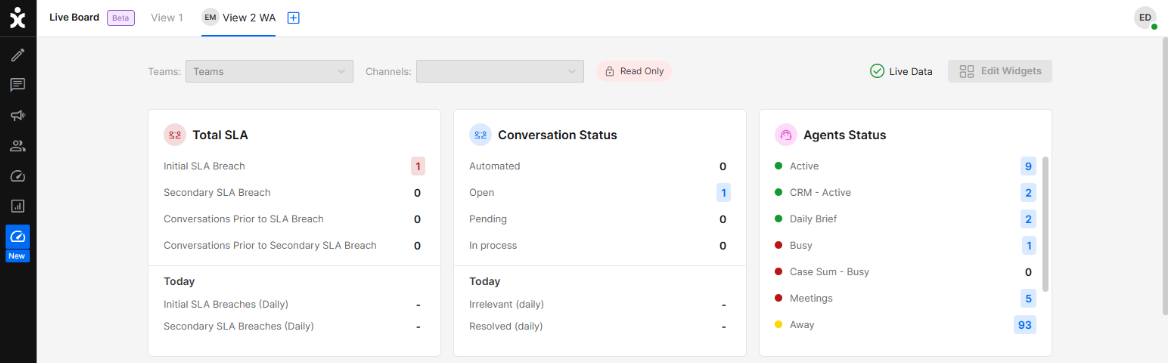
Viewing Actions
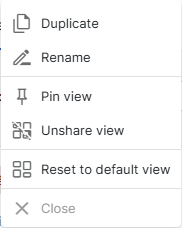
Right-click on the desired view will open available actions:
Duplicate – Will open a new view of the current board.
Note: When duplicating a view, the new view is not shared automatically.
Rename – Enables you to rename the View.
Pin view – Will pin this view as the first to open.
Share view – Allow other agents with permissions to view this board.
- Users can drill down into conversations and change statuses.
- Viewing agents cannot edit the widget, including assigned/unassigned agents, Business Hours/All Hours views, or participating teams/channels.
- Data will be filtered to display only the channels that the other agents have permission to view.
- Click Unshare view to revoke access for others.
Reset to default view – Cancel all changes made to this view.
Close – Will delete this view.
Data Limits
You can limit the overall data used in the board by selecting specific Teams and/or channels that will be used with the KPI.
For example, you can create a WhatsApp board view, concentrating only on the agents working with WhatsApp conversations.
You can also create a board that will only evaluate just the Sales teams, ignoring all other parts of the organization.

Teams are created and managed in the Organization section of the Settings page. Channels are created and managed in the communication section of the Settings page.
Permissions
To view the Real Time Dashboard, permission must be granted in the General section of the permission list.
Agents can only view data related to channels they have permission to access.