Overview
WhatsApp Groups in CommBox enable businesses to manage multi-participant conversations directly on the platform, bringing together customers, agents, and internal stakeholders into a single shared thread.
This capability extends beyond traditional 1:1 messaging by supporting collaborative communication scenarios such as consultations, support cases, and group coordination. As a result, businesses can manage structured, multi-user conversations on WhatsApp, fully documented, controlled, and integrated within CommBox.
This guide outlines the invitation process and best practices for maximizing this feature.
Prerequisites
To use WhatsApp Groups, ensure the following requirements are met:
- Official Business Account (OBA) approved for group usage
- A properly configured Groups channel in CommBox
- Appropriate agent permissions
- Note that WhatsApp Coexistence does not work with Groups.
For more information, refer to:
https://developers.facebook.com/documentation/business-messaging/whatsapp/groups
Key Considerations
A. Unified Conversation Thread
All group interactions are centralized within a single conversation thread:
- All participant messages appear in real time in CommBox
- Agents can respond directly from the platform
- Full visibility of all interactions between participants
- Maintains structured communication without fragmentation
B. Group Creation & Management
CommBox allows agents to initiate and manage WhatsApp Groups directly from the platform:
-
Create new WhatsApp Groups from within CommBox
-
The creating agent is automatically assigned as the group admin
-
Groups are limited to up to 8 participants (not including the agent)
-
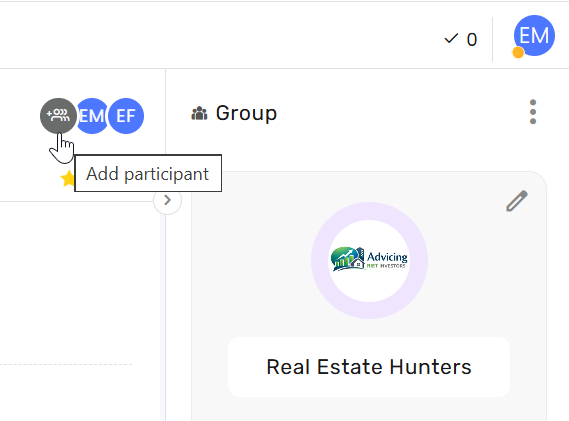
Internal participants, such as associated agents or admins, can be added to the conversation
-
Admins can set all participating agents as group admins - see General settings.
C. Permissions and Security
-
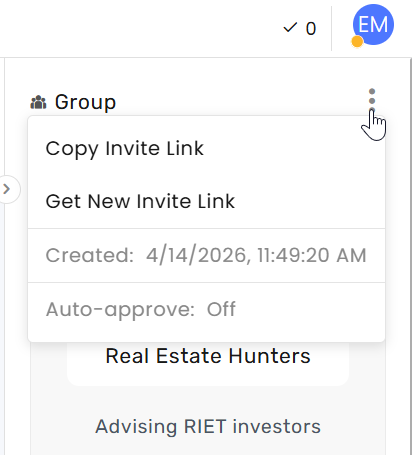
Agents can generate a new invite link at any time by clicking Get New Invite Link from the 3-dot menu at the top.
.png)
- Generating a new link automatically invalidates the previous one
- Pending invitations sent via the old link will no longer be valid
-
Group Admins, upon Group Creation, can enable Auto-Approve, allowing invited participants to join without manual approval
-
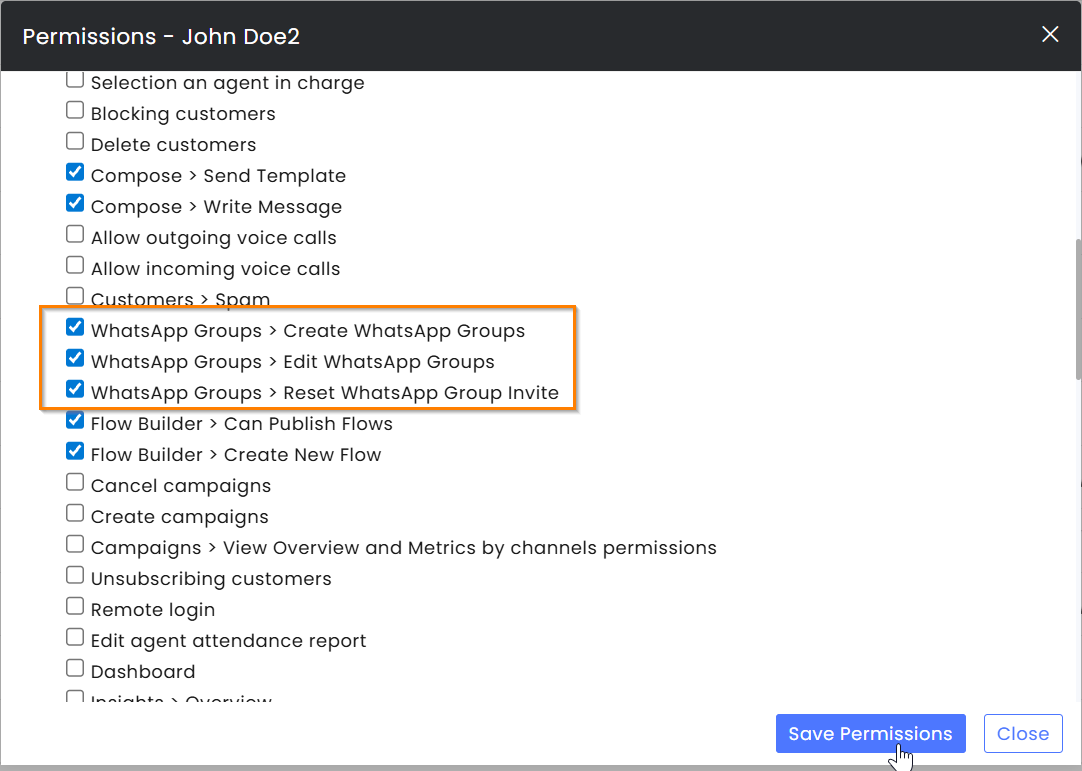
Non-admin agents need the appropriate permissions enabled under the General settings section to work with groups
D. AI in WhatsApp Groups
- Autonomous AI Agents and AI Chatbot that automatically reply to customers are currently not supported in WhatsApp Group conversations.
- Human agents can still use AI Assist features such as Ask AI, AI conversation summary, and Reply from knowledge base.
- Platform AI features such as CommSite, and Era Insights, incorporate WhatsApp Groups data.
E. Groups Module
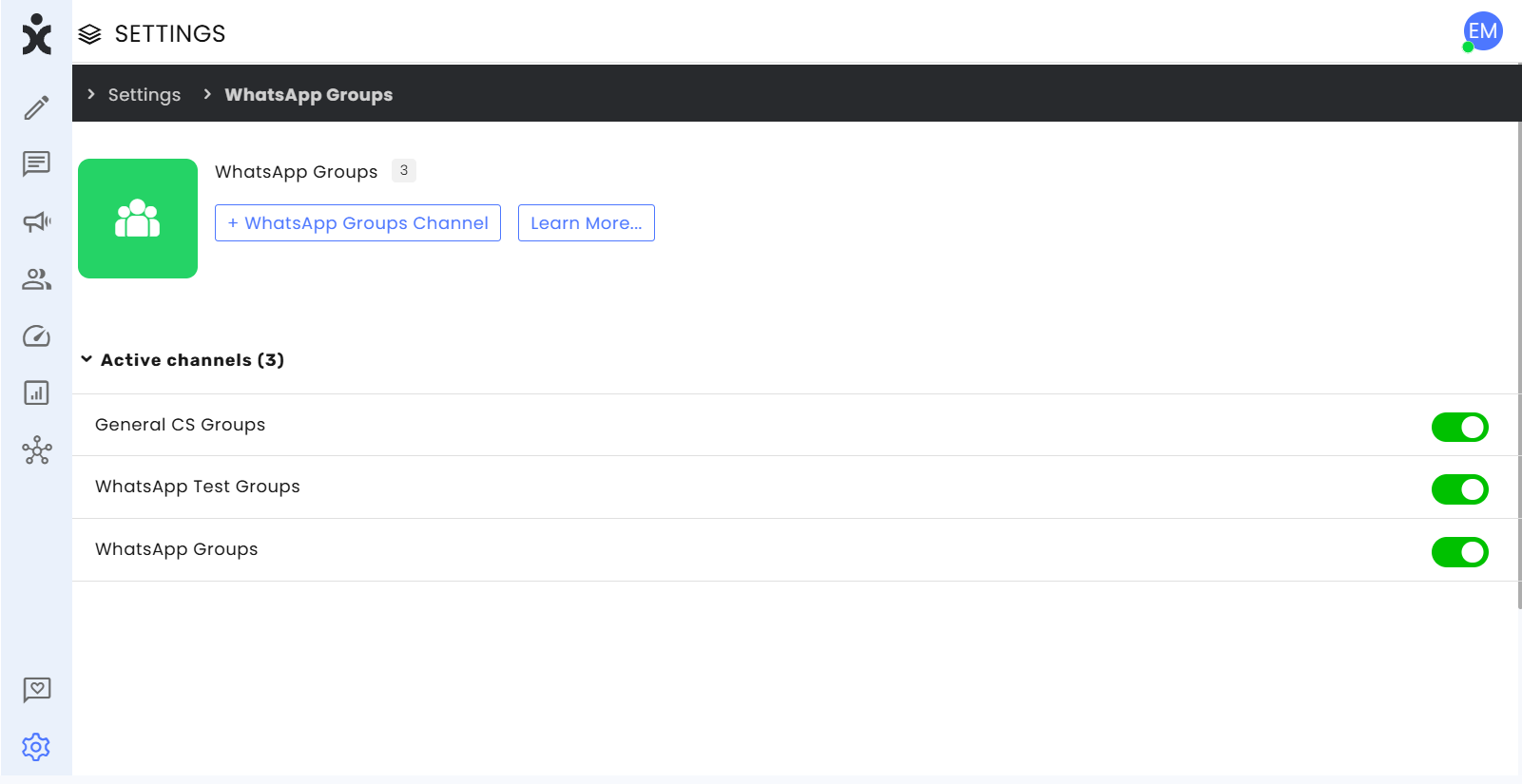
- The WhatsApp Groups module is automatically created from the existing WhatsApp Channels once Meta approves the associated WABA for group usage and a new group is created.
- The channel name keeps the original WhatsApp channel name with a “Groups” suffix added.
- A unique set of channel settings could be set for each WABA account.
- Up to 10,000 groups in any approved channel.
Key Organizational Benefits
| Benefit | Details |
|---|---|
| Enhanced Collaboration | Bring customers and internal teams into a single conversation thread |
| Faster Resolution | Reduce back-and-forth by aligning all stakeholders in real time |
| Full Visibility | Document and store all group interactions within CommBox |
| Operational Efficiency | Minimize communication gaps across channels and participants |
| Controlled Engagement | Enable structured group setup with defined participants and roles |
Invitation Process
-
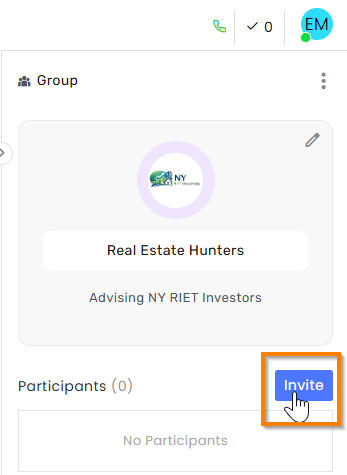
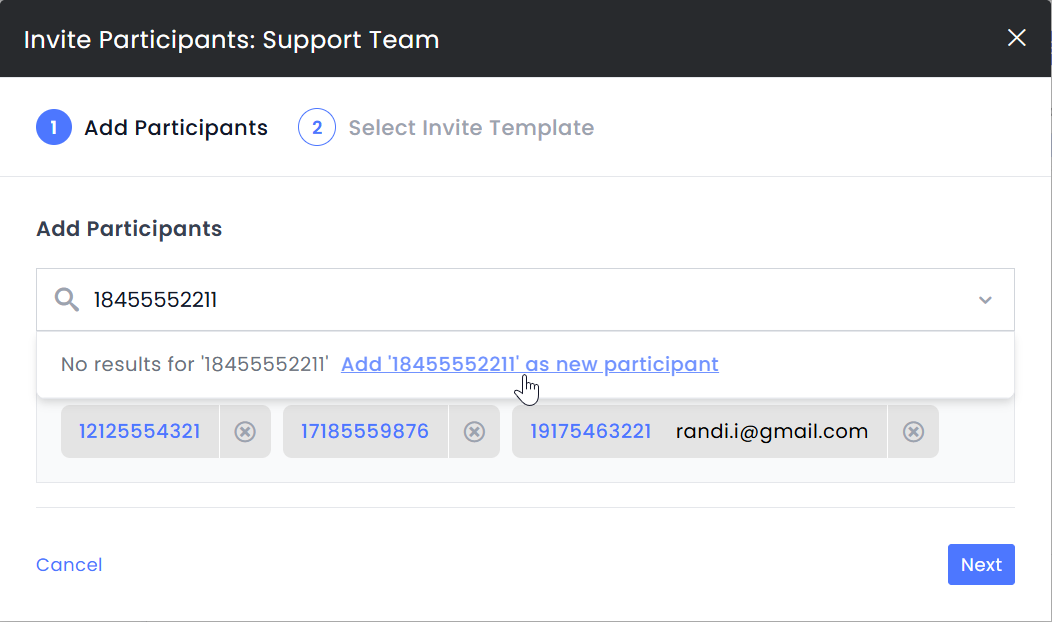
Select the group from the conversations listing. In the Groups pane, click Invite.
-
In the dialog box:
- Enter the participant’s phone number
- Select from existing customers if recognized
- If not recognized, choose Add [phone number] as a new participant
- Click Next
-
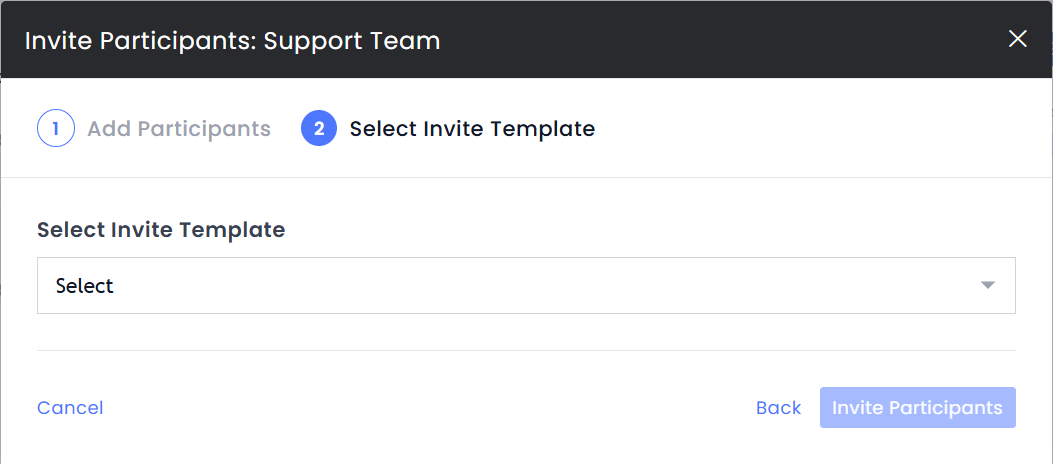
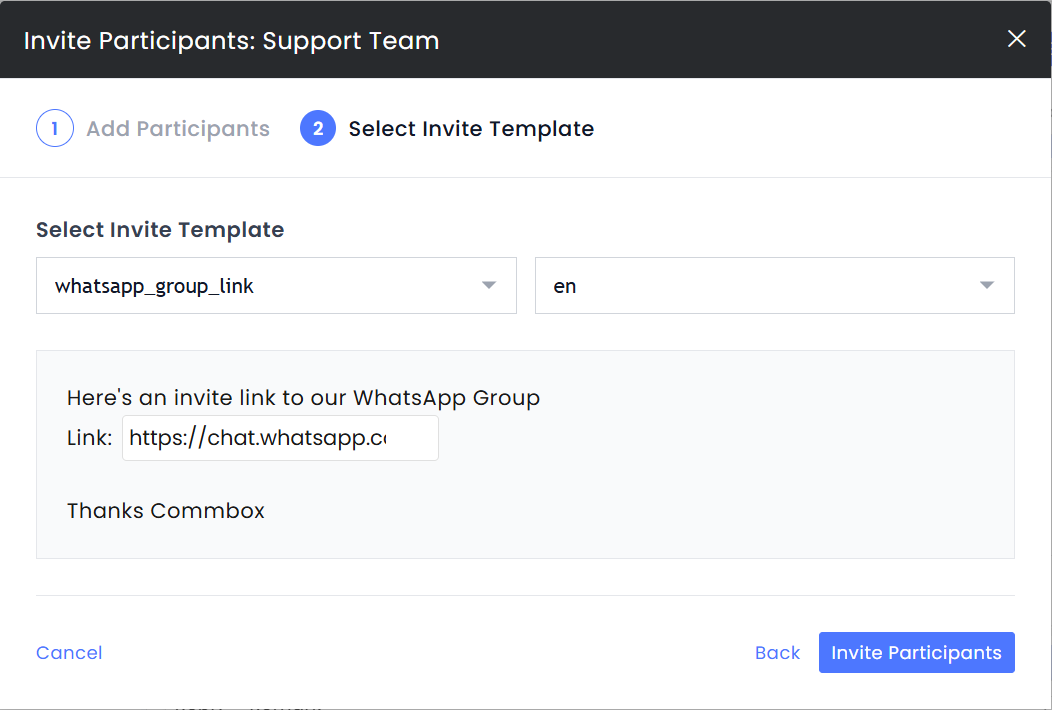
Select an invite template
- Templates cannot be edited
- Ensure templates include input fields if customization is required
-
To retrieve the invite link:
- Click the three-dot menu at the top
- Select Copy Invite Link
-
Paste the link into the template (if not already included), then click Invite Participants.
-
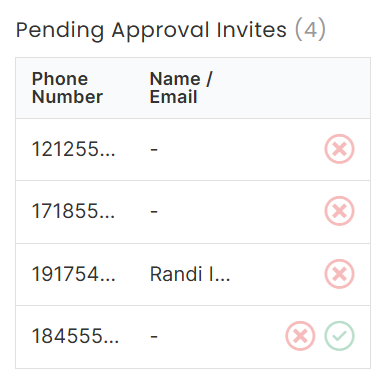
Once participants respond, the Group Admin can approve or reject each request.
Creating A Group
The agent who creates a group is automatically assigned as the Group Admin. This role may require additional permissions.
-
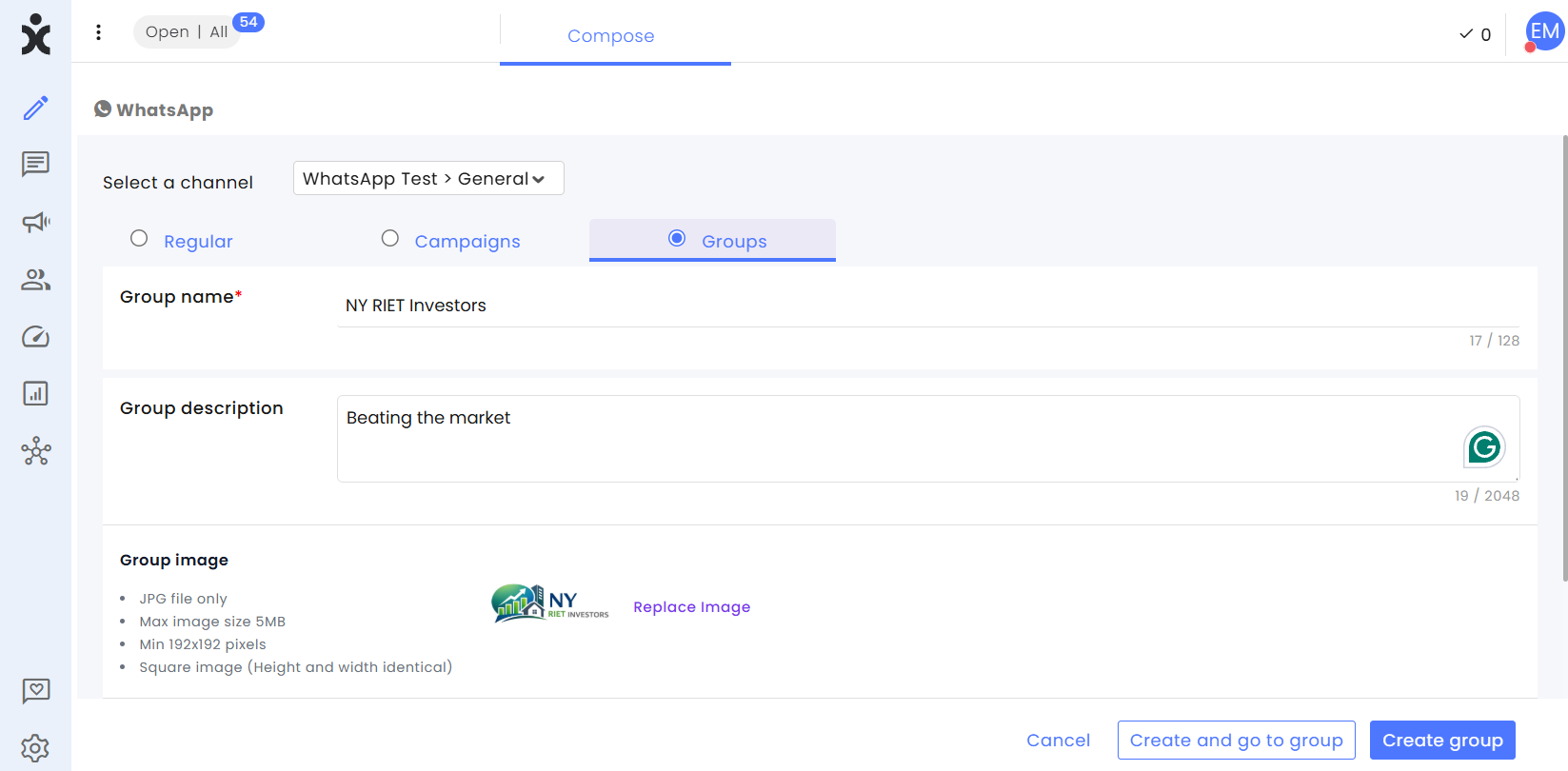
Navigate to Compose > WhatsApp and select Groups
- Select a WhatsApp Channel
- Enter a unique Group name
- Enter a description about the group (optional)
- Upload the group’s logo (optional)
- Enable Auto-approve join requests (optional, disabled by default)
Note: This setting automatically accepts new members and is permanent once saved.
-
Click Create group.
Group Management
A. Managing Join Requests
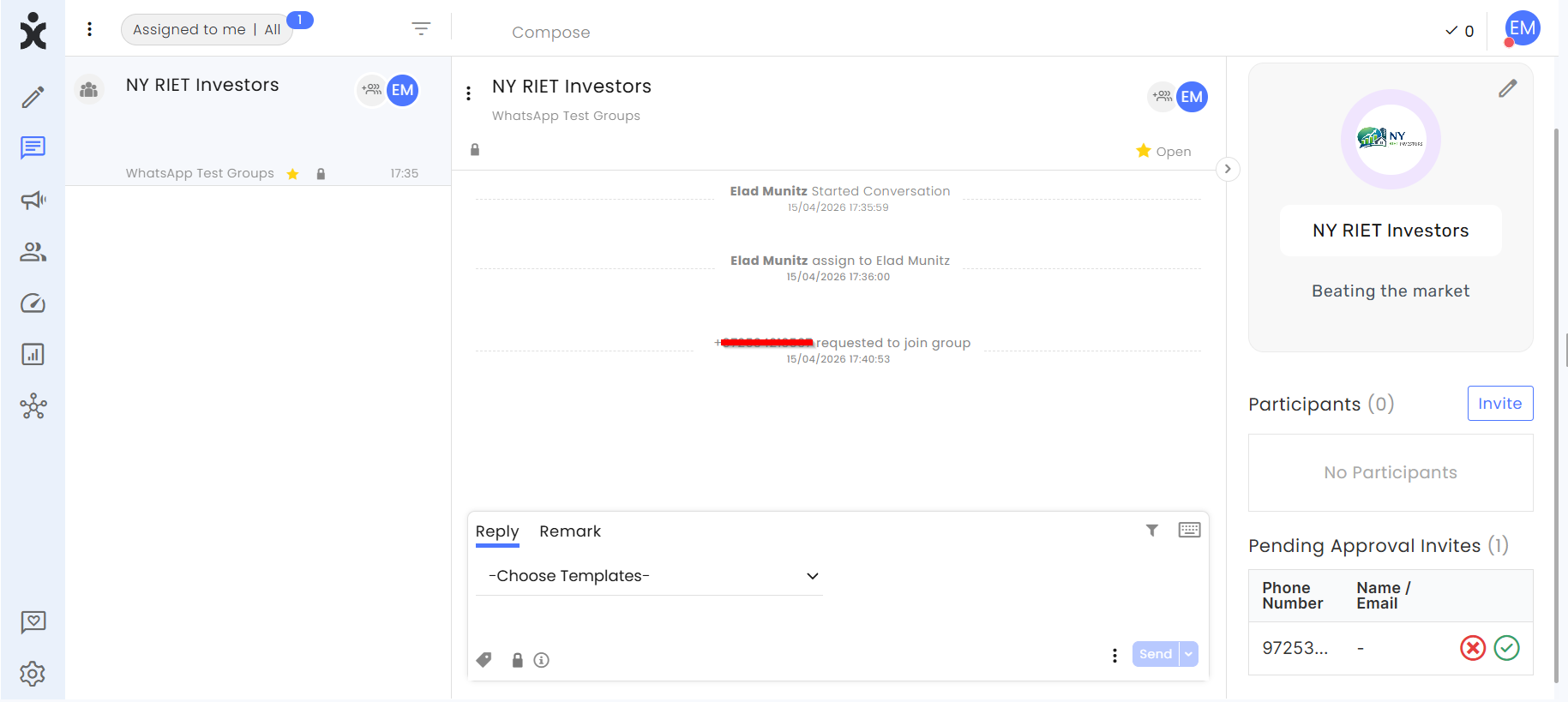
After being invited, participants must send a request to join the group.
As the Group Admin, you can approve or reject each request unless auto-approval is enabled.
Admins can set all participating agents as group admins - see the channel's General settings.
B. Removing Group Participants
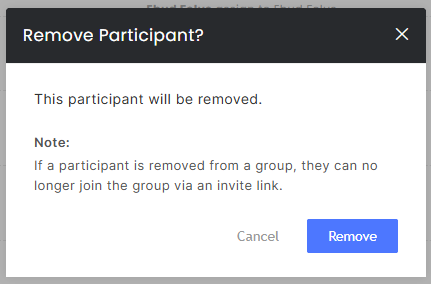
Only the Group Admin can remove participants from the group by clicking the X next to the participant's name and phone number when hovering next to the participant’s name
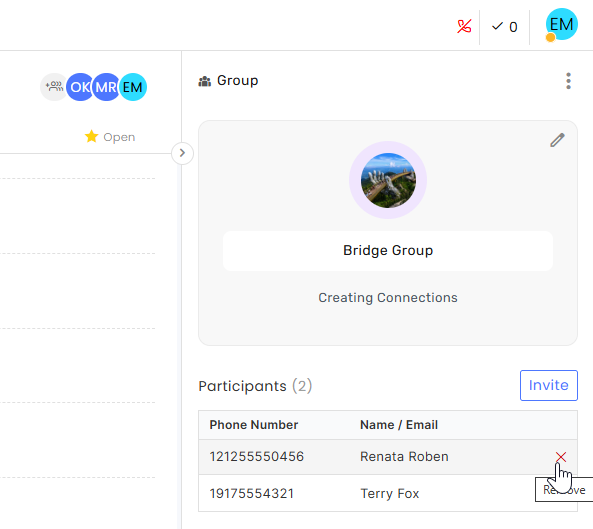
When selected, a dialog box will open to confirm the decision.
Note: Removed participants can not rejoin the group at any time. This is unique to business accounts.
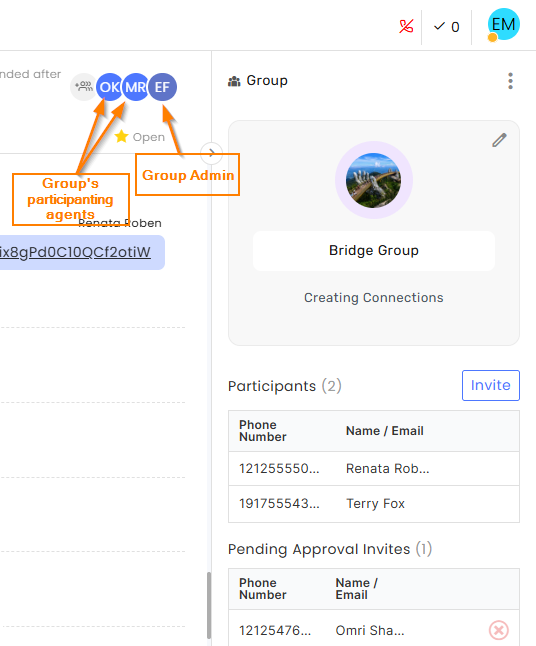
C. Changing the Group Admin
When the agent managing the group needs to be changed, changing the assigned agent will automatically grant the new agent group admin status.
Groups Module
The Groups module mirrors the behavior of the WhatsApp module. When a message is sent to a group, a corresponding channel is automatically created. The channel name is based on the WhatsApp channel name, with a “Groups” suffix added for identification.
Each channel is linked to a unique WhatsApp (WABA) phone number. To enable group messaging, the phone number must be approved for group usage. Without this approval, the channel will not function for groups.
Note: Each WhatsApp Business (WABA) phone number can be assigned to only one channel.
Unique Channel Settings
.png)
General
.png)
Select the channel’s language, and enable desired WhatsApp capabilities.
- Display the agent’s name on agent messages
- Enable WhatsApp read receipts
- Set all participating agents as group admins