Overview
Voice Call Transcription automatically converts call recordings into searchable conversation messages with speaker attribution. Once enabled, recordings are transcribed and added directly to the conversation timeline, allowing users to quickly review interactions, search spoken content, and use transcripts with existing CommBox features such as Search, Inbox, APIs, and webhooks.
The feature is configured per Voice channel, where each subchannel has its own transcription settings.
A dedicated Transcribe API also allows external applications to submit recordings for transcription and monitor their processing status.
Key Considerations
- Transcription is available for Voice channels and Chat and Voice Chat applications.
- Speaker Diarization requires the payload from the API to include the speakers' names and the agent’s ID. When this information is not available, the transcription appears as one block of text and not as back-and-forth messages.
{
    "recording_path": "/mp3/1laE1K8GG8M1",
    "client_reference_id": "twilio-segment-abc966",
    "speakers": [
        {
            "name": "Amenda Brown"
        },
        {
            "name": "James Fox",
            "managerId": 17505828186
        }
    ]
}
- Voice call recordings remain available for playback even when transcription is disabled.
- Set the Language settings to Auto-detect to automatically identify the spoken language used.
- Track transcription progress through the API.
- Improve transcription accuracy using language hints, vocabulary hints, and context prompts.
- Once transcription completes, the Transcript entries are added directly to the conversation.
- SIP-based Voice channels are not supported.
Prerequisites
Contact your CommBox CS manager to install and enable the Transcription module.
Configure Voice Call Transcription
Each voice/chat channel or subchannel can have its own configuration.
Navigate to: Settings > Voice > Selected Channel > Transcription
The configuration consists of two sections:
Recording
These settings are used when CommBox retrieves recordings using the recording path supplied to the Transcribe API. Configure how CommBox retrieves recordings from your recording provider.
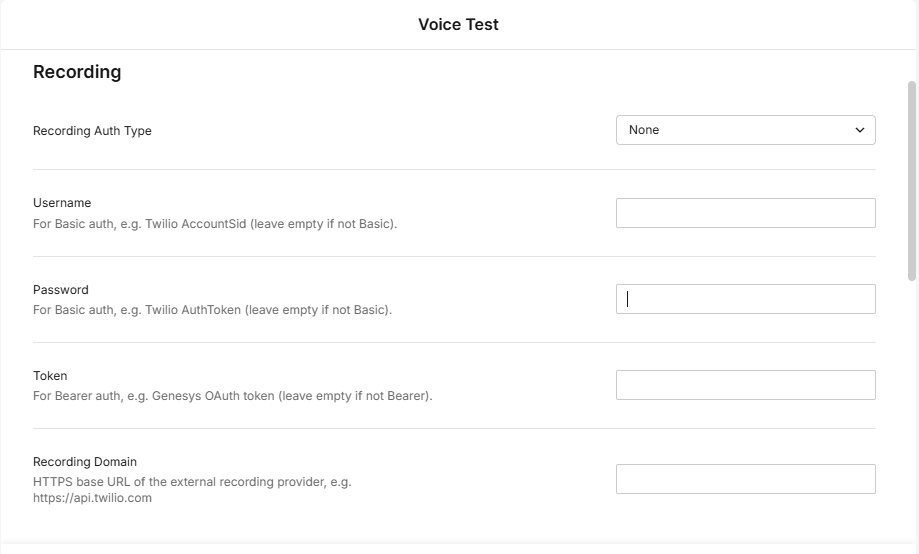
Recording Auth Type - Select the authentication type for the API that sends the recording to CommBox. (Basic Authentication, Bearer Token, or no authentication)
Username - Enter when using basic authentication (e.g. Twilio AccountSid)
Password - Enter when using basic authentication (e.g. Twilio AuthToken)
Token - Enter the organization’s API key (e.g. Genesys OAuth token) when using Bearer token authentication - leave empty if not Bearer.
Recording Domain - Enter the HTTPS base URL of the external recording provider, e.g. https://api.twilio.com
Transcription
Configure how recordings are transcribed. These options help improve transcription quality and speaker identification.
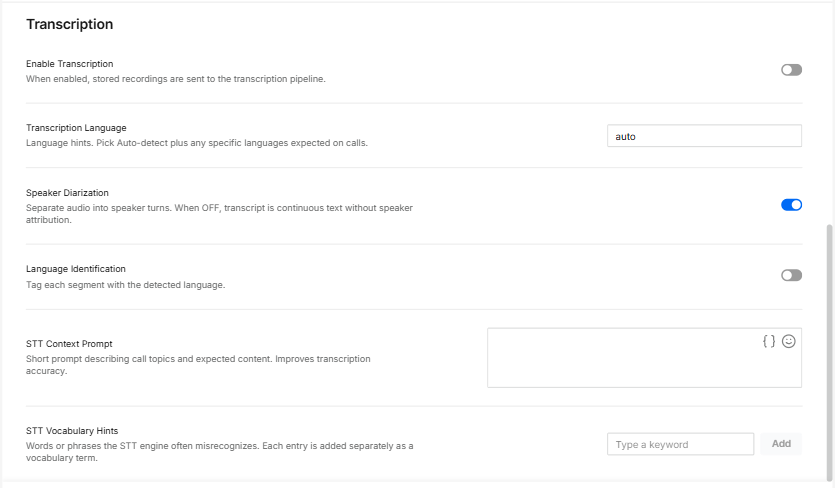
Enable Transcription - When enabled, stored recordings are sent to the transcription pipeline.
Transcription Language - Language hints. Pick Auto-detect plus any specific languages expected on calls.
Speaker Diarization- Separate audio into speaker turns. When disabled, transcripts are continuous text without speaker attributions.
Language Identification - Tag each segment with the detected language.
STT Context Prompt - Short prompt describing call topics and expected content. Improves transcription accuracy.
STT Vocabulary Hints - Words or phrases the STT engine often misrecognizes. Each entry is added separately as a vocabulary term.
Transcribe API
The Transcribe API allows applications to submit recordings for transcription, with a status update of the transcription processing.
Learn more about the Transcription APIs at these links:
https://help.commbox.io/apidocs/transcribe-a-call-recording
https://help.commbox.io/apidocs/get-transcription-request-status
Submit a Recording
POST /objects/{objectId}/transcribe
Supported submission methods:
Recording Path: Send a JSON request containing recording_path.
CommBox combines the path with the configured Recording Domain and retrieves the recording using the stored authentication credentials.
Direct Upload
- Upload the recording using multipart/form-data.
- No recording domain or authentication configuration is required.
- Maximum file size: 150 MB
HTTP 400 – Bad Request when the uploaded file is too large:
{
  "error_code": "file_too_large",
  "message": "Recording file exceeds the maximum allowed size of 150 MB."
}
- Supported formats:
- MP3
- WAV
- OGG
- M4A
- MP4
- FLAC
- WebM
- AAC
- AMR
Optional Parameters:
Both submission methods support:
- speakers
- Display names for participants.
- managerId identifies a participant as an agent.
- client_reference_id
- Prevents duplicate submissions.
A successful request returns:
- HTTP 201 Created
- request_id
Check Transcription Status
GET /objects/{objectId}/transcribe/{request_id}
The response includes:
- Current status
- Accepted
- Transcribing
- Completed
- Failed
- Recording activity ID
- Processing timestamps