Overview
WhatsApp campaigns are marketing or communication initiatives that use WhatsApp to engage with customers, promote products, send updates, or initiate conversions. These campaigns can be highly effective due to WhatsApp’s high engagement rates and direct communication style.
This guide discusses creating a new campaign and the various aspects of its management.
.png)
Key Considerations
A. Initial communications with the customers must be done via an approved WhatsApp Template.
B. Within 24 hours of the customer responding to a message, the campaign may include open-text messages sent to the customer instead of a template.
C. Before messaging individuals on WhatsApp, businesses must obtain opt-in permission (which does not need to be specific to WhatsApp) from contacts. Individuals need to provide their mobile phone number or be given explicit opt-in permission confirming their willingness to receive future messages or calls from that business.
D. Opt-out is detected automatically when the contact sends ‘Unsubscribe’ (or the translated equivalent) on any channel and in any conversation. Those contacts are skipped in future campaigns on the same channel. Regular messages can still be sent to opt-out customers.
E. Campaign managers can configure a follow-up campaign for customers who did not receive the original campaign message. The follow-up is triggered by a condition and can be sent through a different channel or module, helping increase delivery rates while avoiding duplicate messages to customers who have already received the original campaign.
New Campaigns
Creating a New Campaign
- On the CommBox platform, click the Compose section (pencil icon) in the main sidebar, and select the WhatsApp tab.
- Select a WhatsApp channel that will be used for sending messages out.
- Select the Campaigns option.
.png)
- Enter the Campaign’s name.
- Select the Audience that will receive this campaign. You can also add additional customers by clicking Import Customers (optional – see below for details).
- When selecting a dynamic audience, the number of matching customers is calculated at the time of launch based on the current filter criteria. As a result, the audience size is not fixed in advance. A limit field will appear when sending a dynamic audience campaign to prevent sending more messages than your organization can effectively handle. The system will send the campaign only to the first matching customers, up to the defined limit. You can ignore these settings if they are not relevant to your use case.
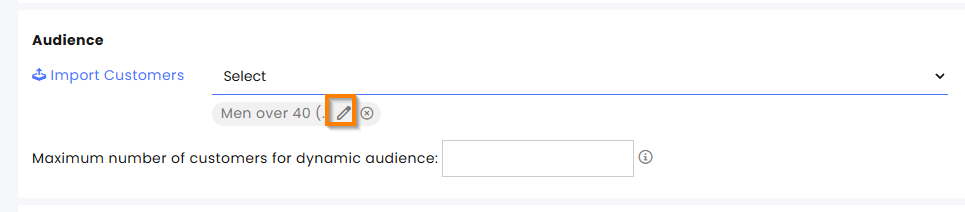
- Use case example:
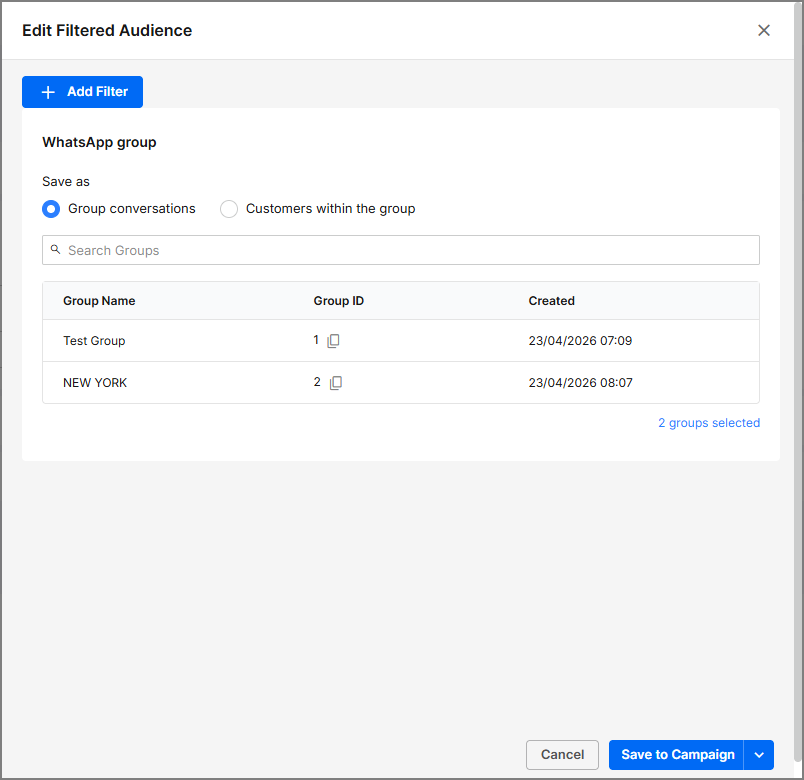
Every morning, a campaign is sent to customers who initiated a call after business hours the previous day, inviting them to call back. The message limit is set according to the number of callbacks the team can handle. - When sending a campaign with a dynamic audience, you can edit the audience filters for the selected campaign by clicking the edit icon. Edit or add filters as needed.
- Save these changes either for the current campaign only or for future use of the audience definition.
- For audiences that include WhatsApp groups, you can select either the group or the group’s participants as a target.
 Click here to learn more about Audiences.
- Select the template that will be used. Once selected, the template’s language and content will appear in this section.
- For existing customers, you can use a template with a placeholder that will be populated with the customer’s information details.
- Hover over the input field and click the plus sign.
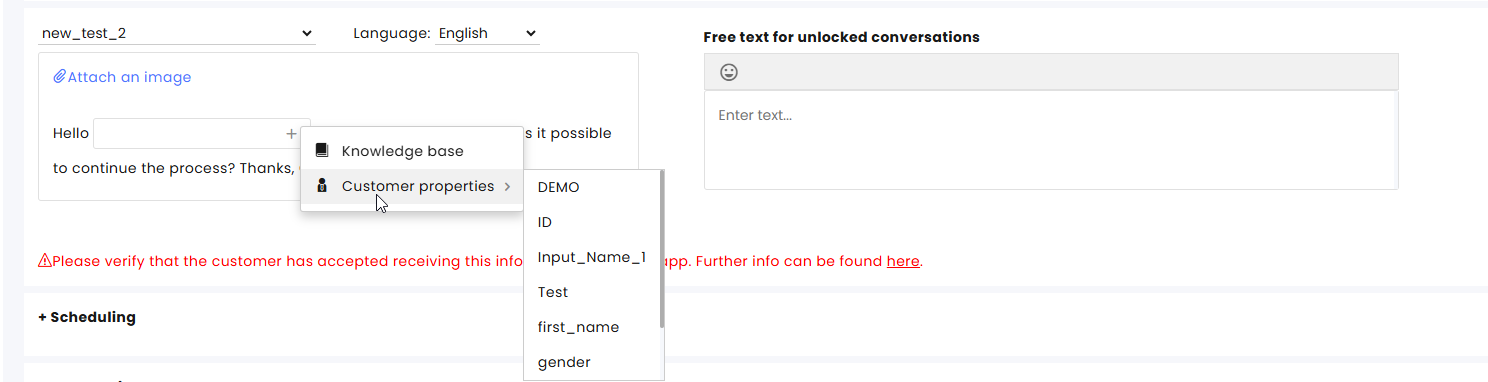
- Hover over the input field and click the plus sign.
b. Select Customer properties to enter information found in the customer's info pane or select Knowledge base to enter a predefined item in that field.
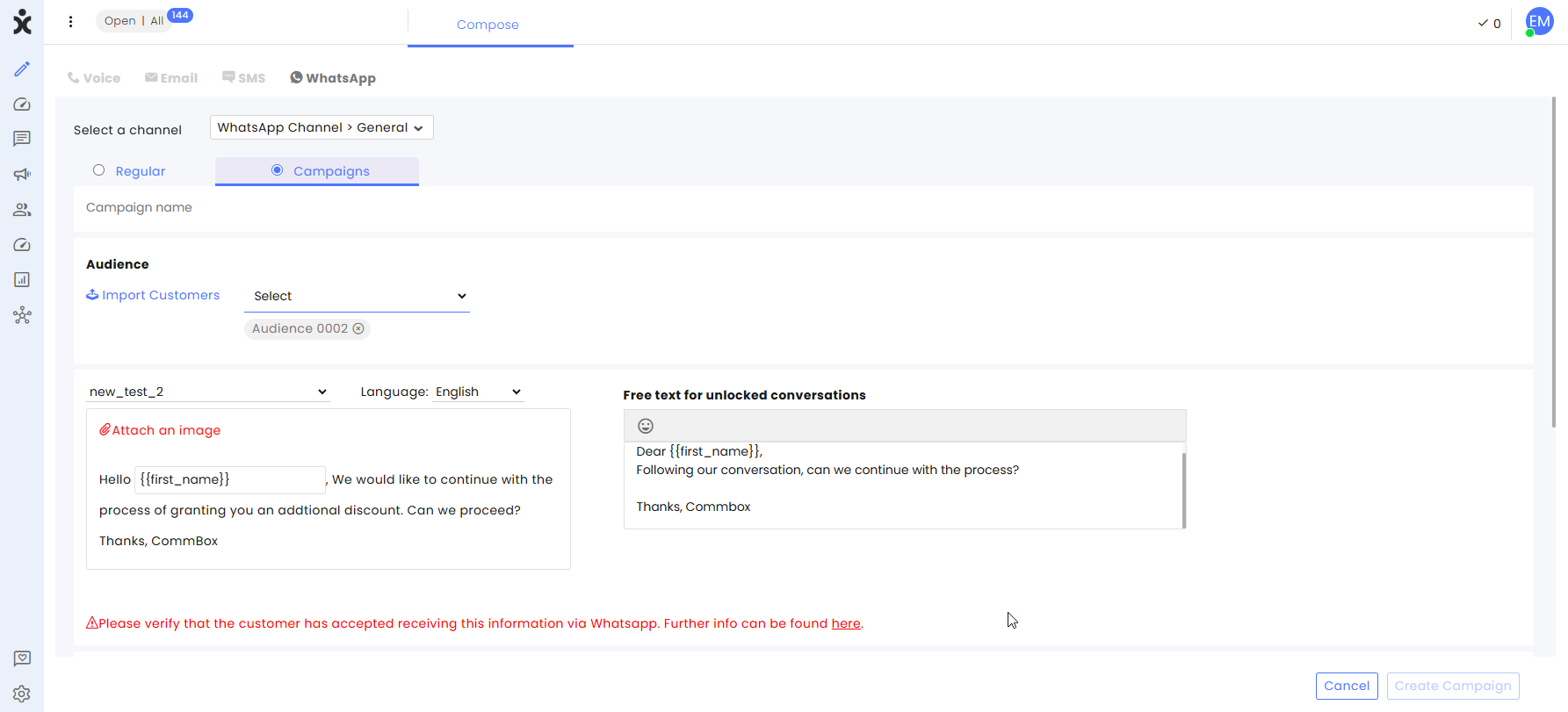
- In the Scheduling section, select the sending time and the start/end of the campaign.
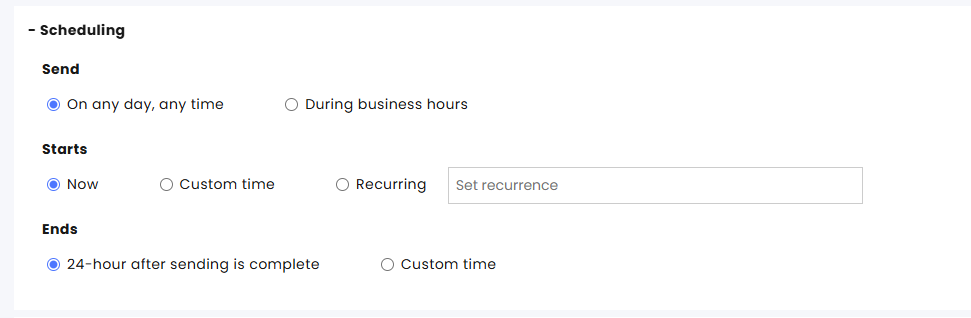
Send
- Select whether to limit campaign messages to go out only during business hours or have no limitation on the sending time.
- When choosing the During business hours option, select the desired business hours profile.
Starts
- Select Now to launch the campaign immediately.
- Select Custom time for starting the campaign.
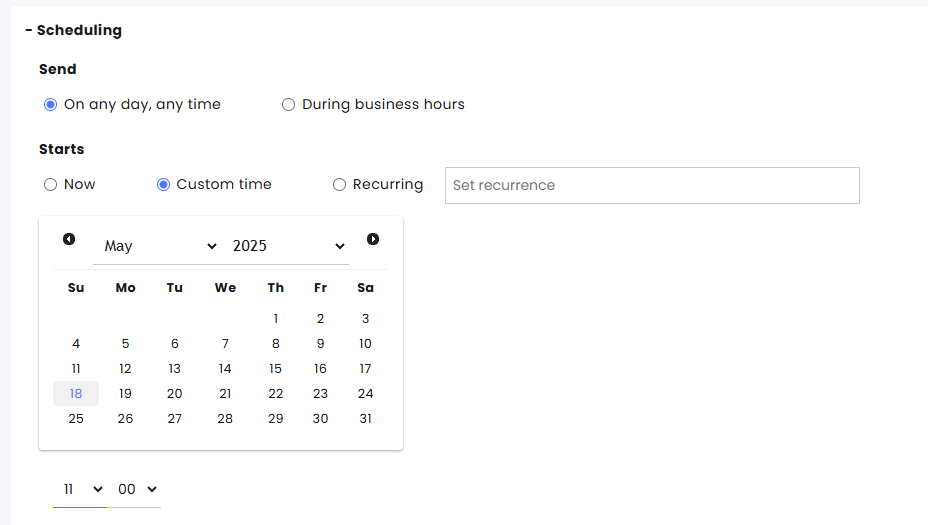
- Select Recurring campaigns to resend this campaign multiple times at preset intervals. Recurring campaigns will be treated as separate campaigns, and each launch will be listed separately in the Overview and metrics page.
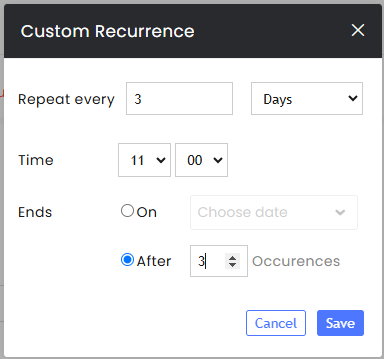
Note: Sending will fail if there is an internal contradiction with sending times. For example, sending the campaign every Sunday at 7 AM (Recurring) when the selected business hours profile starts at 8 AM.
Ends
The time required to send a campaign depends on the number of customers included in the campaign. Once sending is complete (after an attempt has been made to send the message to all selected customers), a 24-hour response window opens by default. During this period, customer replies are associated with the campaign.
Select when the campaign should end. After the campaign ends, customer responses are no longer associated with it.
Choose one of the following options:
- 24 hours after sending is complete – Ends the campaign 24 hours after all messages have been sent (default).
- Custom time – Ends the campaign at the specified date and time, regardless of whether message delivery has been completed.
9. Optionally, select the Automation that will respond to customers who reply to the campaign. The selected AI Agent/Chatbot is applied only to customers whose responses are associated with the campaign while it is active.

- Optionally, add a follow-up step to resend the campaign to customers who did not receive it or did not respond to the original campaign.
Configure the following follow-up settings:
Select the trigger for sending the follow-up: No reply, Not read, Not delivered, or Failed.
Specify when to send the follow-up, from 1 hour to 7 days after the original campaign is completed.
Select the channel type (WhatsApp or SMS).
Select the channel. For WhatsApp, choose the template to use (ensure the selected template is available for the chosen channel).
Enter the SMS message or, for WhatsApp, the message to send when the follow-up is sent within the 24-hour customer service window following the customer's last interaction.
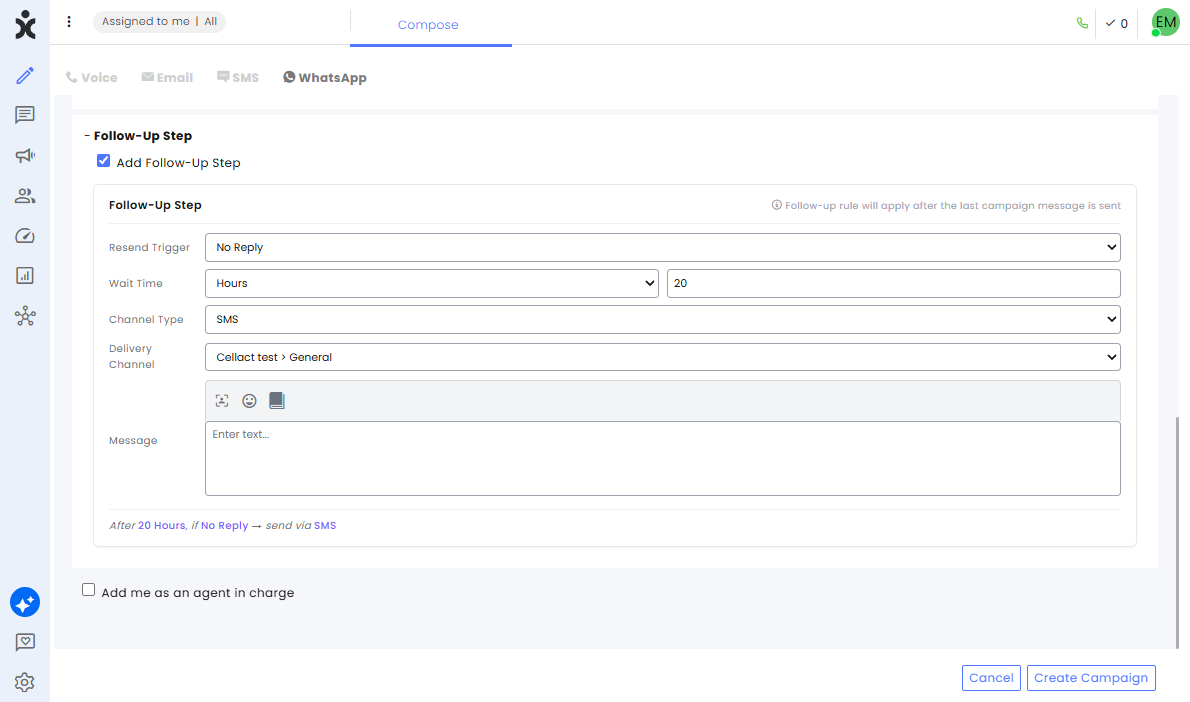
Note the summary notation at the bottom of the screen
- Check Add me as an agent in charge to designate all replying customers to you (optional).
- Click Create Campaign.
Launching of Campaign
- Once you click Create Campaign, verify that your WABA status is connected and that the number of contact numbers to reach the tier limit is more than the number of contacts you wish to send the campaign to.
Click here for more information about WhatsApp template message tiers and limits.
- After verifying you are safe to launch the campaign, click on Continue.
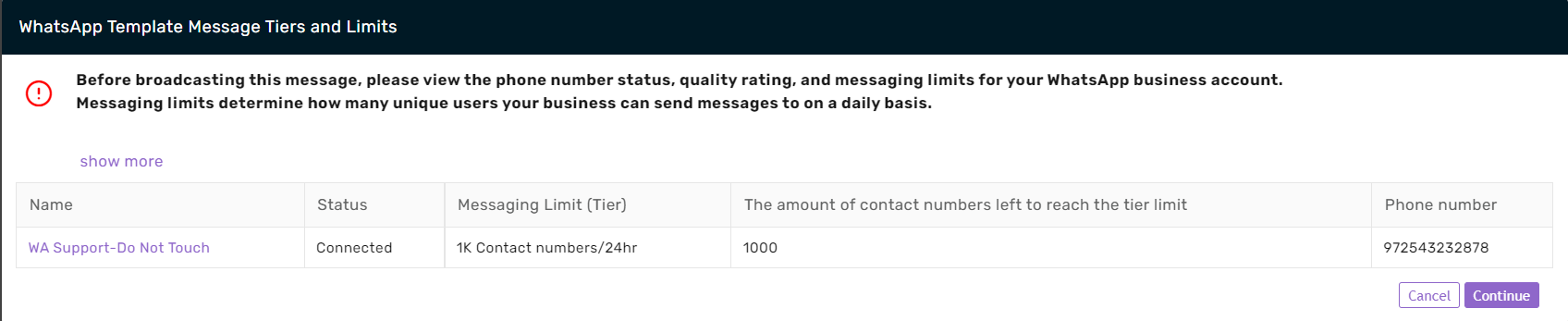
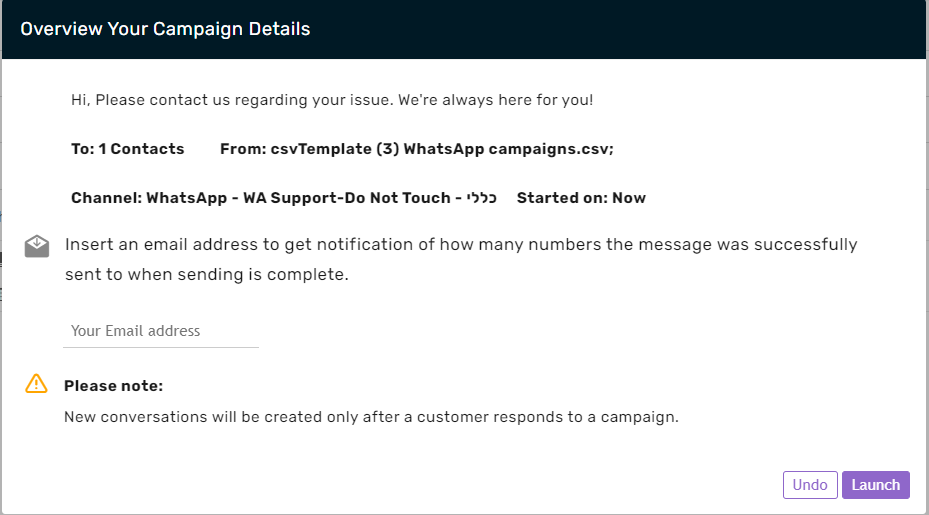
- Review the campaign’s details, provide an email address for notification when the campaign has been completed, and click Launch.
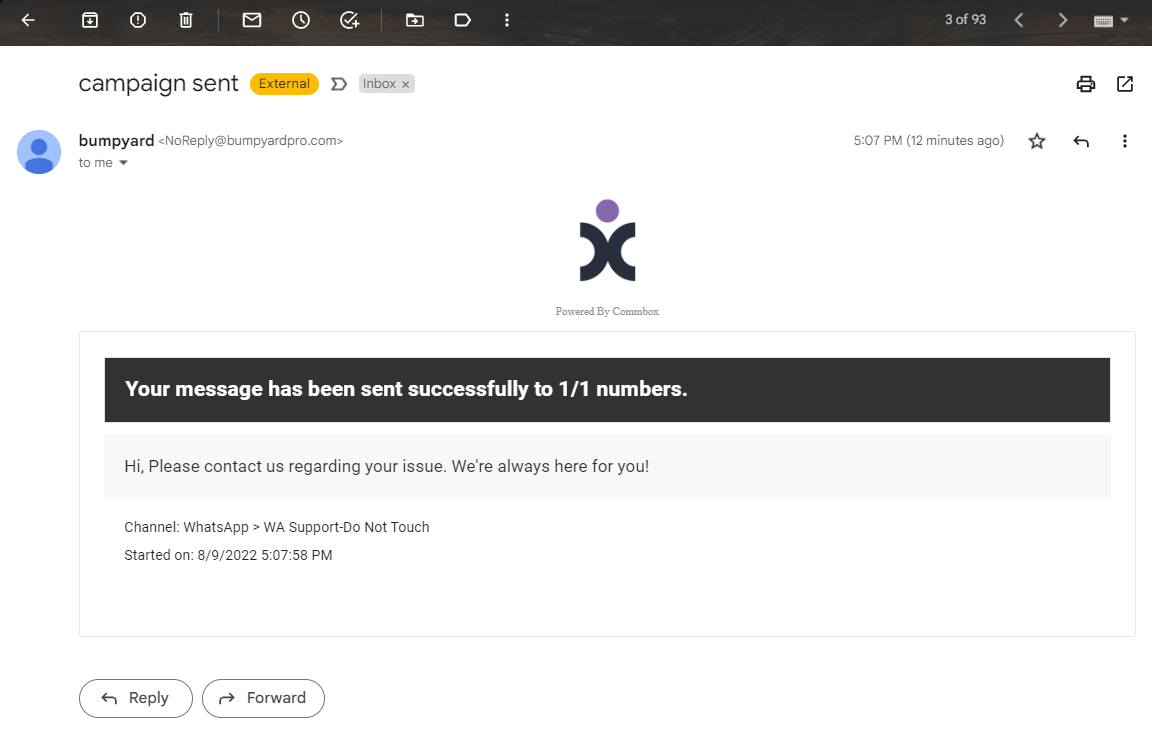
Once completed, the notification email will be sent to the designated recipient.
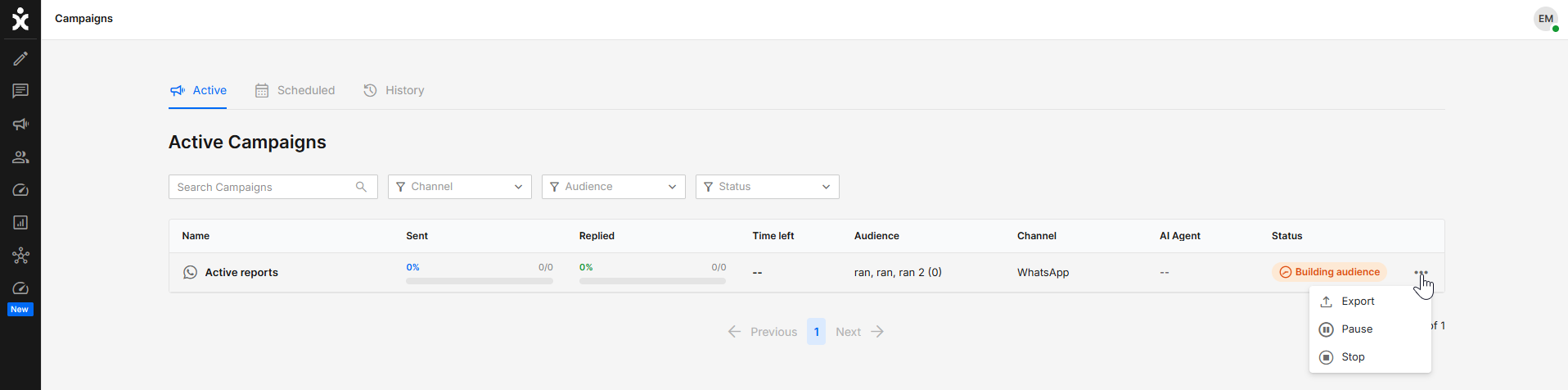
While the new campaign is getting started or in the process of going live, you may pause or stop the campaign by clicking the 3-dot menu next to the Status column.
Importing Customers
1. To add additional customers to the campaign, click Import Customers in the Audience section.
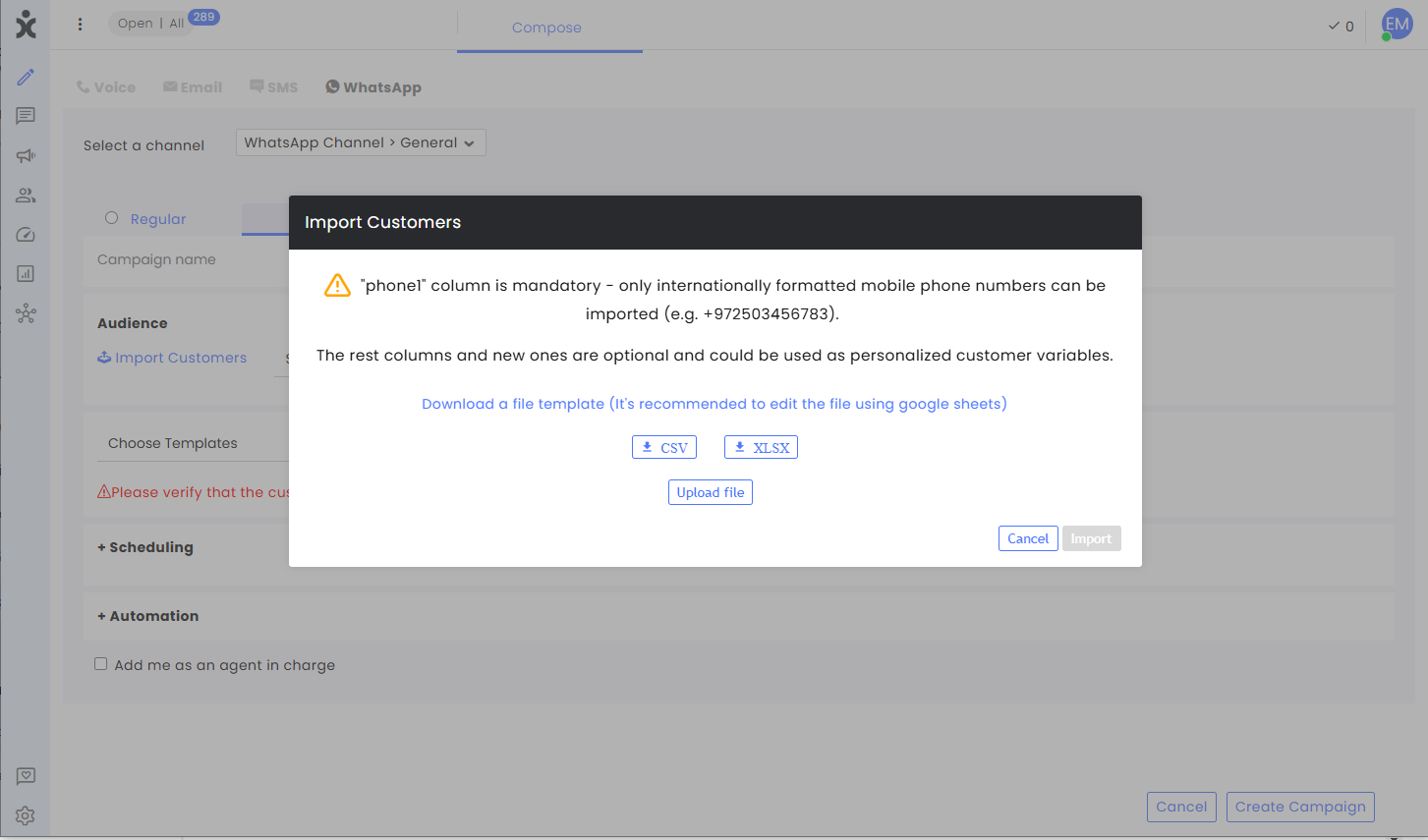
2. In the dialog box, you may download a sample of a table that can be used for this purpose.
Note the following guidelines:
a) All tables must have a column heading for Phone1, and all customer phone numbers must be in international format (including the country code). 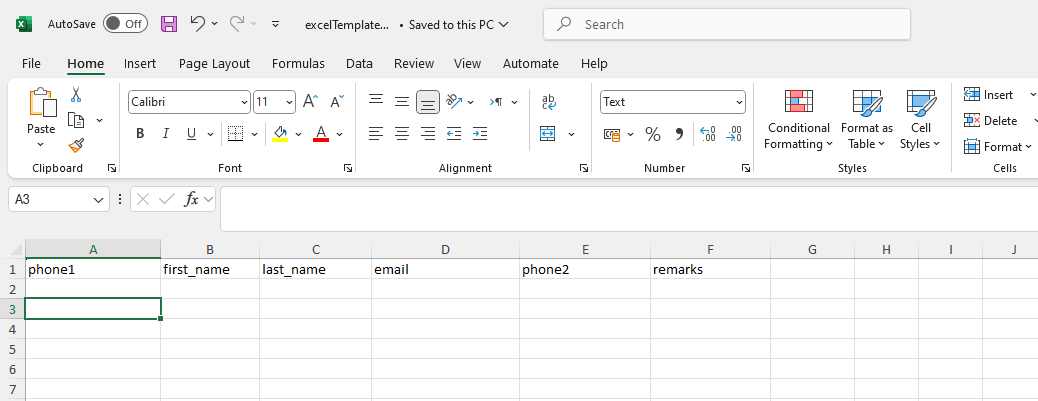
b) Additional columns used by your account can be added to the file as long as they match the custom field settings.
c) When sending a template with parameters, you can add additional columns to the file with the parameter’s title as the column heading and the personalized customer variables for those placeholders.
d) When uploading the CSV file, you will need to write the titles of additional columns and add the customers’ information under them.
e) CSV updates each customer’s permanent record. By default, all existing customer fields are always recognized to match or create new customer entries (for example, Name or Email). Additional columns (for example, order number or product ID) will be used solely for campaign personalization and might not be saved to the customer’s details unless your admin settings allow it. Please verify whether your CSV imports update global records or remain strictly campaign-specific.
f) We recommend editing the file using Google Sheets.
3. Click Upload file to upload the contacts list and select the appropriate file.
4. Once uploaded, click the Import button in the lower right corner.
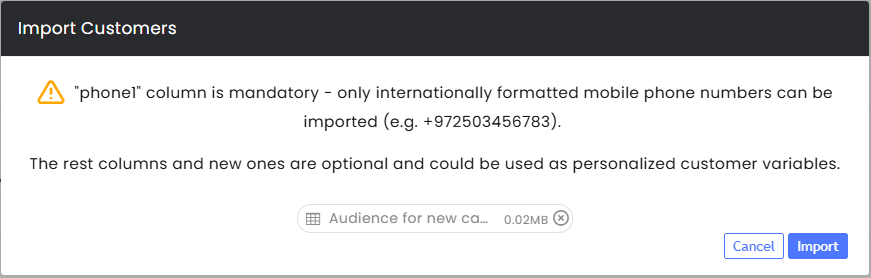
Upon successful import, you can save the file as a new audience and name it.
5. The selected file will appear as an audience ready for use. Click Continue.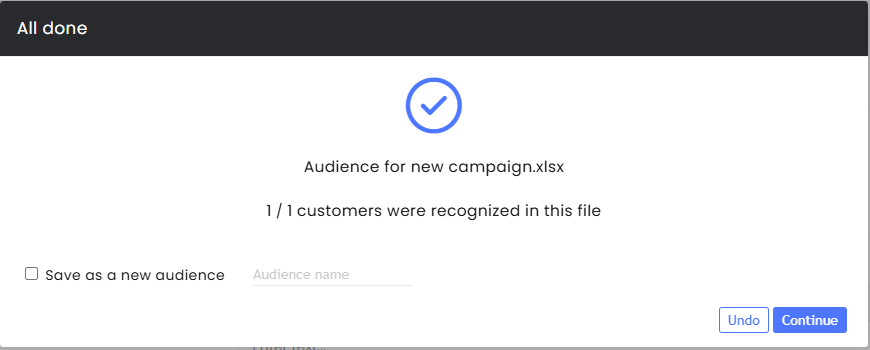
Campaigns Overview and Metrics
The Campaign Overview and Metrics page provides a centralized view of all campaigns and their performance. Use this page to monitor key metrics, locate specific campaigns, and manage campaign activity.
Components
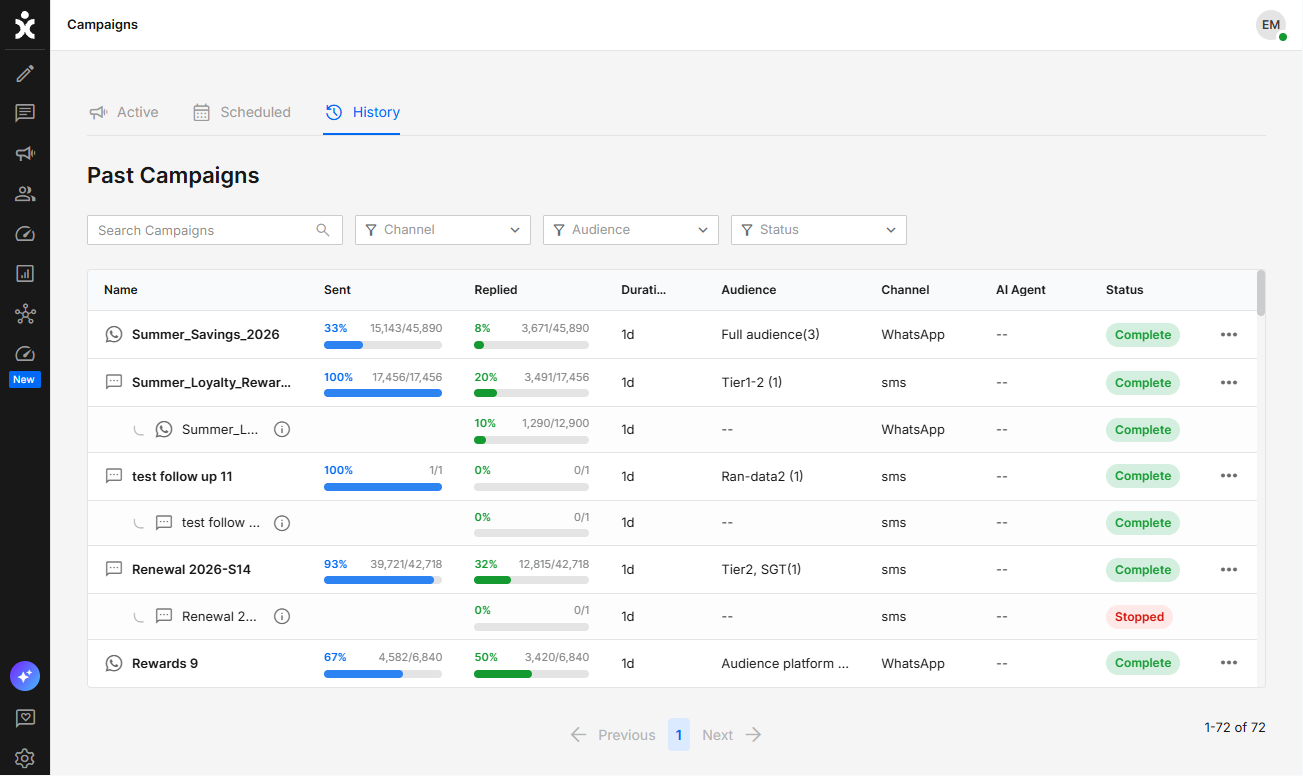
Navigate to Campaigns by clicking the megaphone icon at the main side toolbar.
Campaigns are organized into the following tabs based on their status:
- Active – Displays campaigns that are currently running.
- Scheduled – Displays campaigns that are scheduled to run at a future date or time.
- History – Displays completed, stopped, and expired campaigns.
Use the Search field and Filters to quickly locate specific campaigns.
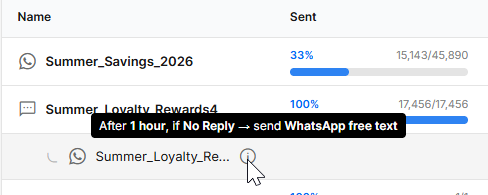
Follow-Up campaigns are displayed directly beneath the original campaign in the campaign list. This allows you to easily track follow-up activity, including retry and fallback campaigns, from the overview page.
Each campaign includes the following information:
Name – The name assigned to the campaign. If no name was specified, the campaign's send date and time are used instead. The corresponding sending channel icon (WhatsApp or SMS) is displayed next to the name.
For Follow-Up campaigns, hover over the campaign to view its trigger condition.
Sent – The number of messages successfully sent out of the total number of recipients in the selected audience. The success rate is displayed in blue as both a percentage and a progress bar.
Replied – The number of recipients who replied to the campaign out of the total number of recipients. The reply rate is displayed in green as both a percentage and a progress bar.
Duration – For Active and Scheduled campaigns, displays the remaining time until the campaign expires. For campaigns in History, it displays the total time the campaign was active (from the first message sent until the expiration time).
Hover over the value to view the exact campaign start and expiration dates.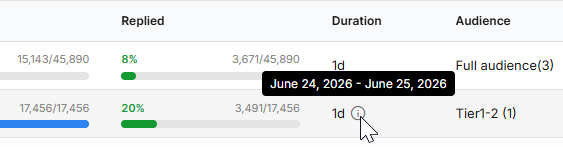
Audience – Displays the name of the saved audience (if applicable) and the number of recipients it contains. Hover over the value to view the complete audience list.
Channel – The channel through which the campaign was sent.
AI Agent – The AI Agent or chatbot (automation flow) assigned to handle campaign responses.
Status – The current state of the campaign:
- Scheduled – The campaign is scheduled to be sent at a future date and time.
- Sending – The campaign is currently sending messages.
- Complete – All campaign messages have been sent successfully.
- Done – The campaign finished sending, and its expiration time has passed. It is no longer active.
- Paused – Message sending is temporarily paused due to messaging or tier limits. Sending resumes automatically when the limits are reset.
- Stopped – The campaign was manually stopped before or during message delivery.
Exporting Reports
To export campaign data to an Excel file, click the More Options (⋮) menu and select Export.
Note: Keep the Campaign Overview page open until the report generation is complete. Closing or leaving the page before the export finishes may interrupt the process.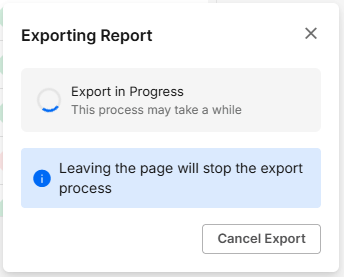
The Excel report includes the following:
General Tab
Provides an overview of the campaign, including the campaign name, creation, start, and expiration times, communication totals (Sent, Received, Read, and Replied), the total number of unsubscribed users and customers with an open conversation, the campaign module and channel, audiences, template content, the related Automation Flow, the total number of failed messages, and the campaign creator.
Customers Tab
Provides detailed information for each customer, including the phone number or email address, first and last name, message status, conversation number, whether the customer requested to unsubscribe, message content, and, for failed messages, the corresponding WhatsApp error code and failure reason.
WhatsApp Campaign Error Codes
The following table lists the error codes that may appear when sending WhatsApp Campaign messages. Errors are divided into two categories: Failure at sending time, where Meta rejects the message before it reaches the Sent status, and Delivery failure, where Meta initially accepts the message but delivery subsequently fails. The table includes the description shown by CommBox, the corresponding Meta error code, and a Meta-aligned explanation of the error
| Category | CommBox description | Code | Meta-aligned description |
|---|---|---|---|
| Failure at sending time | Failed | 132001 | Template does not exist — template doesn't exist in the specified language or hasn't been approved |
| Failure at sending time | Failed | 132000 | Template parameter count mismatch — number of supplied parameter values doesn't match the template |
| Failure at sending time | Failed | 132012 | Template parameter format mismatch — parameters don't match the expected format/structure |
| Failure at sending time | Failed | 132007 | Template content violates policy |
| Delivery failure | UndeliverableUserInExperiment | 130472 | User's number is part of a Meta experiment affecting delivery |
| Delivery failure | UndeliverableMessageUndeliverable | 131026 | Message undeliverable — broad delivery error; possible causes include the recipient not being on WhatsApp, an outdated client, or other delivery conditions |
| Delivery failure | UndeliverableMetaHealthyEngagement | 131049 | Meta did not deliver the message to maintain healthy ecosystem engagement, associated with per-user marketing limits |
| Delivery failure | UndeliverableUnableUploadMedia | 131053 | Unable to upload/deliver media used in the message |
| Delivery failure | BSUID_WITHOUT_PHONE_ERROR_CODE | 131062 | Authentication-type template cannot be delivered because the customer has a WhatsApp identifier (BSUID) but no phone number |
| Delivery failure | Meta raw title | 131047 | Re-engagement message — the 24-hour service window has closed; an approved template is required |
| Delivery failure | Meta raw title | 131000 | Message failed to send (Unknown error) |
| Delivery failure | Meta raw title | 130403 | Recipient blocked the business |
| Delivery failure | Meta raw title | 131016 | A service is temporarily unavailable |
| Delivery failure | Meta raw title | 135000 | Generic user error — unknown error with request parameters |
Permissions
Admins can limit the agents’ access to the Overview and Metrics page to view only campaigns associated with their teams, enabling each department to focus exclusively on its own campaign activities. This eliminates the need to review irrelevant data and ensures that departments retain full control over their campaign information.
To restrict agents’ access to only the channels they are permitted to view, admins must enable the Campaigns > View Overview and Metrics by channels permissions.
To grant agents the same visibility as admins, enable Admin Permissions > Campaigns Overview and Metrics.
.png)