2026 Release Notes
Release Date: October 18, 2026
Release Notes Publication: Oct 5, 2026
Pulse Era Insights
New – Pulse Welcome Screen Cards on Era Insights
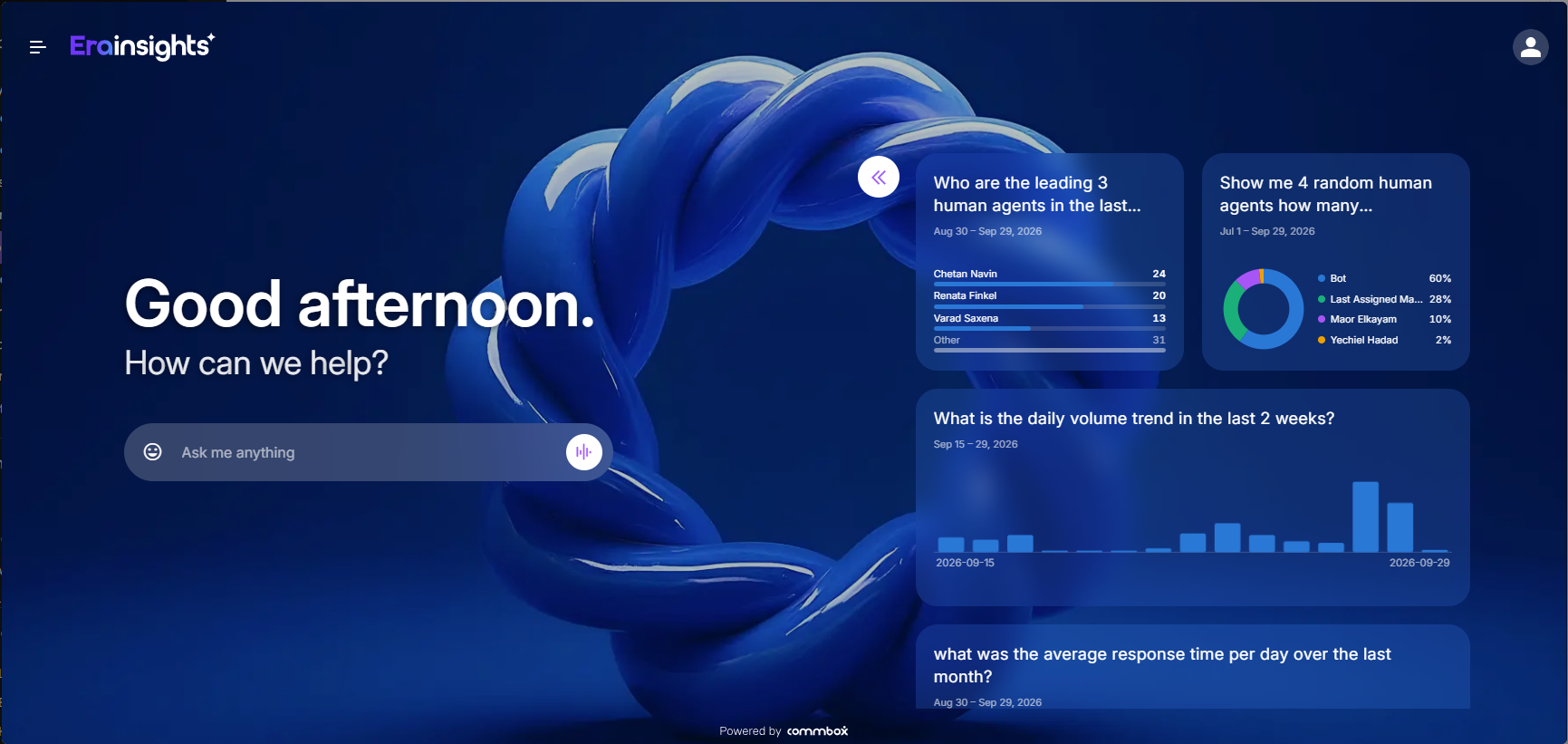
Managers can now add pinned Pulse questions as greeting cards directly to the Era Insights welcome screen, providing quick access to recurring insights without having to ask the same questions again.
Welcome screen cards are automatically refreshed according to the question’s configured Pulse frequency. Managers can refresh, edit, or remove a Welcome screen card, or click it to open a new conversation and run the question again.
This makes frequently monitored insights immediately visible when opening Era Insights, helping managers stay up to date with the metrics and trends that matter to them.
Click here to learn more about Era Insights.
Voice Customers' Requested Feature
New – Voice Channels ACW
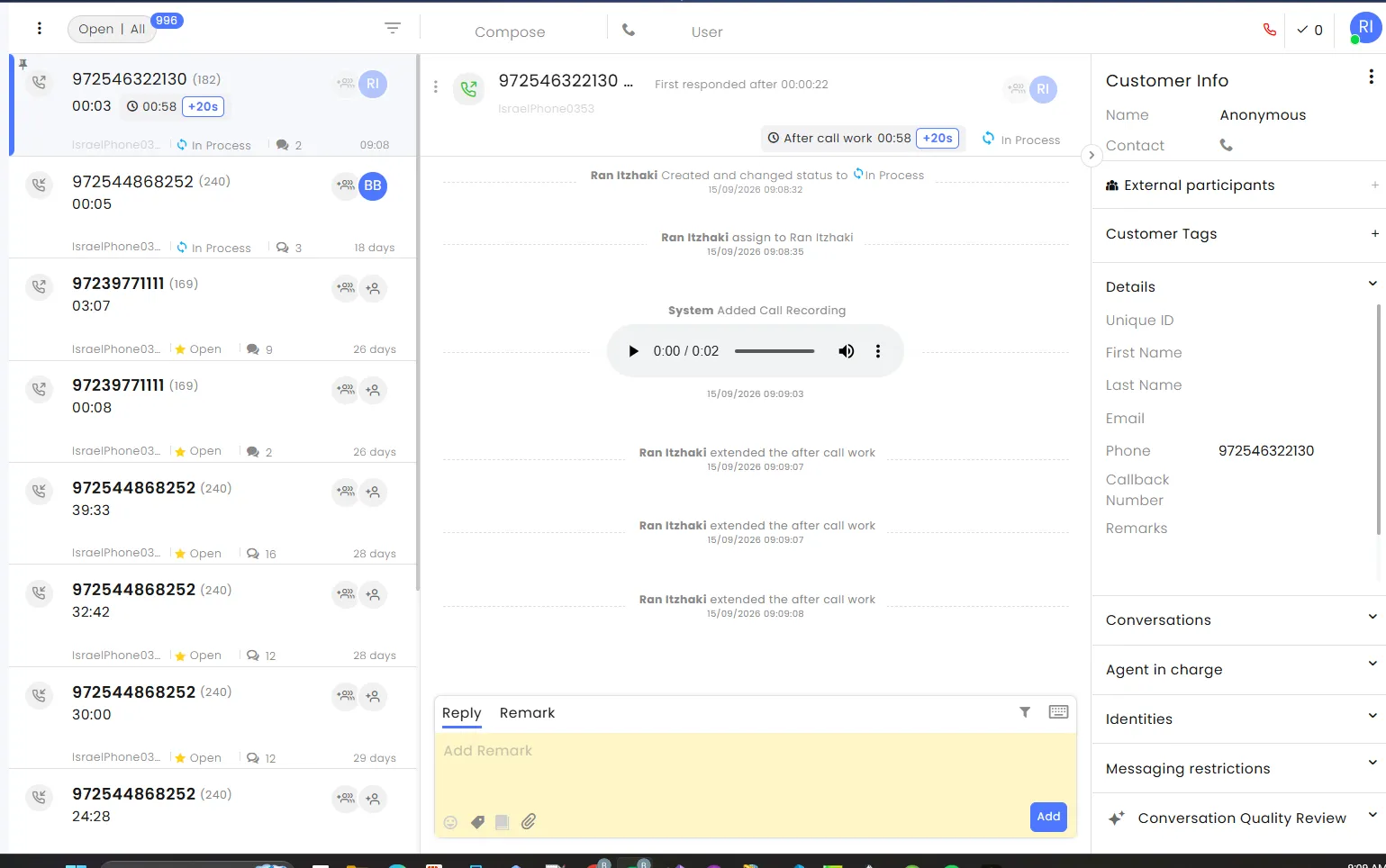
Organizations can now configure protected After Call Work (ACW) time for human agents in Voice channels, with a separate setting for each channel. ACW gives agents dedicated time after each call to complete related tasks, documentation, tagging, and follow-up actions before the next queued call is assigned to them. Agents can also extend the ACW period when needed.
During the configured ACW period, the conversation remains assigned to the agent, and no new calls from the queue are routed to them. When the ACW period ends, the agent automatically becomes available to receive the next call, and the total ACW time is recorded for reporting purposes.
Providing dedicated time after each call helps organizations better manage agent availability and workload, improve consistency in call documentation and follow-up activities, and gain more predictable control over Voice channel operations and queue management.
Click here for the updated user guide.
Voice
New – Abandoned Status
.png)
Organizations can now distinguish abandoned voice calls from irrelevant calls(Spam), providing more accurate visibility into customer abandonment and improving Voice reporting and BI data.
When a customer disconnects before an agent answers, the conversation is automatically classified based on the channel’s configured First Response SLA:
- If the customer disconnects before the First Response SLA is reached, the conversation is closed as Irrelevant.
- If the customer disconnects at or after the First Response SLA, the conversation is closed as Abandoned.
If an agent has already answered the call, even briefly, the conversation is not considered abandoned and follows the regular After Call Work (ACW) process.
The new Abandoned status is displayed on the conversation card and is available as a separate filter and dimension in reports and BI, making it easier to measure genuine call abandonment without inflating Irrelevant/SPAM figures.
The feature uses the channel’s existing First Response SLA configuration, so no additional setup is required.
Eva Tags
New – Evaluation Tags for Eva
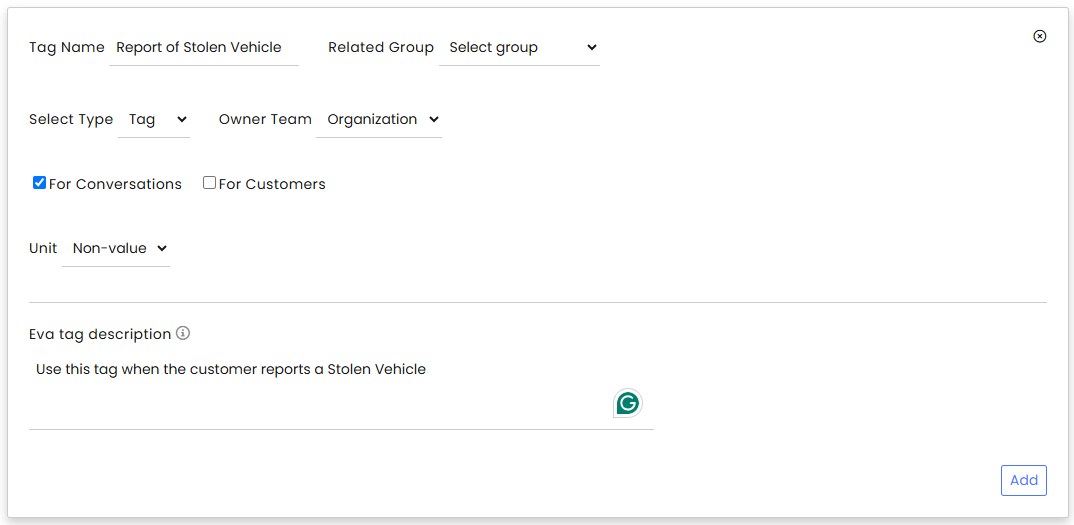
AI Designers can now use tags for Eva evaluations by adding a description that instructs Eva when to apply the tag. Eva analyzes the entire conversation and automatically applies relevant tags once the conversation is Resolved.
This provides more accurate and consistent tagging, improves coverage, and makes it easier to categorize evaluations, identify recurring patterns, and find conversations related to specific topics or issues.
Any existing tag in the brand can be used by Eva once a description is added. Eva determines when to apply a tag based on its description, not its title.
Note: Eva must be enabled in the AI Agent Settings. A token consumption account is required.
Forms Customers' Requested Feature
Enhancement – Improved Form Approval Process
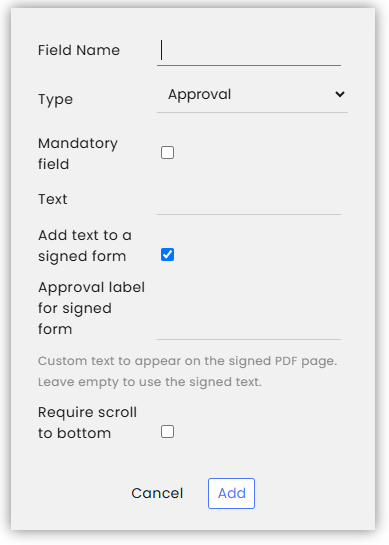
Organizations can now configure two new options for the Approval field in Forms:
- Add text to the signed PDF: Enable Add text to a signed form to add a new last page to the signed PDF. The page displays the wording entered in the Text field, followed automatically by the signing date. The date is generated automatically based on the brand's time zone and language settings.
- Require scrolling before approval: Enable Require scroll to bottom to hide the Approval field until the customer scrolls to the bottom of the form, helping ensure that the form content is reviewed before approval.
Both options are disabled by default, so existing Forms are unaffected.
Maintenance UI
Enhancement – Improved Deletion Guardrails
.png)
Admins now receive clearer warnings when configuring conversation deletion settings in the Maintenance module. The Move conversations to Delete status section now displays a warning explaining that these settings can result in permanent deletion of conversation data. A confirmation is also required before saving changes to any of these settings.
The confirmation explains that conversations first move to Delete status after the configured inactivity period and are then permanently deleted after the configured retention period. If no retention period is entered, the default is 30 days.
These safeguards help prevent accidental and unrecoverable deletion of conversation data.
Email UI Customers' Requested Feature
Enhancement – Improved Email Options
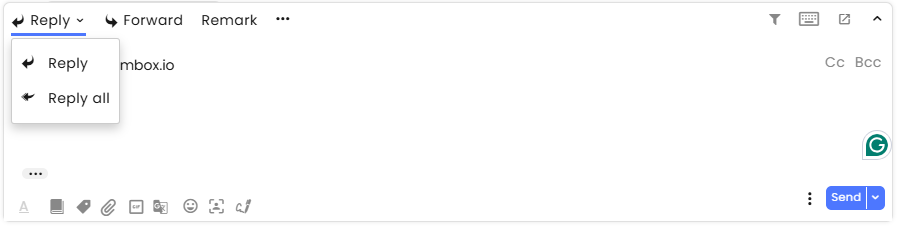
Agents can now access Reply All and Forward directly from the email reply toolbar, without opening the additional options menu.
Reply and Reply All are now combined in a dropdown, and CommBox remembers the agent’s last selection as their default reply option across conversations and sessions. Forward is now available as a separate action directly on the toolbar.
This reduces clicks and makes handling multi-recipient email conversations faster and more convenient.
WhatsApp Groups
Enhancement – WhatsApp Group Participant Continuity
When a WhatsApp Group conversation is resolved and a new conversation is automatically created for the group, agent participants are now automatically carried over to the new conversation, provided they still have access to the channel.
This keeps the same team connected to ongoing group conversations, eliminating the need to repeatedly re-add participants and reducing the risk of agents unintentionally missing subsequent group activity.
Note: This capability requires Split Conversation to be enabled in the channel settings. If Split Conversation is disabled, agent participants are not automatically carried over after a conversation is resolved and must be added again when needed.
WhatsApp Groups
Enhancement – Automatic Agent Removal from WhatsApp Group
When an admin removes a channel from an agent’s permission profile, the agent immediately loses access to the channel, is unassigned from its conversations, and is now also removed from their participant lists.
This is especially important for WhatsApp Groups, where participating agents could previously remain associated with the group and be automatically carried over to newly created conversations. Agents who no longer have access to the channel are now automatically removed, ensuring that only authorized agents remain associated with ongoing group conversations.
WhatsApp Groups Customers' Requested Feature
Enhancement – Remove Customers from WhatsApp Groups
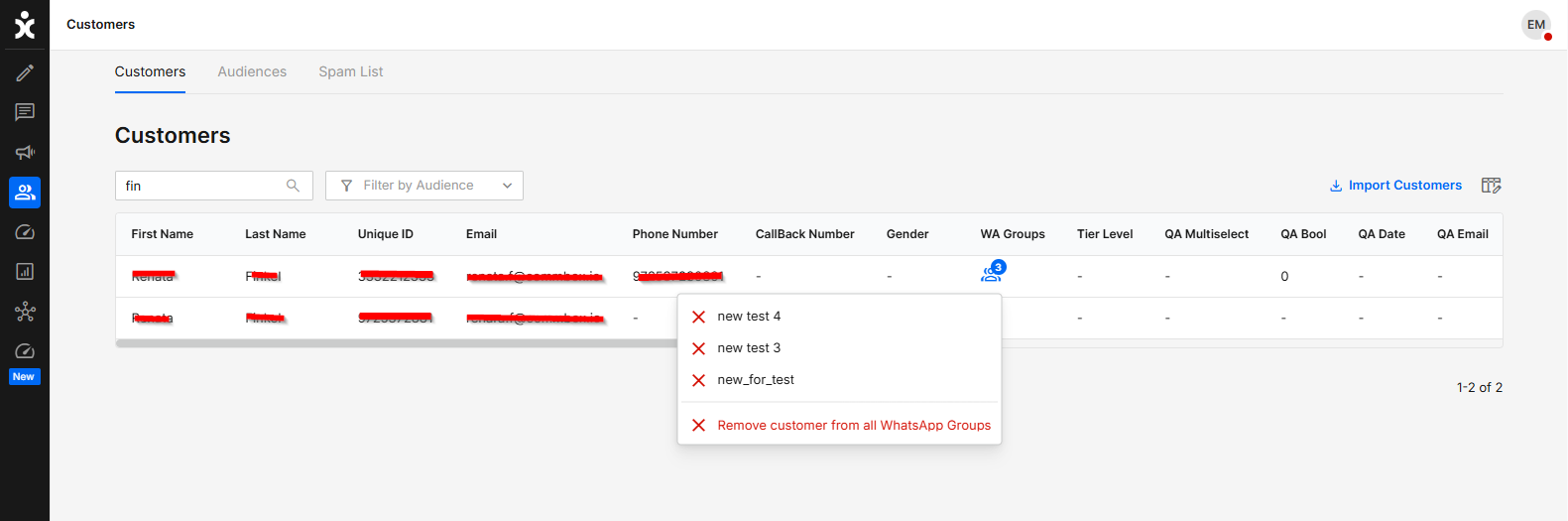
Authorized agents can now remove a customer from WhatsApp Groups directly from the Customers module in the main sidebar menu, without requiring manual backend intervention. Agents can remove the customer from a specific group or from all WhatsApp Groups they belong to at once.
Access to these options is controlled by the new Remove Customers from WA Groups permission under General Permissions > WhatsApp Groups.
This makes it easier for authorized agents to manage customers’ WhatsApp Group memberships directly from the customer profile.
Inbox Rules Customers' Requested Feature
Enhancement – Routing Status Rule
Organizations can now use the Routed conversation arrived trigger in Rules to automatically change a conversation’s status when it is routed to another channel or subchannel. The desired status, such as Open, can be selected when configuring the rule.
This helps ensure routed conversations arrive with the appropriate status, making them easier for receiving teams to identify and handle without being overlooked because of a status carried over from the previous channel.
SLA Rules Customers' Requested Feature
Enhancement – Resetting SLA Option
Organizations can now automatically reset the SLA timer using the new Reset SLA action in Rules. The action can be used with the following triggers:
- Routed conversation arrived
- Conversation Status Change
- Conversation Tag Was Added / Customer Tag Was Added
When the rule is triggered, the SLA timer resets and starts again according to the destination channel's SLA configuration.
This provides more accurate SLA tracking when conversations move between channels with different service-level requirements within the organization.
Note: The % SLA Compliance per Agent metric is unaffected by this action.
Click here to learn more about CommBox SLA capabilities.
Permissions Customers' Requested Feature
Enhancement – Clearer Permission Error Messages
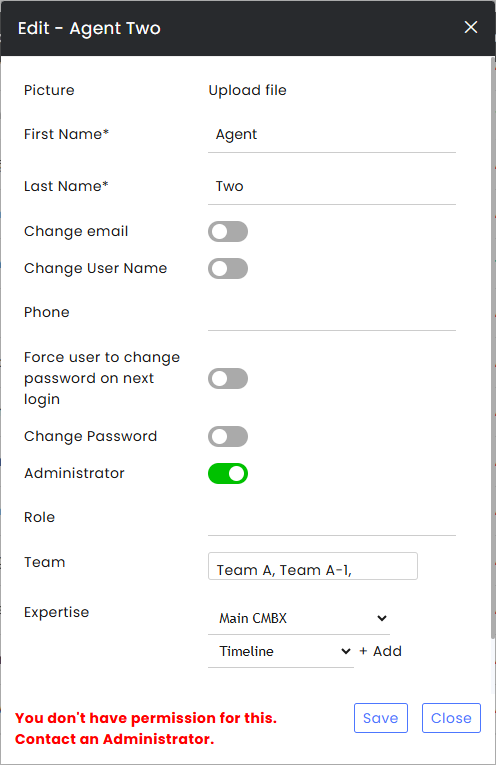
Users now receive more specific error messages when a permission-related save action is blocked, instead of a generic error.
Messages distinguish between cases such as changes involving agents outside a Team Lead’s team, insufficient permissions, and unexpected technical errors. Unexpected errors also include a reference code that can be shared with CommBox Support.
This helps users understand why an action was blocked and what to do next, while making unexpected issues easier and faster for Support to investigate.
Custom Fields Module Customers' Requested Feature
Enhancement – Custom Fields in Customer Reports
.png)
Custom fields configured in the Custom Fields module can now be included in Customer Reports, allowing organizations to include brand-specific customer information in their exported reports.
Standard customer fields, such as first name, last name, and phone number, are always included in the report. Custom fields can now also be added to the report as needed. The Custom Fields module determines which fields are displayed or hidden in the Customer Pane.
To generate a report, navigate to Insights > Customers and click Export. Once the report is ready, click Download.
Click here to learn more about this module.