2026 Release Notes
Release Date: Sept 27, 2026
Release Notes Publication: Sept 17, 2026
AI Agents
New – Eva for AI Agent Quality Monitoring
.png)
Organizations can now automatically evaluate the quality of AI Agent conversations with Eva. Each evaluated conversation receives an overall quality score based on customer understanding, task execution, compliance, customer experience, and sentiment, together with a short explanation of the results.
Eva provides a consistent, scalable way to assess AI Agent performance, reducing reliance on manual and subjective reviews and making it easier to identify conversations that require attention.
Enable Eva in the AI Agent Settings.
Note that a token consumption account is required. Contact your CS account manager for details.
Click here to learn more about Eva.
Era Insights
New – Pulse in Era Insights
.png)
Pulse is a new capability in Era Insights that helps managers stay updated on the questions and metrics they care about without needing to check them manually.
Managers can select questions they want to follow and receive daily, weekly, or monthly AI-generated email briefings based on the latest available data.
Pulse makes Era Insights more proactive: instead of returning to ask the same questions, managers can get recurring updates and use them to identify changes, trends, or areas that need attention. From each report, they can open Era Insights to explore the underlying insights and continue the conversation.
Click here for the updated user guide.
New – Username Contact for WhatsApp
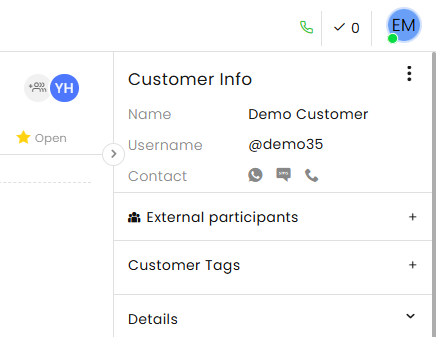
Following Meta's WhatsApp username rollout, CommBox will display the user's username from WhatsApp webhooks in the Customer Info card. When a customer changes their username, the value received on the next inbound message webhook replaces the stored value on the contact record and on the card.
This capability will become visible once Meta activates the BUSID policy. No further actions are needed at this time.
New – Automatic Contact Request for WhatsApp
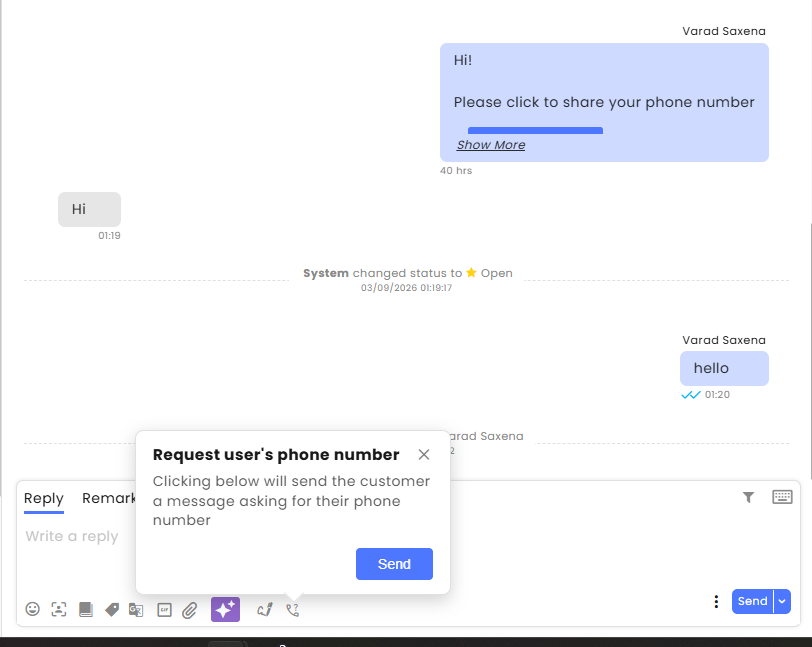
Organizations can now request a customer’s phone number directly in WhatsApp conversations using the Request Contact Info icon. Admins can add this option to approved utility and marketing templates, and agents can send it as an interactive message during active conversations without requiring a template. Once shared, the phone number is automatically associated with the contact, and an activity message confirms the update in the conversation.
This enables businesses to retrieve phone numbers from WhatsApp users who use Business-Scoped User IDs (BSUIDs) instead of phone numbers, ensuring contacts can be identified and managed effectively while reducing manual requests for contact details.
Click here to learn more about CommBox and WhatsApp’s Business-Scoped User IDs.
Voice AI Agent
New – Context-Aware Time Fillers for Voice AI Agents
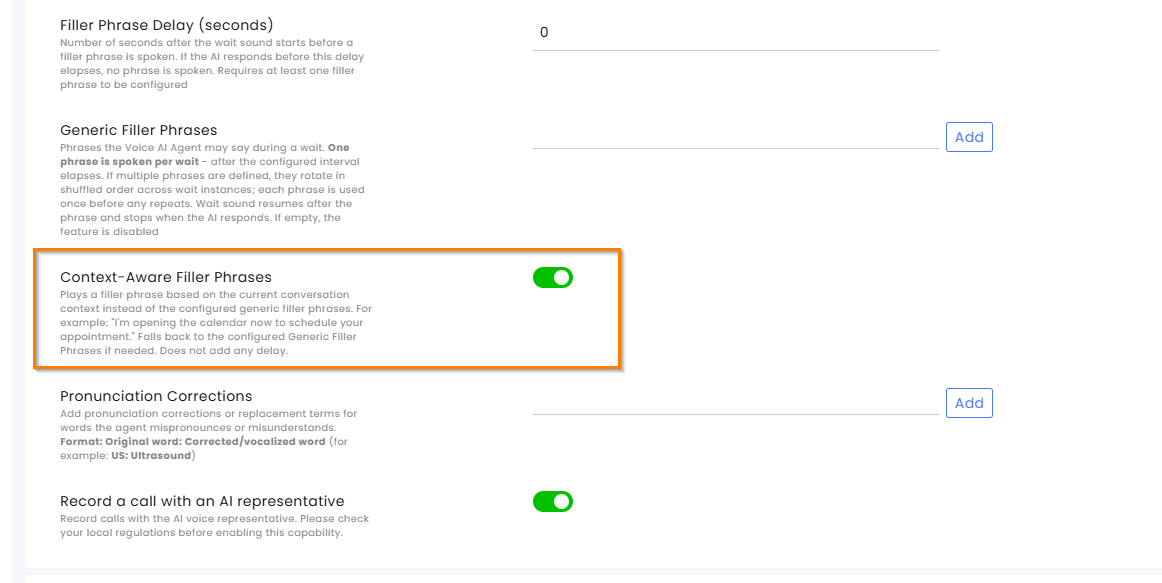
Voice AI Agents can now use context-aware filler phrases when additional processing time is needed. Instead of generic phrases such as “one moment,” the agent can acknowledge the customer’s specific request and indicate what it is working on.
For example, while preparing an appointment, the agent might say, “I’m opening the calendar now to schedule your appointment.”
This makes pauses during voice conversations feel more natural, reassures customers that the agent understands their request, and provides a smoother conversational experience.
To enable the feature, navigate to Settings > Voice > [Selected SIP Voice Agent] and enable Context-Aware Filler Phrases. When enabled, context-aware fillers take precedence over Generic Filler Phrases, with generic fillers used as a fallback when appropriate.
The feature does not add any additional delay to the conversation.
AI Agents Knowledge Base
Enhancement – Knowledge Base Instruction for AI Agents
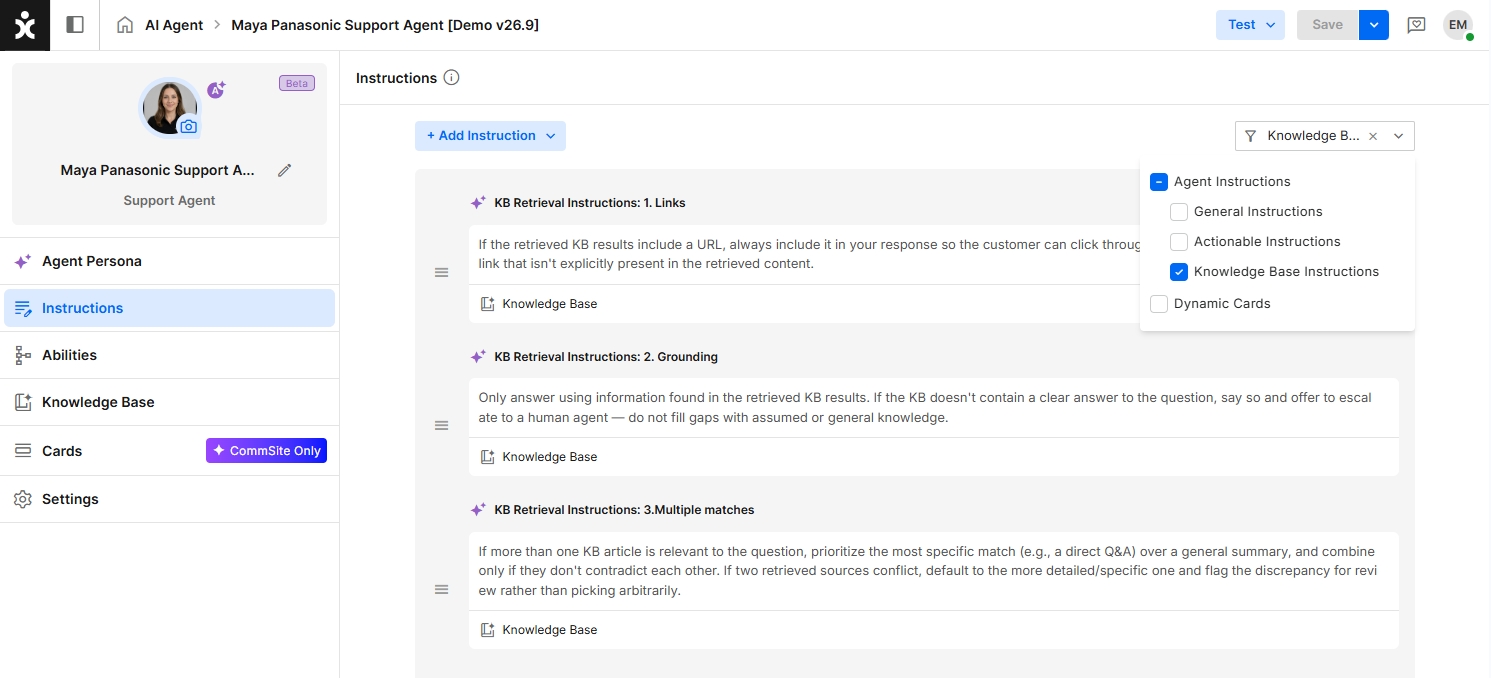
Organizations can now add dedicated Knowledge Base Instructions to define how each AI Agent uses and presents information retrieved from its knowledge base.
Agent Builders can specify instructions such as how to format knowledge base results, when to include relevant links, or how retrieved information should be presented to customers. Unlike General and Actionable Instructions, Knowledge Base Instructions apply specifically to knowledge base retrieval and presentation and do not affect the agent’s general behavior or Abilities.
To add instructions, navigate to the AI Agent’s Instructions tab, click + Add Instruction > Agent Instructions, and select Knowledge Base Instruction. Knowledge Base Instructions can be edited, reordered, deleted, and filtered like other instruction types.
This provides greater control over each AI Agent’s knowledge behavior, allowing different agents to present knowledge base content according to their specific purpose and requirements.
WhatsApp AI Agent UI
Enhancement – WhatsApp’s Typing Indicator
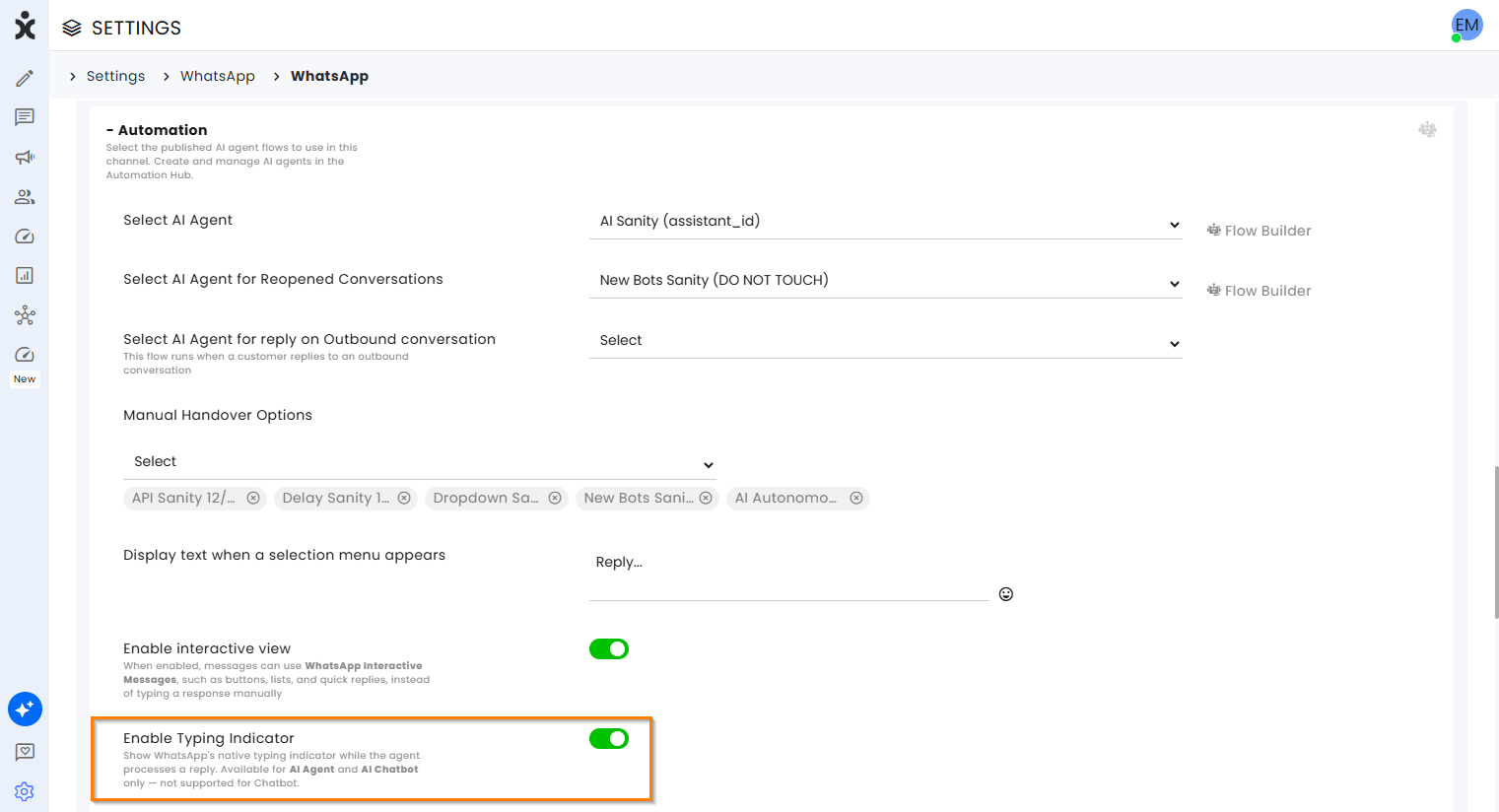
Customers interacting with AI Agents and AI Chatbots on WhatsApp can now see WhatsApp’s native typing indicator while the AI is processing their message. The familiar “typing…” indicator provides immediate feedback that a response is being prepared, creating a more natural and responsive WhatsApp experience.
The typing indicator appears as soon as processing begins and automatically disappears when the AI responds. If processing takes longer than 25 seconds, WhatsApp automatically stops displaying the indicator.
Learn more in the updated WhatsApp Installation guide.
Flow Builder Email Customers' Requested Feature
Enhancement – CC and Bcc in Create Item
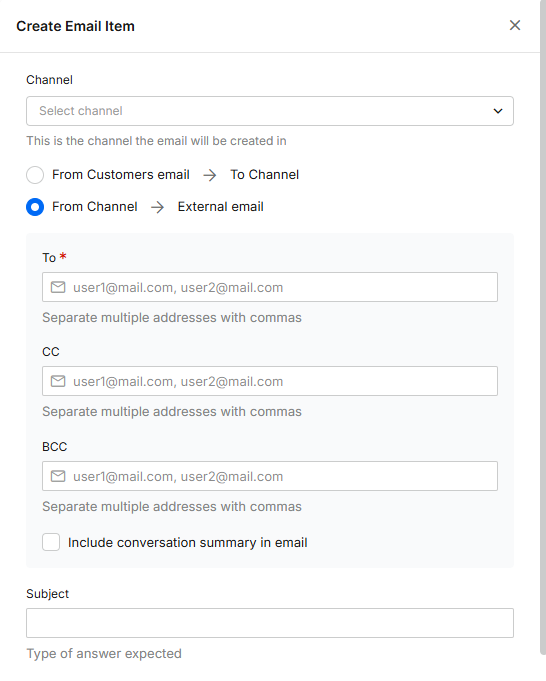
The Create Item step in the Flow Builder can now send emails to multiple external recipients and include additional recipients as CC or Bcc.
This makes it easier to include everyone who needs to receive or be informed about an email, while controlling how each recipient is included, all directly from the automated flow.
Click here to learn more about this step's capabilities in the Flow builder.
Settings UI
Enhancement – New Settings UI
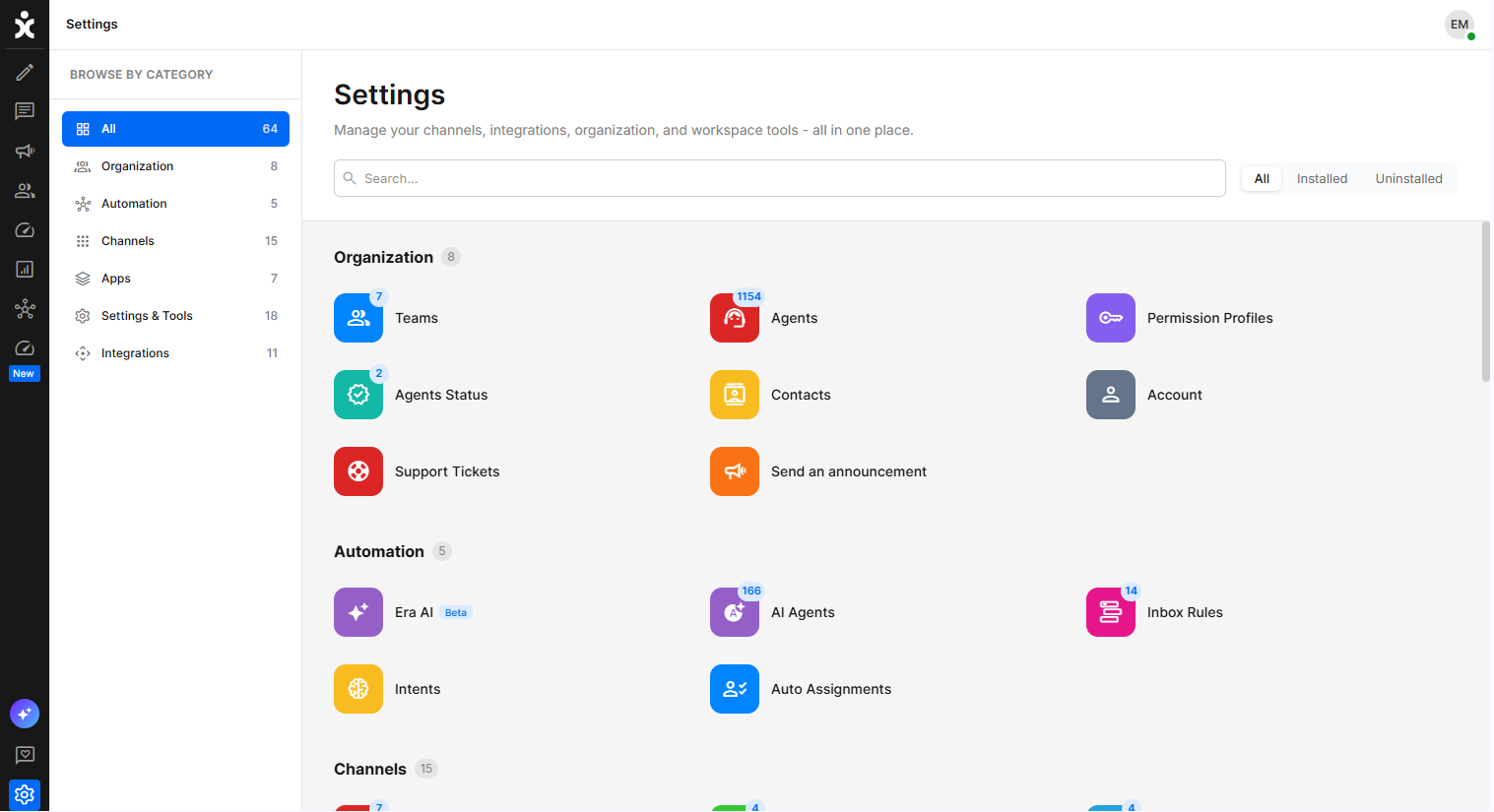
The Settings page was upgraded to a new UI, marking another major step in the ongoing update of the CommBox experience. Over the coming months, additional modules will gradually transition to the new interface.
This update focuses on the user experience without any changes to existing functionality. As part of the transition, we move settings from the sidebar menu into the main area. We’ve also updated module descriptions and links to make Settings clearer and easier to navigate.
Automation API
Enhancement – Displayed Automation ID
.png)
The Automation ID, used in APIs, integrations, and configurations to identify a specific AI Agent, AI Chatbot, or Chatbot, is now easily accessible from the 3-dot menu when hovering over an automation. This makes it faster to find and copy the correct ID directly from the Automation interface, without using developer tools.