Overview
The WhatsApp Channel Settings enable administrators to configure and manage WhatsApp communication in CommBox after connecting a WhatsApp Business number.
The settings are divided into two main sections:
- General Settings – Manage the WhatsApp accounts, templates, and general functionality across all channels.
- Channel Settings – Configure how WhatsApp conversations are handled, including agent assignments, automation, messaging behavior, security, and other channel-specific options.
These settings apply to WhatsApp channels regardless of whether the number was connected through Coexistence or directly through the WhatsApp Business Platform (API).
To connect a WhatsApp number to CommBox, see the WhatsApp Installation Guide.
General Settings
In the General Settings (click at the top of the page), you can manage the WABA activities. Click Save at the bottom of the screen after making any changes.
General
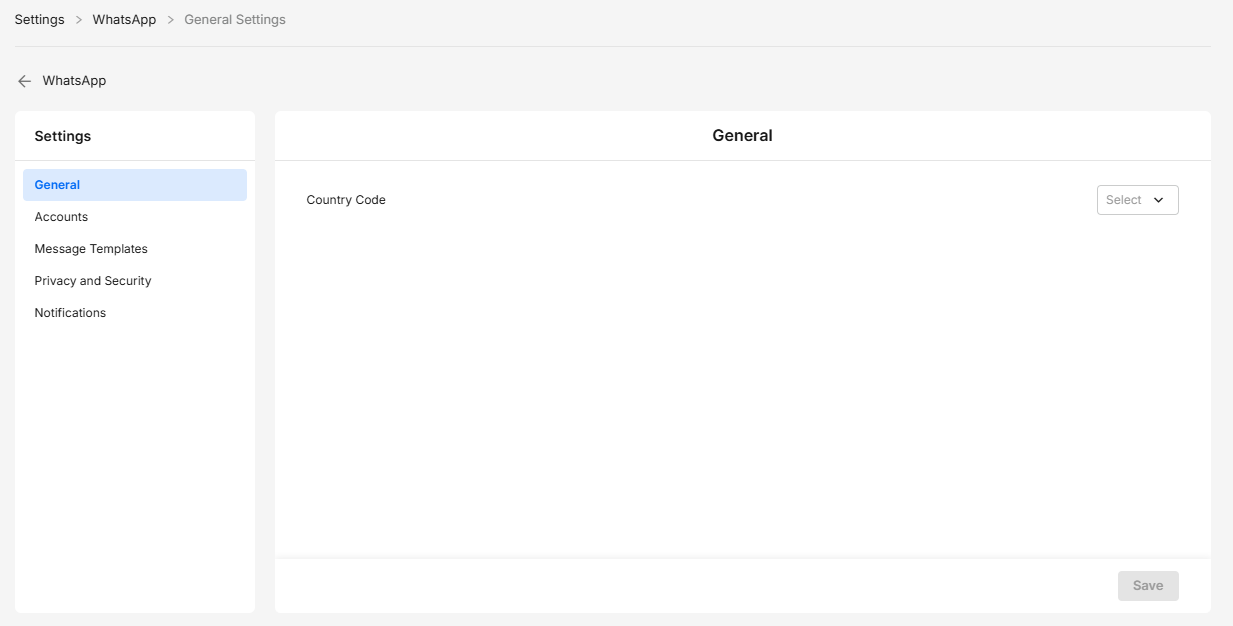
Select the default country code for your business.
Accounts
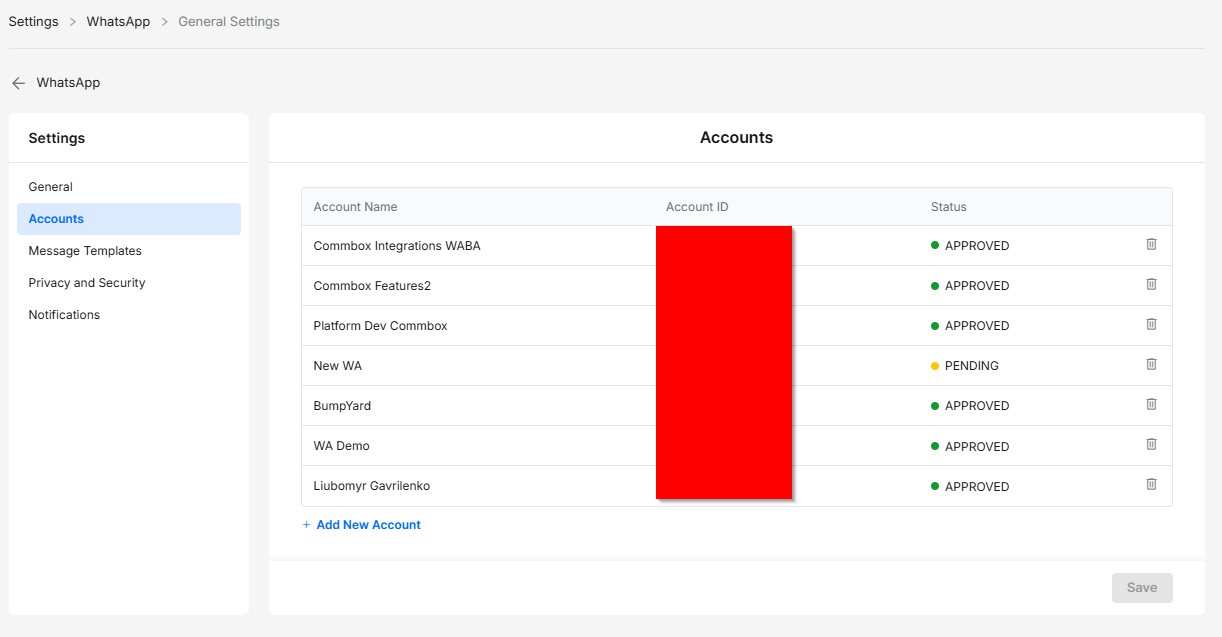
View all the active WhatsApp accounts for the brand, with their WABA ID and current status.
Message Templates
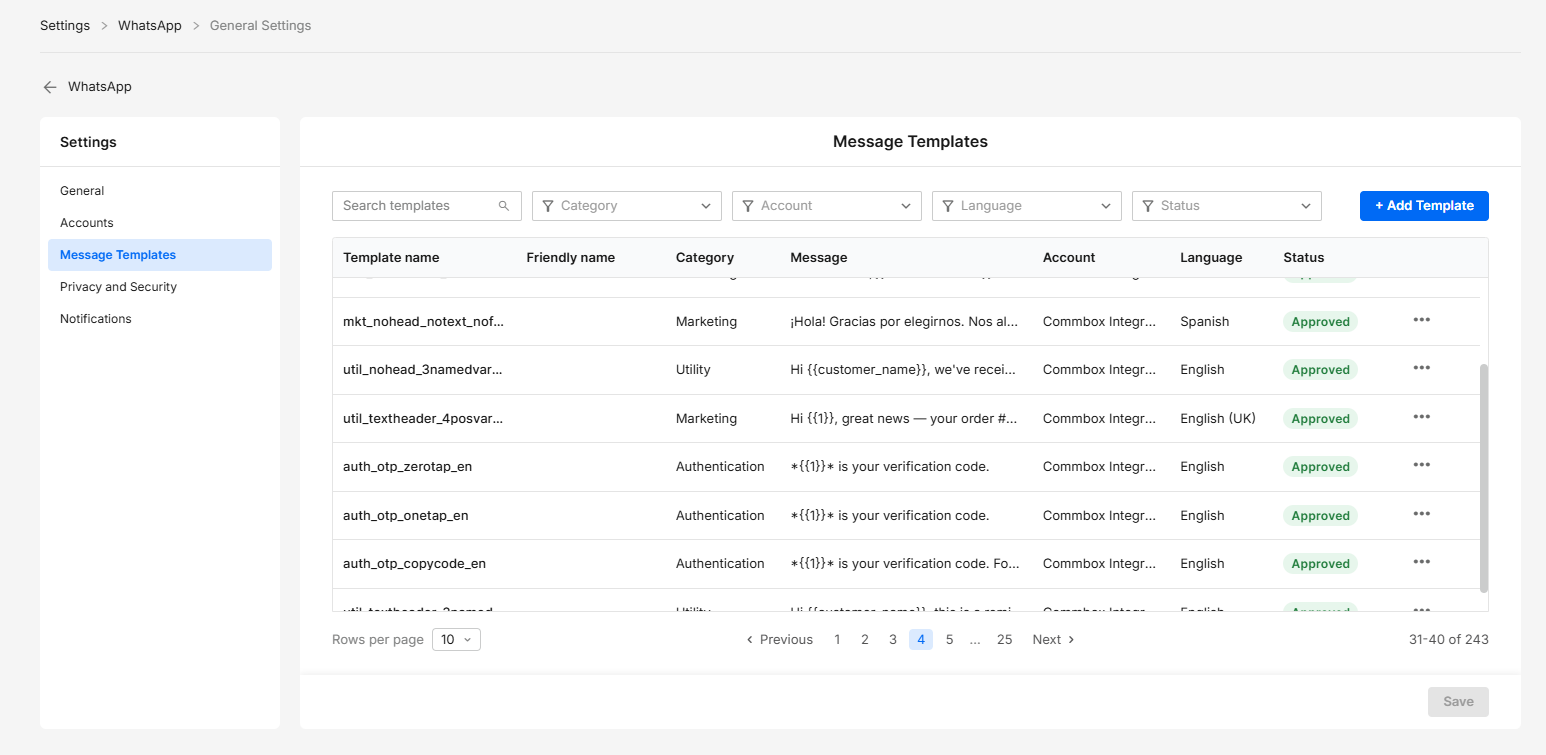
In this section, you can create and manage WhatsApp message templates. All templates associated with your WhatsApp Business Accounts (WABAs) are listed here.
To use a template in a specific channel, you must enable it in the Message Templates section under Channel Settings.
Use the search filters to find a specific template. Click the three-dot menu next to a template to preview, edit, duplicate, or delete it.
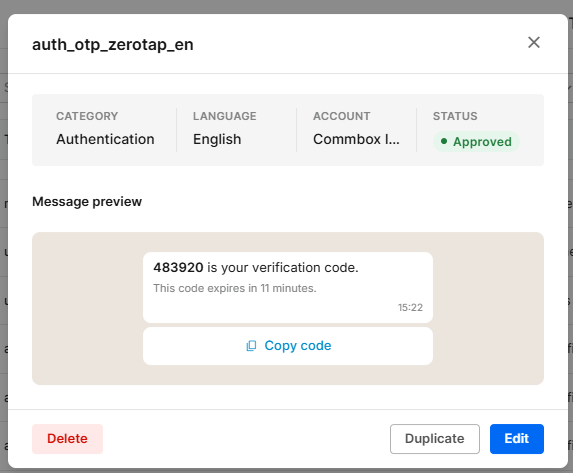
For more information, see the Template Management guide, the Creating Marketing / Utility Templates guide, and the Creating Authentication Templates guide.
Privacy and Security
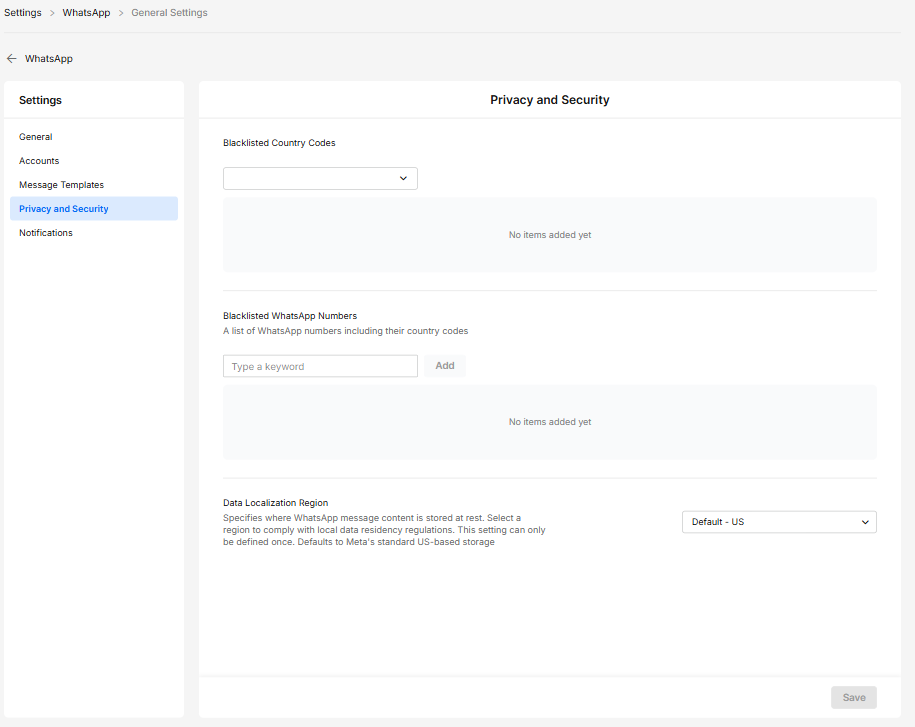
Blacklisted Country Codes – Enter the country codes you want to block from contacting your business on WhatsApp.
Blacklisted WhatsApp Numbers – Enter the WhatsApp phone numbers, including country codes, that you want to block from contacting your business.
Note: This functionality is available in its full capacity under Spam Listing. You can also find the same option in the Privacy and Security section of Channel Settings for each channel.
Data Localization Region – Specifies where WhatsApp message content is stored at rest. Select a region to comply with local data residency regulations. This setting can only be defined once. Defaults to Meta's standard US-based storage
Notifications
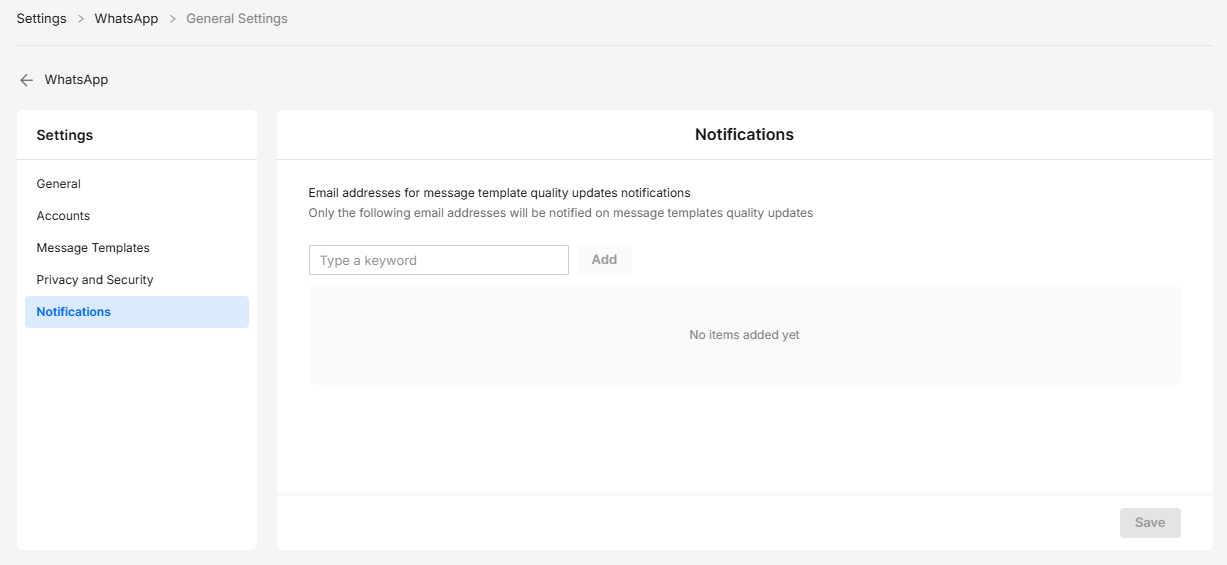
When WhatsApp changes the quality status of a template, CommBox automatically emails a predesignated admin advising them of the change. Enter the emails of designated recipients here.
Channel Settings
General
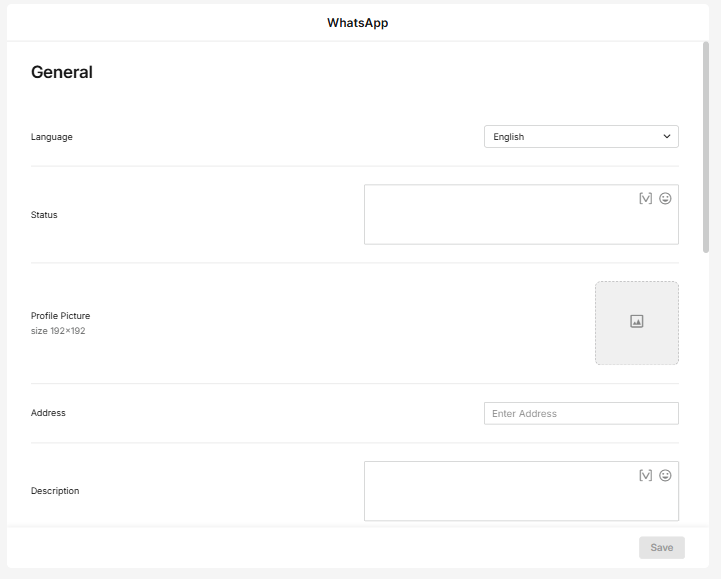
Language - The general Language used in the channel
Status - The WhatsApp Status of the brand
Profile Picture - The WhatsApp profile image of the brand - Ideal size: 192x192 pixels
Address - The Brand Address
Description - A short description of the brand
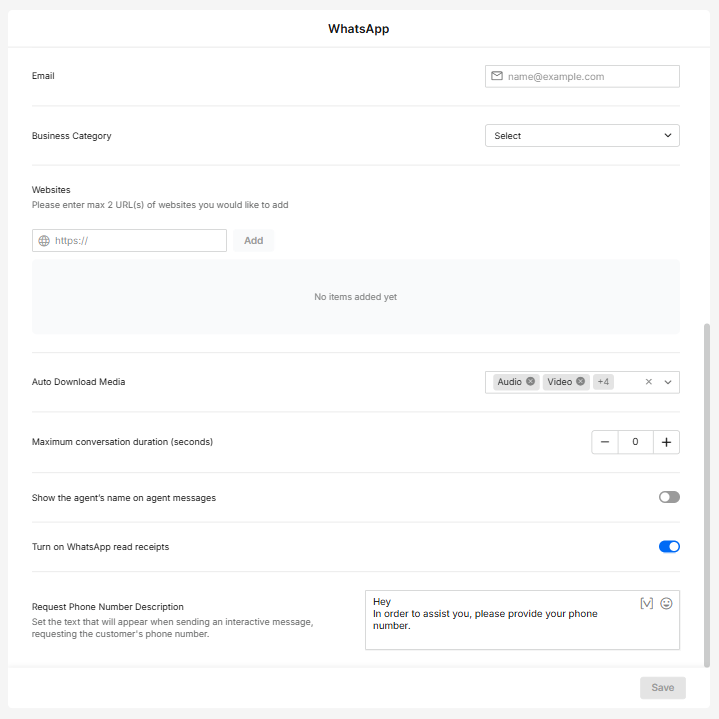
Email - Brand’s email address
Business Category - Brand’s category
Websites - Enter the URLs of the Brand’s websites (Maximum of 2 websites).
Auto Download Media - Media types that can be used with WhatsApp communication. Overrides the Privacy and Security module.
Maximum conversation duration (seconds) - Closes open conversation once it reaches the max time.
Show the agent’s name on agent messages - Toggle on to display the agent’s name above the message
Turn on WhatsApp read receipts - Toggle on to display the read receipts marking below the message
.png)
Request Phone Number Description - Set the text that will appear when sending an interactive message, requesting the customer's phone number.
Privacy and Security
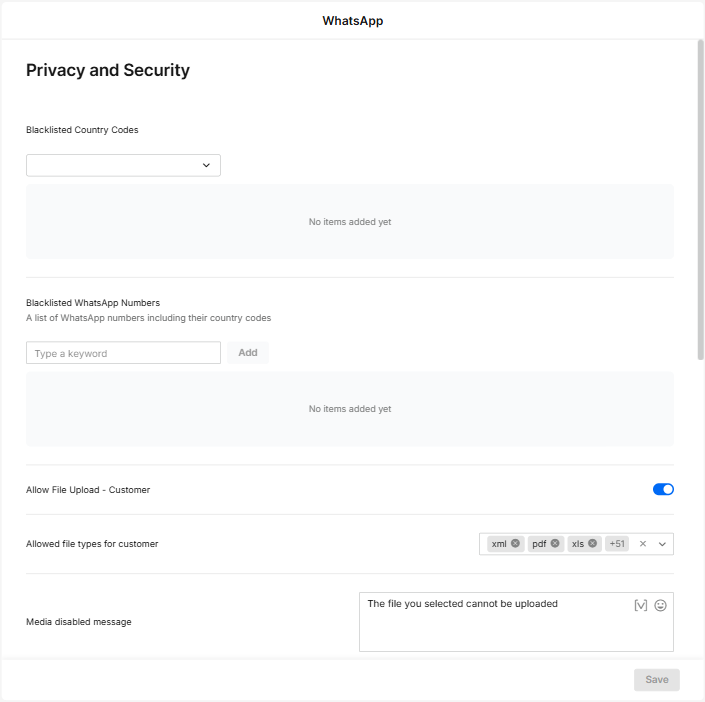
Blacklisted Country Codes - Phone numbers with these country codes will be automatically blocked.
Blacklisted WhatsApp Numbers - These phone numbers will be automatically blocked. (Must include country code)
Allow File Upload - Customer - Enables customers to add attachments to their communication.
Allow File types for customer - Defines which file formats customers are permitted to attach when sending communications.
Media disabled message - The message displayed to customers when they are not permitted to attach files.
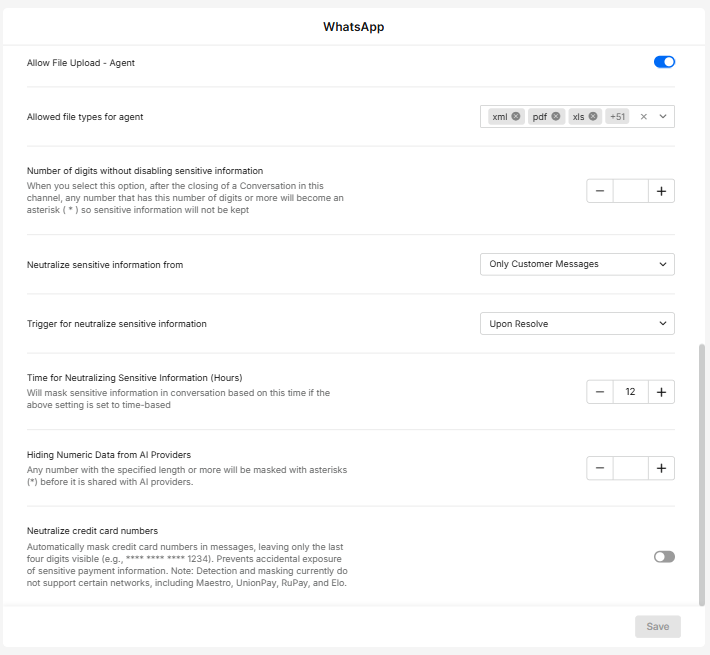
Allow File Upload - Agent - Enables Agents to upload files.
Allow File types for agent - Defines which file formats agents are permitted to attach when sending communications.
Number of digits without disabling sensitive information - Defines the minimum length of a numeric sequence that will be masked. After a conversation in this channel is closed, any number with this many digits or more will be replaced with asterisks (*) to ensure sensitive information is not retained.
Neutralize sensitive information from - When triggered, mask numbers entered by either only customers or both customers and agents.
Trigger for neutralizing sensitive information - Select the trigger that will mask numbers as set above (Time-based or upon status change to Resolve).
Time for Neutralizing Sensitive Information (Hours)- If the trigger for masking selected above is time-based, enter the number of hours for that trigger.
Hiding Numeric Data from AI Providers - Any number that meets or exceeds the specified length will be masked with asterisks (*) before being shared with AI providers.
Neutralize credit card numbers - When enabled, credit card numbers in messages are automatically masked, leaving only the last four digits visible (e.g., **** **** **** 1234). This helps prevent accidental exposure of payment details.
Note: Masking may not apply to some networks, including Maestro, UnionPay, RuPay, and Elo.
SLA
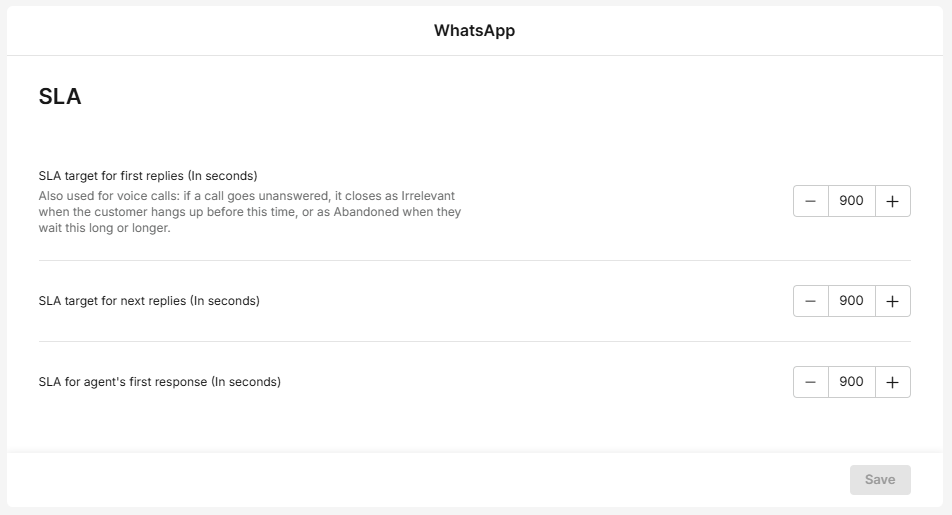
Service Level Agreement determines the acceptable waiting time for customers before they receive service from the service provider. Once that time passes and the agent does not reply to the customer, there is an SLA breach.
SLA target for first replies (in seconds) – The time within which the agent must respond to the customer's first message to avoid an SLA breach.
SLA target for next replies (in seconds) – The time within which the agent must respond to subsequent customer messages to avoid an SLA breach.
SLA for agent's first response (In seconds) – CommBox can also track SLA compliance per agent. The SLA for Agent First Response setting defines the expected response time from assignment to that agent’s first response. It can indicate the agent’s role independently of the customer’s journey (e.g., a timely response by an agent to a breached conversation).
The channel settings override the main SLA settings. Click here for more information about this capability.
Message Template
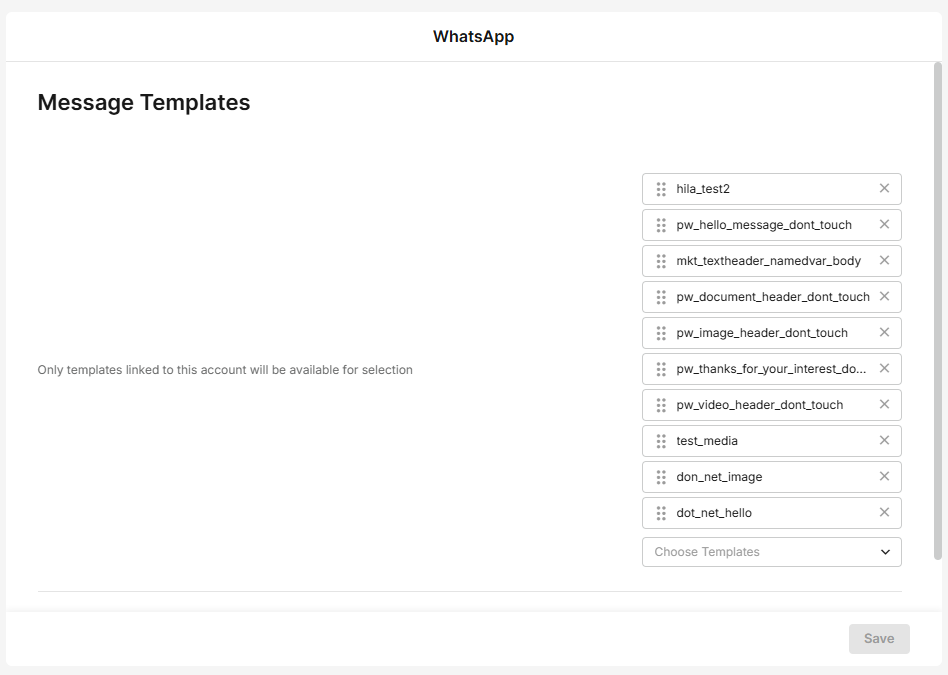
Select the templates that are available for this channel. Remove from the list by clicking the circled x next to the template name.
Message language culture code - The default WhatsApp Language Code for the channel.
Automation
.png)
Select AI Agent – Select the AI Agent that handles incoming conversations on this channel.
Select AI Agent for Reopened Conversations – Select the AI Agent that handles conversations when they are reopened.
Select AI Agent for Reply on Outbound Conversation – Select the AI Agent that handles customer replies to outbound conversations.
Manual Handover Options – Configure the options available when a conversation is manually transferred from an AI Agent to a human agent.
Display Text When a Selection Menu Appears – Enter the message displayed to customers when they are prompted to select an option from a menu.
Enable Interactive View – When enabled, messages can use WhatsApp Interactive Messages, such as buttons, lists, and quick replies, instead of requiring customers to type a response.
Enable Typing Indicator – Display WhatsApp's native typing indicator while an AI Agent or AI Chatbot processes a response. Not supported for Chatbot.
Business Hours
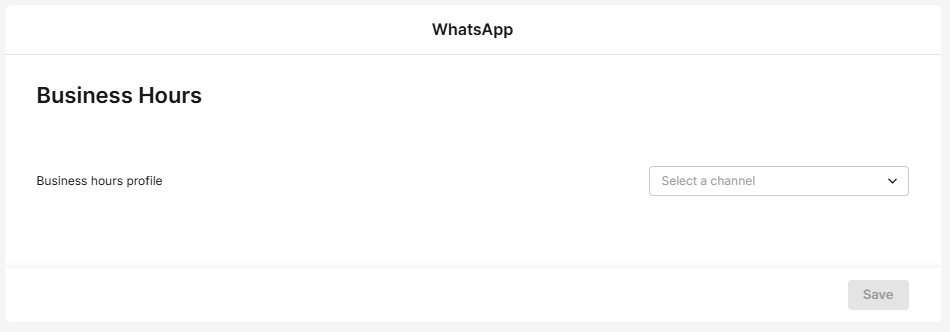
Business Hours profile - Select the Business Hours settings to determine when this channel operates and what auto-messages should be displayed after hours.
Click here for more information about Business Hours.
Auto Messages
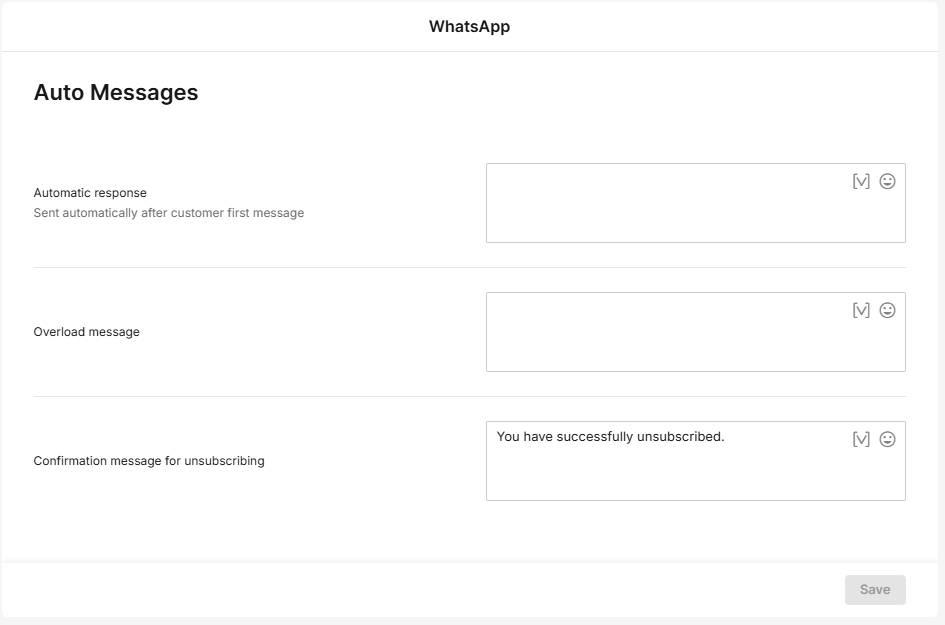
Automatic response – The automated message sent in response to the customer’s first message.
Overload message – A message that will be sent to the customer when all available agents are busy.
Confirmation message for unsubscribing - A message that will be sent to the customer when unsubscribed.
Auto Assign
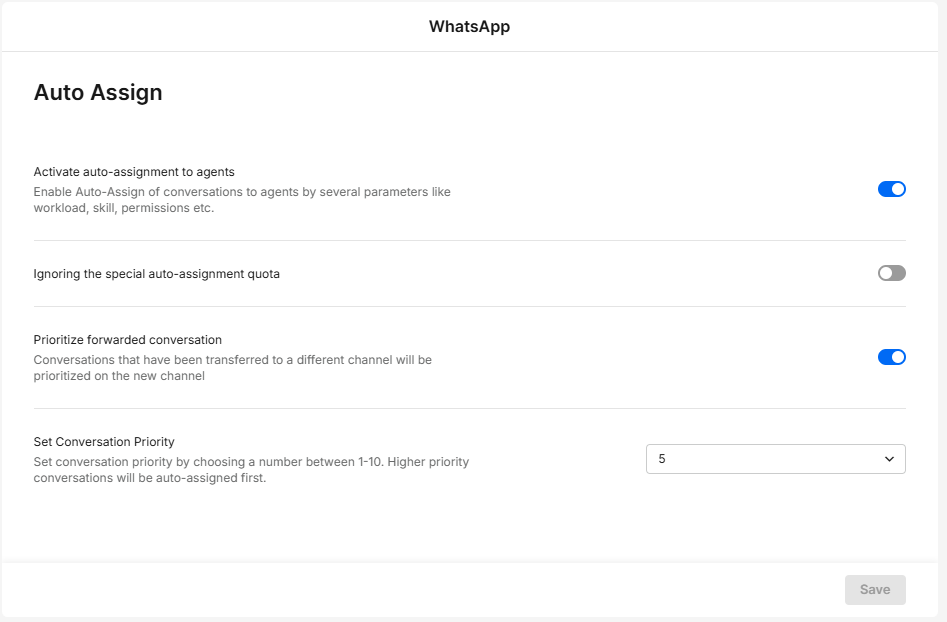
Activate auto-assignment to agents – Enable automatic assignment of conversations to agents based on parameters such as workload, skills, and permissions.
Ignoring the special auto-assignment quota – When enabled, the auto-assignment mechanism will bypass the agent’s maximum load and assign special conversations, such as ‘agent in charge’ or snoozed conversations.
Prioritize forwarded conversation – When enabled, conversations transferred to another channel are prioritized in the new channel.
Set Conversation Priority – Assign a priority level to conversations (1 = highest, 10 = lowest). Higher-priority conversations are automatically assigned first.
Customer Satisfaction Survey
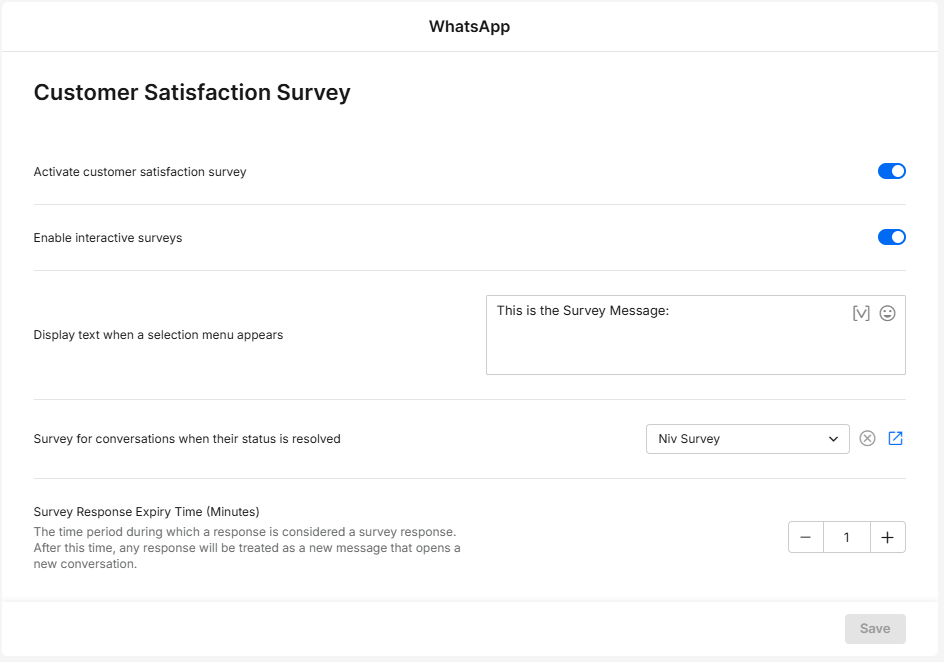
Activating the Customer Satisfaction Survey – Enables sending surveys to customers once their conversation status is set to Resolved.
Enable interactive surveys – Use WhatsApp interactive buttons in the surveys.
Display text when a selection menu appears -Add the text displayed with the WhatsApp buttons.
Survey for the conversations when their status is resolved – Select the survey for this channel.
Survey Response Expiry Time (Minutes) – Specify the duration (in minutes) during which a customer's reply is considered a valid response to the Satisfaction Survey. After this period, any new reply will initiate a new conversation.
In the Customer Satisfaction settings, you can create surveys and customize them. Click here for more information about this capability.
Intents
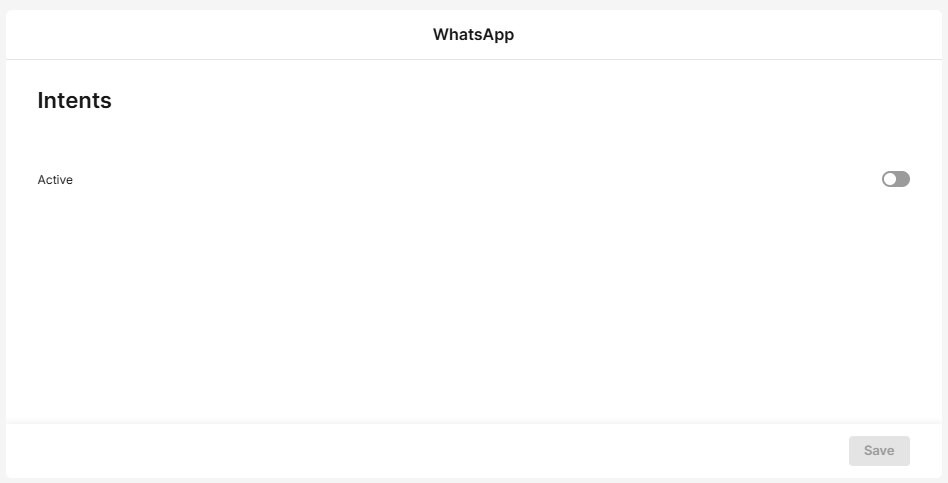
The Intents capability identifies keywords or phrases during the dialog with the customer.
Click here to learn more about this capability.
Split Conversations
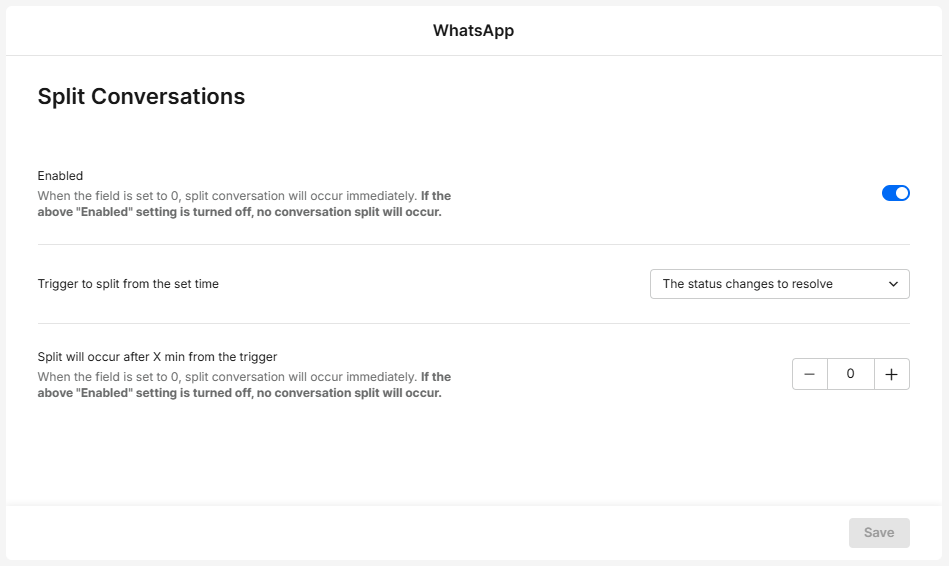
Enabled – When enabled, a new conversation will open for the same customer. When disabled, conversations with the customer continue in the same thread.
Trigger to split from the set time – Determine what causes the split to occur—the customer's last message or the conversation's change of status.
Split will occur after X min from trigger – Enter the number of minutes. When entering 0, the split is immediate.
Maintenance
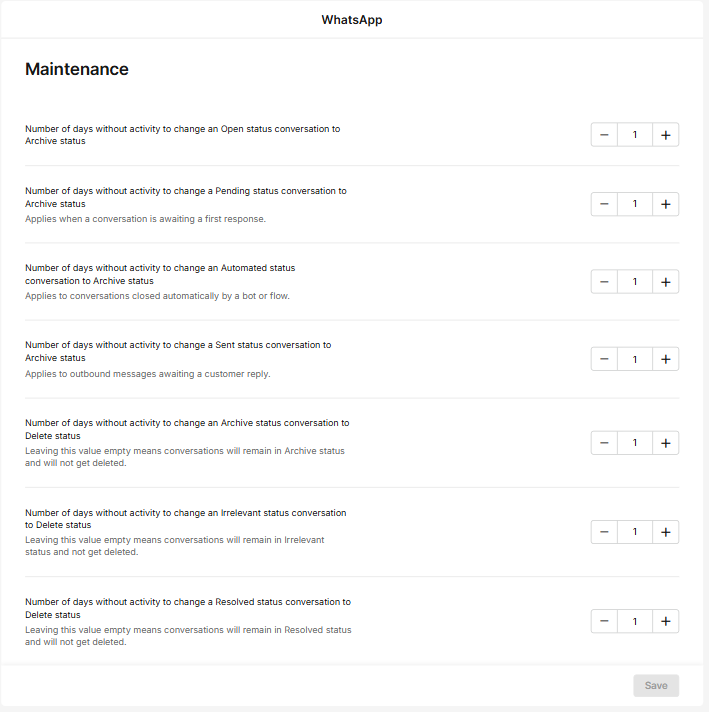
Number of days without activity to change an Open status conversation to Archive status
Number of days without activity to change a Pending status conversation to Archive status
Number of days without activity to change an Automated status conversation to Archive status
Number of days without activity to change a Sent status conversation to Archive status
Number of days without activity to change an Archive status conversation to Delete status - Leaving this value empty means conversations will remain in Archive status and will not get deleted.
Number of days without activity to change an Irrelevant status conversation to Delete status - Leaving this value empty means conversations will remain in Irrelevant status and will not get deleted.
Number of days without activity to change a Resolved status conversation to Delete status - Leaving this value empty means conversations will remain in Resolved status and will not get deleted.
Set additional aspects of maintenance, including permanently deleting conversations at the Maintenance settings page.
Click here for more information about this capability.
Participants
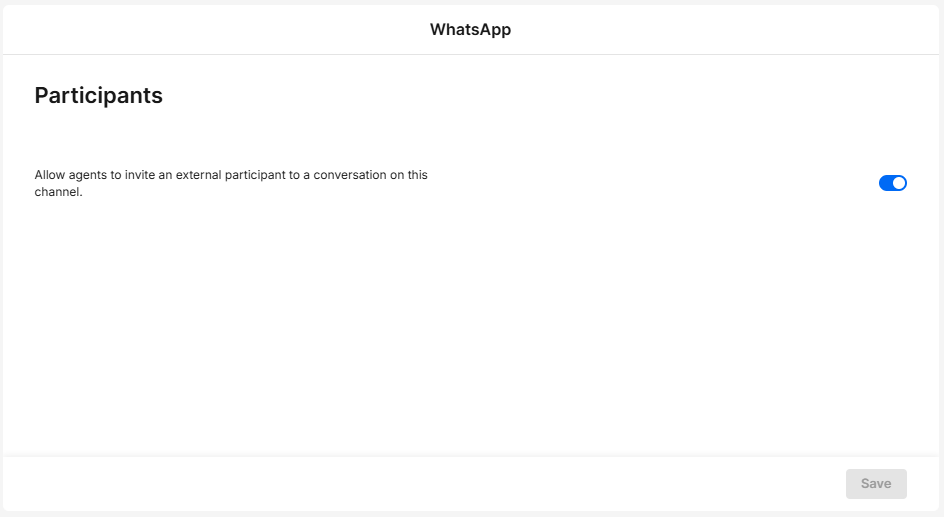
Allow agents to invite an external participant to a conversation on this channel – Toggle on/off to enable agents to add additional people to the conversation with the customer.
AI Assistant
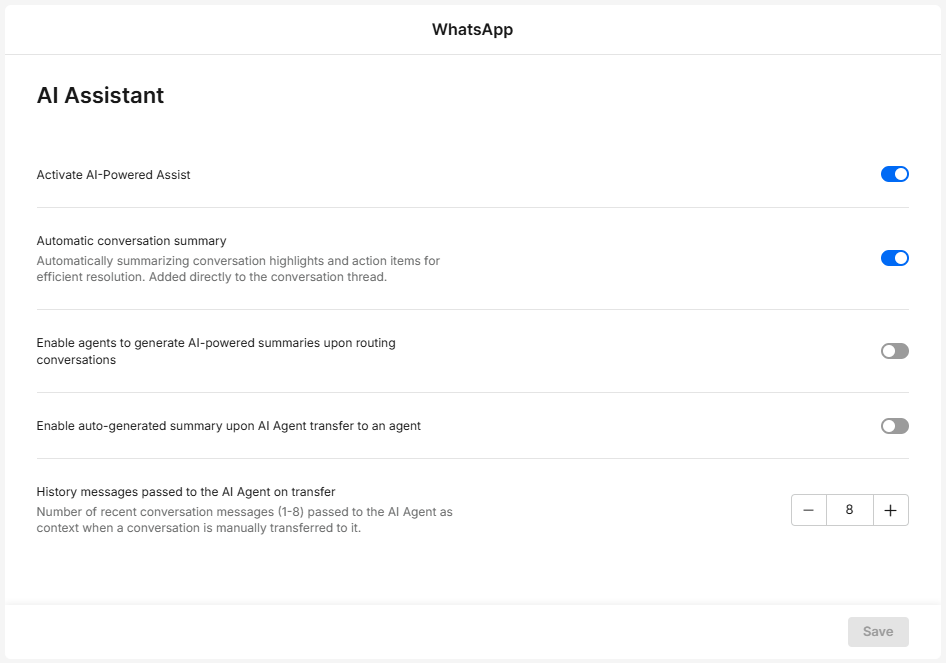
The AI capabilities require setting up the ERA AI in the module settings and setting up a replenishment account. If you have an active AI account with us, you may activate the AI capabilities for this channel here:
Activate AI-Powered Assist – Enable the AI capabilities in the inbox for the agents.
Automatic conversation summary – Have all conversations with a Resolved status be automatically summarized in the remark section of the inbox.
Enable agents to generate AI – powered summaries upon routing conversations
Enable auto-generated summary upon AI Agent transfer to an agent
History messages passed to the AI Agent on transfer – Number of recent conversation messages (1-8) passed to the AI Agent as context when a conversation is manually transferred to it.
Click here for more information about this topic.